Copyright © 2020 DASAN Zhone Solutions Document Number: 830-04383-01
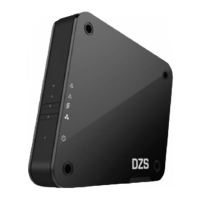
MESH-2100-GE
Quick Installation Instructions
Document Number: 830-04383-01
September 2020
Package Contents:
• 1 x MESH-2100-GE
• 1 x Quick Install Guide
• 1 x Power supply
Installation
For installations with more than one MESH-2100-GE, select
one unit to be used as the main MESH controller and follow the
instructions presented on the current document.
1. Mounting
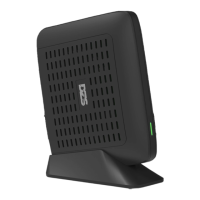
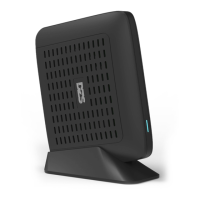
The MESH-2100-GE may be mounted on flat surfaces
such as a desktop. The MESH-2100-GE is equipped with
an extendable base to enhance stability.
2. Connect Power
a. Plug the round two pin 12V DC power connector of
power converter into the MESH-2100-GE power port
b. Plug the input of power converter into a live AC outlet
c. Verify that the POWER LED on the MESH-2100-GE
is solid white indicating local power is on and voltage
is good
See MESH-2100-GE LED Behavior for a complete
description of the LEDs.
3. Configuring SSID and Wi-Fi Key (Optional)
This step is optional. Each MESH-2100-GE comes with a
set of default Wi-Fi SSID and passphrase located on the
bottom information label. If using the defaults, step 3 (this
step) may be skipped.
a. Power up the MESH-2100-GE as described in the
previous step, Connect Power. This is the main
MESH controller
b. Use a UTP cable between MESH-2100-GE Ethernet
ports and a PC Ethernet port
c. Configure a fixed IP address on your PC, for example
192.168.1.101 (for detailed instructions refer to your
operating system documentation; for Windows OS fol-
low these instructions https://support.microsoft.com/
en-us/help/15089/windows-change-tcp-ip-settings)
d. Open a web browser and input http://192.168.1.100
e. When prompted for credentials enter "admin" as user
and for password "DZSXXXXXXXXX" where
"XXXXXXXXX" is the 9-digit serial number found on
the unit label
f. Navigate to 5GHz Wi-Fi > Config
g. Change SSID
h. Change Password
i. Click Save
j. If needed repeat for 2.4Ghz Wi-Fi
NOTE: by default, when changing the configuration of
the 5GHz radio, the configuration of the SSID and
passphrase will be replicated on all radios and all ac-
cess points forming part of the MESH ecosystem.


 To Next Page
 Need help?
 General