EasyManua.ls Logo

DZS 1764WC - User Manual

DZS 1764WC
9 pages
Print Icon
To Next Page IconTo Next Page
Loading...
1
1764WC
WiFi-6 Wireless Router
Quick Start Guide
Question and Answer IconNeed help?

Do you have a question about the DZS 1764WC and is the answer not in the manual?

Summary

Product Overview

1764 WC as Single Router

Configuration guide for the 1764WC as a default AP without Mesh.

1764 WC-DUO as Mesh Router Set

Setup instructions for the 1764WC-DUO dual-AP mesh system.

Product Hardware Description

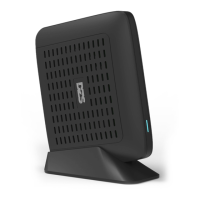
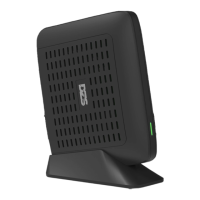
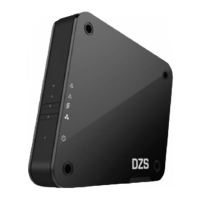
Product Appearance Description

Visual overview of the router's physical features and port layout.

Button Description

Details the functionality of each physical button on the device.

LED Description

Explains the status indicators and their meanings.

Single Router Setup Steps

Router Connection Diagram and Notes

Illustrates connection and provides notes for single router setup and device connectivity.

Mesh Setup Steps

Option 1: Wireless Networking

Step-by-step guide for mesh setup using a wireless connection method.

Option 2: Wired Networking

Step-by-step guide for mesh setup using a wired Ethernet connection method.

Management Methods

HTTP Management

Accessing and using the router's web interface for configuration.

DZS Router APP Management

Utilizing the mobile application for router control and accessing resources.

Frequently Asked Questions

Internet Connectivity Issues

Troubleshooting common problems related to internet access.

Device Reset Procedure

Instructions on how to restore the router to its factory default settings.

Mesh Pairing Troubleshooting

Solutions for accessing the satellite AP management page if mesh pairing fails.

Network Expansion

Guidance on adding more access points to an existing mesh network.

FCC Warning

Overview

This document provides a Quick Start Guide for the DZS 1764WC WiFi-6 Wireless Router, and the 1764WC-DUO Mesh Router Set. It covers product overview, hardware description, setup steps for single router and mesh configurations, management methods, frequently asked questions, and FCC warnings.

Function Description

The DZS 1764WC is a WiFi-6 Wireless Router. By default, the 1764WC operates as a standalone Access Point (AP) without Mesh functionality. For single router setups, users should refer to the "SINGLE ROUTER SETUP STEPS."

The DZS 1764WC-DUO is a Mesh Router Set, comprising two APs: a Main AP and a Satellite AP. These are distinguished by labels on the back of the devices. For mesh configurations, users need to follow both the "SINGLE ROUTER SETUP STEPS" for the Main AP and the "MESH SETUP STEPS" for the Satellite AP.

The router facilitates internet access by connecting to a DSL/PON/Cable Gateway via its WAN port. It supports both wired and wireless connections for client devices. Wired devices can connect directly to the LAN ports, while wireless devices can connect using the network name (SSID) and password provided on the sticker on the back of the router.

In a mesh setup, the Main AP connects to the internet gateway, and the Satellite AP extends the wireless coverage. The mesh network can be established either wirelessly or via a wired connection between the Main AP and Satellite AP.

Important Technical Specifications

While specific numerical technical specifications like data rates or processor details are not explicitly listed, the document highlights several functional aspects:

  • Wireless Standard: WiFi-6.
  • Operating Modes: Single Router (AP) and Mesh Router Set (Main AP + Satellite AP).
  • Connectivity: WAN port for internet uplink (DSL/PON/Cable Gateway), multiple LAN ports for wired devices.
  • LED Indicators: The device features several LED indicators to convey its status:
    • Dark: No Power.
    • Steady Red: Powering up.
    • Blinking Red: No network cable connected (WAN port) or issues with Satellite AP (reboot/restore needed).
    • Blinking Green: Network connection in progress (WAN) or adjustment needed for Satellite AP distance.
    • Steady Green: Functioning normally, internet access available, or Mesh pairing successful.
    • Blinking Blue: WPS or Mesh pairing in progress.
    • Steady Blue: Pairing successful.
  • Buttons:
    • WPS Button: Initiates the WPS process for easy wireless device connection.
    • Reset Button:
      • Short press (1 second): Resets the router.
      • Long press (5 seconds or longer): Restores factory default settings. This operation should be performed when the LED is Blinking Green/Steady Green.
    • ON/OFF Button: Powers the router on or off.

Usage Features

  • Easy Setup for Single Router: Connect the DSL/PON/Cable Gateway to the WAN port. The LED will turn steady green upon successful internet connection. Wired devices connect to LAN ports, and wireless devices use the SSID/password from the device sticker.
  • Flexible Mesh Setup (1764WC-DUO):
    • Option 1: Wireless Networking:
      1. Set up the Main AP as a single router.
      2. Place the Satellite AP in a suitable location.
      3. Power on the Satellite AP and wait approximately 5 minutes for the LED to turn steady green, indicating successful mesh networking.
      • Optimization Tip: Place the Satellite AP to minimize barriers (walls, doors, floors) between it and the Main AP, ideally with one barrier in between.
    • Option 2: Wired Networking:
      1. Set up the Main AP as a single router.
      2. Place the Satellite AP based on cable deployment.
      3. Connect the Satellite AP to a LAN port of the Main AP using a network cable.
      4. Power on the Satellite AP. The LED turning steady green indicates successful mesh networking.
  • SSID and Password Consistency: After successful Main AP and Satellite AP pairing, the SSID and Password for the mesh network will be the same as those shown on the backside of the Main AP.
  • Management Methods:
    • HTTP Web Interface: Access the router's web management page via a browser by entering http://192.168.0.1 or http://azoresrouter.com. This allows modification of WAN configuration, router settings, single SSID for 2.4G and 5G networks, guest Wi-Fi network, and viewing wireless network status.
    • DZS Router APP: Download the "Azores Router" mobile application. A QR code is provided to download the electronic user manual, which contains more management instructions.
  • Network Expansion: For users who have already purchased a Mesh Router set and wish to expand the network further with additional APs, it is possible to purchase more Azores routers. The electronic user manual (accessible via QR code) provides customized mesh network operation methods for expansion.

Maintenance Features

  • Troubleshooting Internet Access (Q1):
    • Check WAN port connection if LED is Blinking Red.
    • Verify WAN settings and Broadband Gateway service if LED is Blinking Green.
    • Reboot or restore Satellite AP if its LED is Blinking Red.
    • Adjust distance between Main AP and Satellite AP and re-operate mesh setup if Satellite AP LED is Blinking Green.
    • Reboot computer/smartphone and check IP address if LED is Steady Green.
  • Restoring to Default Settings (Q2): Use a needle to push the "Reset" hole on the back of the device. Hold for 5 seconds until the LED turns off, then release. The device will restart in about 2 minutes.
  • Accessing Satellite AP GUI (Q3): If mesh pairing fails, manually set the PC's IP address to 192.168.0.X (e.g., 192.168.0.100) with subnet mask 255.255.255.0. Then, open a browser and enter http://192.168.0.254 to access the Satellite AP's web management page.
  • FCC Compliance: The device complies with FCC Rules part 15, ensuring it does not cause harmful interference and accepts any received interference. Users are advised against unauthorized modifications. Troubleshooting steps for interference include reorienting antennas, increasing separation, connecting to different outlets, and consulting technicians.
  • Radiation Exposure: The equipment complies with FCC radiation exposure limits for an uncontrolled environment and should be installed and operated with a minimum distance of 20cm between the radiator and the user's body.

DZS 1764WC Specifications

General IconGeneral
BrandDZS
Model1764WC
CategoryWireless Router
LanguageEnglish

Related product manuals