© 2020 E2 Scientific Corp. Version 5.20.2020. All rights reserved.
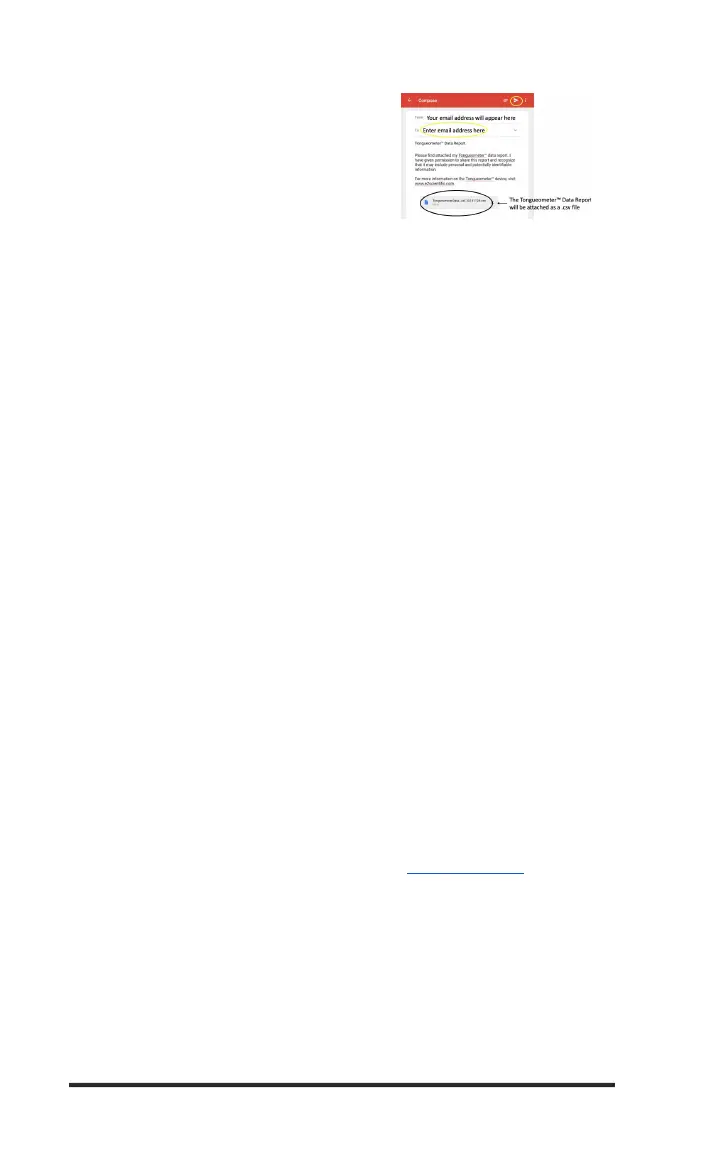
o Once you click “SHARE MY REPORT,” a
screen will appear with a drafted email that
includes your Tongueometer Data Report.
Enter the email address to whom you wish
to send your data and click the “Send”
icon.
o The Data Report will be sent as a .csv file
Bluetooth® Connectivity: If you have difficulty connecting the Tongueometer to your phone or tablet, follow these
steps. For additional assistance, please visit the FAQ webpage at e2scientific.com for detailed tutorials. As
technology is continuously changing, we will continue to update the online manual to provide simple directions for
connecting your device.
1. Assure you have downloaded the correct app; particularly if using an Android device. The
first Tongueometer model required an OTG cable connecting the phone/tablet. This app icon
is black. The app icon for the Bluetooth® model is blue. If you are uncertain, contact E2
Scientific Corp at info@e2scientific.com.
2. For the Bluetooth® model, make sure that your phone/tablet has Bluetooth®
capabilities turned on. To check, go into your phone/tablet “Settings” -> “Bluetooth” ->
“On.”
3. Assure that your external battery device is sufficiently charged.
4. Assure that your iOS and/or Android operating systems are updated.
5. To Reset the Bluetooth® Pairing:
1. Force close your Tongueometer app
2. Disconnect external battery or wall charger from the Tongueometer device.
3. Go into “Settings” -> “Bluetooth” -> “Tongueometer” and then select “Unpair Device” (Android) or
“Forget this Device” (iOS).
4. Reconnect the external battery or wall charger.
5. Re-open the Tongueometer app and click “Connect Tongueometer”
Sleep Mode for OTG Model: Please note that if your Android enters “sleep mode” (where the screen turns
off or enters “power saving mode”), the application may no longer receive input from the Tongueometer
device. Solutions to this problem:
1. Unplug the Tongueometer device from the Android device. Then, plug it back in. You do not
need to exit the application.
2. Force stop the application. Then, reopen the application by pressing the application icon.
3. Modify your “Power Saving Mode” in your Android device settings so that the Android device
does not enter power saving mode as quickly.
Warranty & Return Policy
It is important to us that our products meet the highest standards. If Tongueometer device, bulbs, and/or
tablet is received in a damaged condition, or if it is found to be defective in any way, we will immediately
send a replacement upon return of damaged products. Please note: Due to the personal nature of this
product we cannot offer refunds for any reason. If you believe your Tongueometer arrived damaged or
becomes defective within the first year of purchase, please contact us as soon as possible. You can reach
us by sending an email explaining the nature of the problem to info@e2scientific.com. We will work to
troubleshoot the issue and provide detailed return instructions at that time.
All merchandise must be returned in its original condition, including the original packaging, manuals, and all
accessories. We are unable to accept returns if the packaging is not in its original condition. Be sure to send it in a
box that will protect the original package from being damaged by the shipping carrier.
Changes or modifications not approved by E2 Scientific Corp could void the user’s authority to operate the
Tongueometer. Note: This equipment has been tested and found to comply with the limits for Class B digital device,
pursuant to part 15 of the FCC Rules.


 To Next Page
 Loading...