EasyManua.ls Logo

Eagle Eye Networks DD07 - 5. Add Camera to VMS

Default Icon
5 pages
Print Icon
To Next Page IconTo Next Page
To Previous Page IconTo Previous Page
Loading...
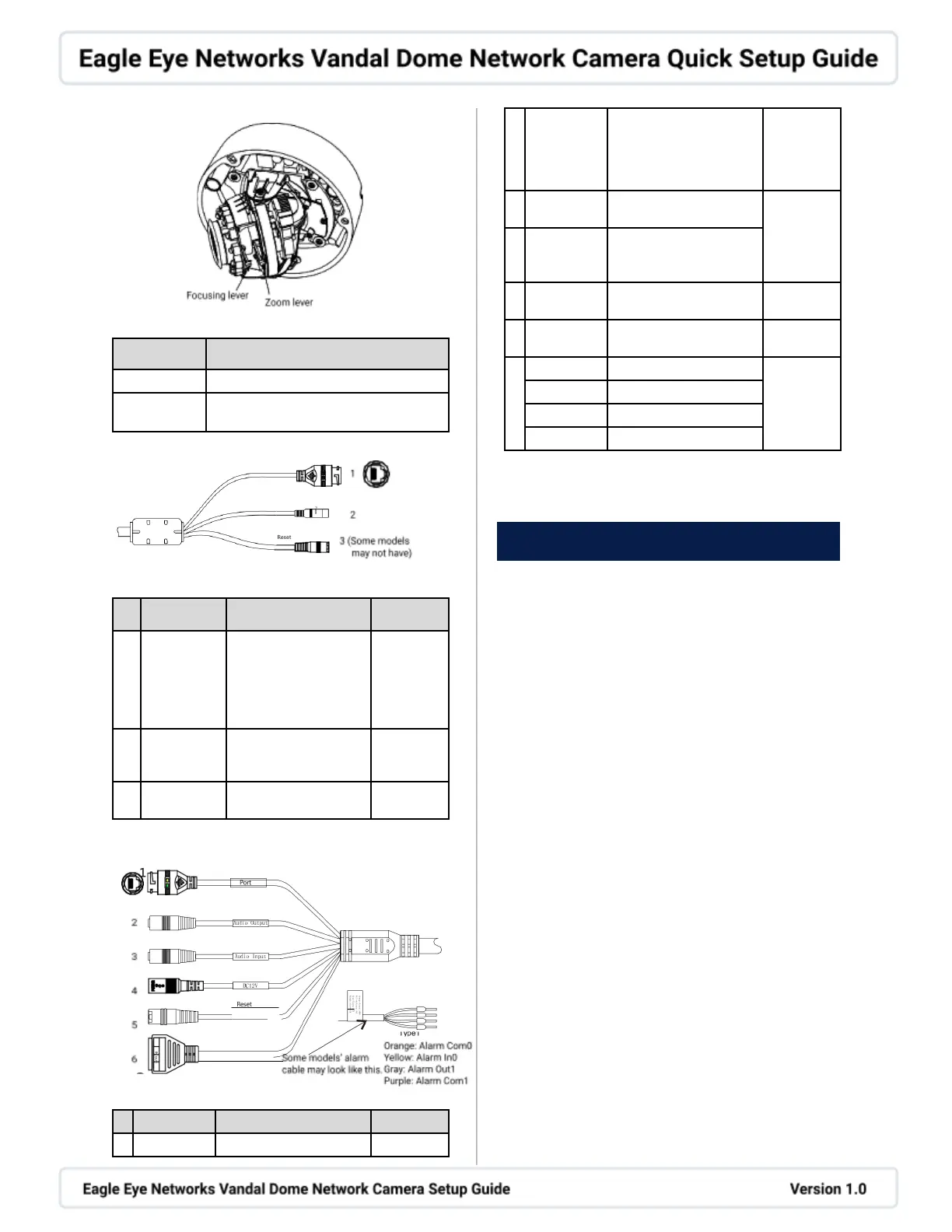
Figure 4-1: Lens Adjustment
Table 4-1: Lens Adjustment Description
Port Name
Description
Focusing lever
Adjust the focus of lens, default is lock.
Zoom level
Adjust the lens focal length, default is
lock.
Figure 4-2: Multihead Cable 1
Table 4-2: Multihead Cable 1 Description
Cable
Description
Comment
Network
Access Port
Connects to a standard
Ethernet cable
Green light: Network
connection is normal
Yellow light: Data is
being transmitted
Supports
PoE
Power Supply
(DC 12V)
Connects to a 12V direct
current (DC) power
supply
Reset Button
Long press 5 seconds to
restore original settings
Figure 4-3: Multihead Cable 2
Table 4-3: Multihead Cable 2 Description
ID
Cable
Description
Comment
1
Network
Connects to a standard
Supports
Access Port
Ethernet cable
Green light: Network
connection is normal
Yellow light: Data is being
transmitted
PoE
2
Audio Output
Connects to an external
audio device (speaker)
Applies to
cameras
with audio
function
3
Audio Input
Receives an analog audio
signal from devices such
as a microphone.
4
Reset Button
Long press 5 seconds to
restore original settings
5
Power Supply
(DC 12V)
Connects to a 12V DC
power supply
6
G
Alarm output COM
Applied for
alarm
function
OUT
Alarm output terminal
G
Alarm input COM
IN
Alarm input terminal
5. Add Camera to VMS
Change IP Address to Static
There are some situations where an IP address
needs to be static and/or the camera password
changed. These steps are optional and do not
apply to everyone.
Camera Login
1. Open an Internet browser, enter the IP
address of the camera (default value:
192.168.0.120) in the address box, and press
Enter.
2. Input the username and password and click
the login button (default username and
password are both admin). Change the
password after logging in for the first time to
ensure system security. It is recommended to
restart the device after modifying the
password.
Set Static IP
1. After logging in to the camera, navigate to
Configuration > Device > Local Network.
2. Input the desired IP address in the IP Address
box and click Apply. After changing the IP
address setting, use the new IP address to
log in to the web interface in the future.

Related product manuals