
EasyManua.ls Logo

Ecleris PROCAM HD - User Manual

Ecleris PROCAM HD
44 pages
Print Icon
To Next Page IconTo Next Page
Loading...
USER MANUAL
PROCAM HD
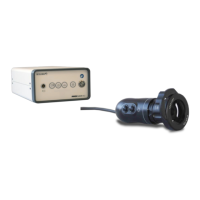
CAMERA AND POWER SUPPLY
ABOUT THIS MANUAL
Version: 2023.07
Year: 2023
Language: English
All the rights to this manual are reserved, especially reproduction, publication and translation rights. No portion of this manual may be
reproduced by no means (photocopy, microfilm or other methods) without previous written authorization from ECLERIS. Neither can it
be reproduced, multiplied or published through any electronic data processing form.
The information contained in this manual may be modified or broaden without previous notification, without it representing any
responsibility to ECLERIS.
ECLERIS USA
11801 NW 100th Rd
Suite 17
Medley, FL 33178, U.S.A.
Phone: +1 786 483 7490
CMC Medical Devices & Drugs S.L.
C/ Horacio Lengo Nº18, CP29006, Málaga-
Spain
info@cmcmedicaldevices.com

Table of Contents

Other manuals for Ecleris PROCAM HD

Questions and Answers

  • R
    robbinschadSep 5, 2025
    What causes a blurred image on Ecleris Medical Equipment and how to fix it?
    • C
      Casey HaleSep 5, 2025
      A blurred image on your Ecleris Medical Equipment can be due to: * Lack of focus adjustment of the external optical system. Perform the focus adjustment of the optical system. * Check if the videocamera has the adapter ring. * If you don’t use flexible scope, deactivate FIBERSCOPE function by pressing the FIBERCOSPE button.
  • L
    Lisa YuNov 21, 2025
    What to do if the Ecleris Power Supply green light is on but there is no image?
    • A
      Anthony WillisNov 22, 2025
      If the green pilot light on your Ecleris Power Supply is on but there's no image on the screen, consider the following: 1. Verify that both ends of the cord are completely plugged into the connector to ensure a proper connection. 2. Turn off the monitor, and turn it on again after 10 seconds. Turn off the PROCAM HD console and turn it on again after 10 seconds. Change the video output at the PROCAM HD console. If the monitor has more than one video input, change the connection to another input. 3. Ensure the monitor is turned on. 4. Make sure the monitor is properly connected to the PROCAM HD console using the provided cord. 5. Set the monitor in HDMI / DVI / VGA / CVBS video input. Set the monitor in HDMI / DVI / VGA or SDI / CVBS video input. 6. Check that the camera is connected ...
  • K
    Kristine WilliamsSep 18, 2025
    How to adjust colors on Ecleris Digital Camera?
    • T
      Troy RogersSep 18, 2025
      If the image from your Ecleris Digital Camera lacks real colors, you may need to adjust the White Balance.
  • J
    James FloresSep 17, 2025
    How to fix a blurred image on Ecleris Digital Camera?
    • M
      Melanie StewartSep 17, 2025
      If the image from your Ecleris Digital Camera is blurred, make sure to adjust the focus of the external optical system. If you are not using a flexible scope, try deactivating the Anti-Moiré function.
  • S
    stokestylerSep 15, 2025
    Why is the image too dark on my Ecleris Digital Camera?
    • J
      Jeffrey LoweSep 15, 2025
      If the image from your Ecleris Digital Camera is too dark, increase the intensity of illumination from the light source. Also, verify that the video monitor is configured with adequate levels of brightness.
  • J
    Jonathan GutierrezSep 13, 2025
    Why is the image too bright on my Ecleris Digital Camera?
    • D
      Dana BrownSep 13, 2025
      If the image from your Ecleris Digital Camera appears too bright, calibrate the image levels of the monitor properly. You can also adjust the image by changing the levels of the Window Function.
  • J
    Joseph GarrisonSep 10, 2025
    How to fix an Ecleris Digital Camera that will not turn on?
    • A
      Adam ScottSep 10, 2025
      If your Ecleris Digital Camera isn't turning on, first, ensure it's properly connected to the electric power supply. If it is connected, the power cable might be damaged and require replacement. Also, check the plug for any damage and replace it if necessary. Finally, the fuse may be damaged or burnt, and replacing it could solve the issue.
  • A
    andrew79Sep 8, 2025
    Why is the image without real colors on my Ecleris Medical Equipment, and how can I fix it?
    • J
      Joshua AvilaSep 8, 2025
      If the image on your Ecleris Medical Equipment lacks real colors, it's likely due to an incorrect white balance. Adjust the white balance to resolve this issue.
  • M
    Mr. James StephensSep 7, 2025
    What causes an image to be too bright on Ecleris Medical Equipment?
    • W
      Walter PayneSep 7, 2025
      If the image on your Ecleris Medical Equipment is too bright: * Calibrate the image levels of the monitor properly. * Select the appropriate specialty by pressing the corresponding button.
  • M
    Mike NguyenAug 21, 2025
    How to fix Ecleris Power Supply when it will not turn on?
    • J
      joshua05Aug 21, 2025
      If your Ecleris Power Supply is not turning on, here are a few things to check: * Ensure the power cable is properly connected to the electric power supply. * Inspect the power cable for any damage and replace it if necessary. * Check the plug for any signs of damage and replace it if needed. * Examine the fuse to see if it is damaged or burnt, and replace it if it is.

Summary

1. SYMBOLS

2. SAFETY INFORMATION

3. DESCRIPTION

3.1 INTENDED USE

Specifies the intended medical applications and diagnostic uses for the device.

3.2 INTENDED USER

Identifies the qualified medical professionals who should operate the equipment.

3.3 DESCRIPTION AND FEATURES

Details the camera's CMOS chip, image processing capabilities, and ergonomic design.

3.4 COMPONENTS

3.4.1 CONSOLE

Details the main console unit, including its rear panel connections and layout.

3.4.2 PROCAM CAMERA

3.4.2.1 VI360 R01 y R02

Details the specific buttons on the VI360 R01/R02 camera model.

3.4.2.2 VI360 R03 OR LATER

Details the specific buttons on the VI360 R03 or later camera model.

4. INSTALLATION

4.1 REVISION

Outlines pre-operation checks and recommendations after installation.

5. OPERATION

5.1 CONSOLE FUNCTIONS

Explains the functions and operations controlled via the console unit.

5.1.1 WHITE BALANCE

Details the procedure for setting the white balance for accurate color reproduction.

5.1.2 SPECIALTY SELECTION FUNCTION

Describes how to select predefined image configurations for different applications.

5.1.3 USB port

Explains the use of the USB port for data storage and connectivity.

5.1.4 TAKE A PICTURE FUNCTION

Details how to capture still images using the camera system.

5.1.5 RECORD VIDEO FUNCTION

Explains how to record video clips using the PROCAM HD system.

5.1.6 ADVANCED MENU FUNCTION

Provides access to advanced configuration settings for image and video parameters.

5.2 CAMERA FUNCTIONS

Details the functions directly controllable from the camera handheld unit.

5.2.1 ZOOM FUNCTION

Explains the zoom levels available for image magnification.

5.2.2 BRIGHTNESS FUNCTION

Describes how to adjust the image brightness levels for optimal viewing.

5.2.3 PHOTO FUNCTION

Details how to capture still images using the camera handheld.

6. MAINTENANCE

6.1 CLEANING

Provides instructions for cleaning the external surfaces of the device.

6.1.1 EXTERNAL SURFACE

Details the correct methods and materials for cleaning the device's exterior.

6.2 ELECTRICAL CONNECTIONS

Covers checks for the condition of electrical components and connections.

6.3 CHANGING THE FUSE

Explains the procedure for safely replacing fuses in the console.

7. TECHNICAL SPECIFICATIONS

7.1 DIMMENSIONS OF HC120 G2;1 R01

Provides the physical dimensions of the HC120G2/1 R01 console model.

7.2 DIMMENSIONS OF HC120 G2;1 R02 AND R03

Provides the physical dimensions of the HC120G2/1 R02 and R03 console models.

7.3 DIMMENSIONS OF HC120 G2;1 R04 OR LATER

Provides the physical dimensions for HC120G2/1 R04 and subsequent console models.

8. TROUBLESHOOTING

9. TECHNICAL SERVICE

10. WARRANTY

Ecleris PROCAM HD Specifications

General IconGeneral
BrandEcleris
ModelPROCAM HD
CategoryPower Supply
LanguageEnglish