Thank you for your purchase!
Like our product?
Leave a review on your favorite
retailer website or amazon.com
Having problems?
Let us know how we can help.
Call 1-800-654-8483 between
7AM-8PM, M-F, Central Time.
Discover more
innovative lighting at
byjasco.com/lighting
Instructions made easy
Scan code or visit byjasco.com/70643i
Read instructions or watch
easy-to-follow video.
Register your product
Scan code or visit byjasco.com/deals
Receive exclusive deals and
register your product.
App Store is a service mark of Apple Inc. Google, Google Play and
Google Home are trademarks of Google LLC. Amazon, Alexa and all
related logos are trademarks of Amazon.com, Inc. or its affiliates.
Patented and patent pending. For more information, visit
https://byjasco.com/patents
MADE IN VIETNAM
Distributed by Jasco Products Company LLC,
10 E. Memorial Rd., Oklahoma City, OK 73114.
This Jasco product comes with a 1-year limited warranty. Visit
www.byjasco.com for warranty details.
Questions? Contact our U.S.-based Consumer Care at
1-800-654-8483 between 7AM–8PM, M–F, Central Time.
100%
recyclable
Separate
paper
from plastic
before
recycling
byjasco.com/recycle
paper made from 25%
post consumer waste
Galaxy Wave
smart projector
Power Button
Press to turn ON/OFF — will return to last setting used when turned
back on.
• Pairing Mode Reset - Press and hold the power button until the
dome flashes to enter pairing mode.
• 6hr Timeout – The projected image automatically turns off after 6
hours — lasers and effects will remain on.
Color Wave
Press to change the color of the wave effect. Press and hold to
adjust brightness — the dome will flash when the highest/lowest
level has been reached. (See Wave Button Guide)
Sleep Sounds
Press to cycle through each sound. Press and hold for volume
control — the dome will flash when the highest/lowest level has
been reached. (See Sleep Sounds Guide)
Preset Modes
Press to change between 10 preset combinations of effects and
sounds. (See Presets in app)
Wave Rotation Speed
Press to change between pause, slow, medium-slow,
medium-fast, fast. Press and hold to reset to factory settings —
the dome will flash when factory settings are reset. App settings
will not reset and device will still stay connected to your phone.
Projected Image and Lasers
Press to cycle through each image combination. Use the scroll
wheel on the side of the projector to change the image. Press and
hold to adjust the laser’s brightness — the dome will flash when the
highest/lowest level has been reached. (See Projection and Laser
Button Guide)
Power Button
Color Wave Projector
Projected Image and Lasers
Preset Modes
Color Wave
Image Projector
Laser
Wave Rotation
Sleep Sounds
Operation
70643 man v1, 07/22
Sleep Sounds Guide
Projected Image and Laser Guide
Color Wave Guide
Order Sound Description
1 Babbling brook
2 Campfire
3 Ocean waves
4 Nature
5 Thunderstorm
6 Waterfall
7 Gentle rain
8 White noise
9 Relaxation
10 Meditation
11 Lullaby
12 Twinkle
13 OFF
Order Projected Image
1 Image, laser and wave
2 Laser and wave
3 Wave only
4 Laser fade and wave
5 Laser fade
6 Laser only
7 Image only
8 Image and wave
9 Image and laser
10 OFF
Order Wave Description
1
Red
2
Green
3
Blue
4
Orange
5
Light blue
6
Purple
7
Pink
8
Prism (all colors but white)
9
Blue, red, green
10
Purple, green, orange
11
Pink, red, orange
12
Purple, blue, light blue
13
Pink, green, orange
14
Pink, red, green, blue, orange
15
Pink, red, purple
16
Light blue, green, blue
17
Pink, orange, light blue, purple
The Food and Drug Administration
USB-C Power
Plug USB-C end of
power cable into
product and USB-A end
into 5V, 2A power source
(adapter not included).
Create an account in
the Enbrighten app
Plug in the smart Galaxy
Wave Projector
Setup and installation
1. 2.
1
Scan the QR code or search
Enbrighten on the Apple App Store
or on Google Play.
Works with Amazon Alexa or Google
Assistant-enabled devices
Select "Support" in the Enbrighten app or follow
the steps in the Amazon Alexa or Google Home
app to connect your Enbrighten account
Voice control
Setup and installation
2
3
4
Add devices, control the smart
Galaxy Wave Projector from
anywhere and create schedules
Remotely operate your smart Galaxy Wave Projector with the
easy-to-use Enbrighten app. Follow the available instructions
and resources to set up your smart device.
Manual Operation
IMPORTANT: DO NOT stare or look directly into the LED dome, laser emitter
or image projector as this can be hazardous and can damage your eyes.
Projector Placement
• You can use the geometric design of the smart projector to point the
light where your want.
• You can set the projector onto the included anti-skid pad. Peel off the
pad’s plastic backing and stick it onto the surface were the projector will
be set. Make sure the surface is clean and dry.
• The lower the projector is in the room, the larger the projected image
will be.
Model # 70643, 70643-1, 70643-DK1

 Need help?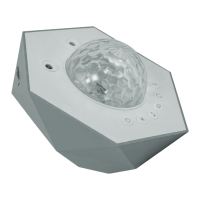

 To Next Page
 General