20EN
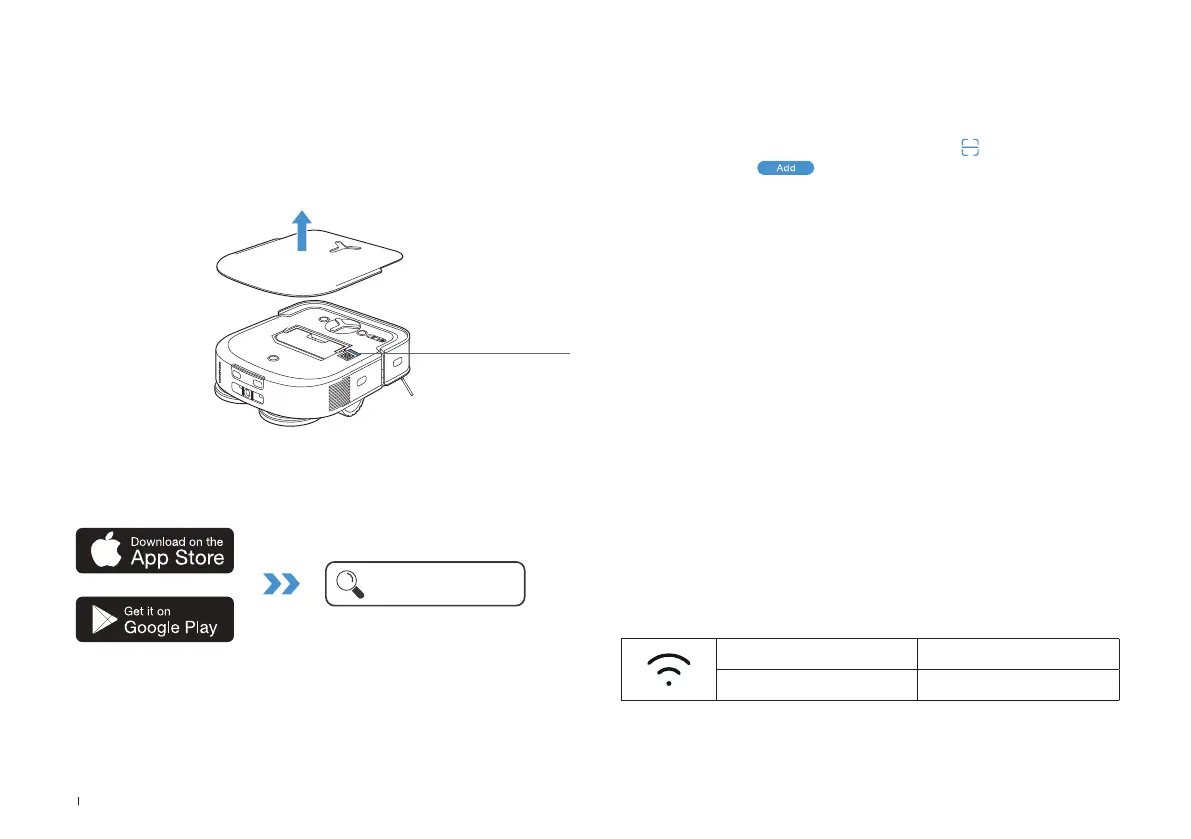
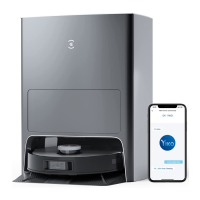
2� Search the ECOVACS HOME to download the App�
ECOVACS HOME
1� Scan the QR Code under the Top Cover to download the App�
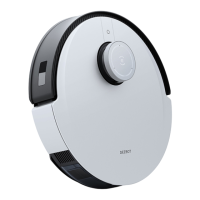
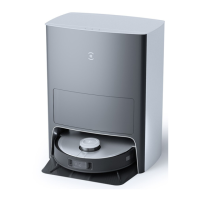
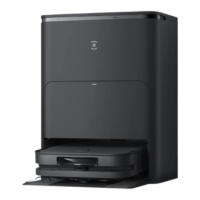
To enjoy all available features, it is recommended to control your
DEEBOT via the ECOVACS HOME App.
Under the Top Cover
DOWNLOAD THE ECOVACS HOME APP
Wi-Fi Indicator Light
Flashing Blue Light Disconnected to Wi-Fi
Solid Blue Light Connected to Wi-Fi
1. Via Bluetooth:
Turn on the DEEBOT and mobile phone Bluetooth� Allow the App to
obtain mobile phone Bluetooth permission� Tap
to scan the QR Code
on DEEBOT or tap
in the App to find nearby DEEBOT�
2. Via Wi-Fi:
You can connect DEEBOT with App via Wi-Fi by ignoring Bluetooth in
the App�
Note: DEEBOT does not support 5GHz network� Please connect via
Bluetooth for a better experience�
Wi-Fi Network Requirements:
• You are using a 2�4GHz or 2�4/5 GHz mixed network�
• Your router supports 802�11b/g/n and IPv4 protocol�
• Do not use a VPN (Virtual Private Network) or Proxy Server�
• Do not use a hidden network�
• WPA and WPA2 using TKIP, PSK, AES/CCMP encryption�
• WEP EAP (Enterprise Authentication Protocol) is not supported�
• Use Wi-Fi channels 1-11 in North America and channels 1-13 outside
North America (refer to local regulatory agency)�
• If you are using a network extender/repeater, the network name (SSID)
and password are the same as your primary network�
• Please enable the WPA2 on your router�
CONNECT DEEBOT WITH APP




 To Next Page