Need help?
Do you have a question about the ECS A880GM-M7 and is the answer not in the manual?
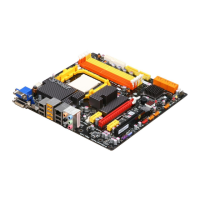
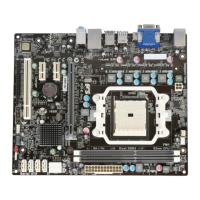
Welcome and overview of the A880GM-M7 motherboard's features.
Details the AM3 socket and supported AMD Phenom™ II processors.
Explains the AMD 880G Northbridge and SB710 Southbridge chipsets.
Covers DDR3 SDRAM support, including speeds and capacity.
Describes the onboard audio features and codec.
Details the features of the onboard LAN controller.
Lists the available expansion slots like PCI Express and PCI.
Describes the rear panel I/O ports and internal connectors.
Explains the AMI BIOS features for system configuration.
Provides a comprehensive list of motherboard hardware specifications.
Essential safety guidelines to follow before and during motherboard installation.
Guidance on selecting a compatible computer case for the motherboard.
Step-by-step instructions for physically mounting the motherboard in a PC case.
Explains how to set and check motherboard jumpers for system configuration.
Detailed guide for installing the CPU into the motherboard socket.
Instructions for installing DDR3 SDRAM modules into the motherboard slots.
Details on installing add-on cards into PCI Express and PCI slots.
Information on connecting front panel audio and SPDIF out headers.
Details on Serial ATA, USB headers, audio input, and chassis intrusion connectors.
Guide for installing hard drives and CD-ROM drives using IDE and SATA connectors.
Explains how to connect external devices to the motherboard's I/O ports.
Instructions for connecting power supply, fans, and front panel connectors.
Overview of the BIOS Setup Utility and its configuration capabilities.
Recommendations for using default BIOS settings and when to make changes.
Steps to access the BIOS Setup Utility during system startup.
Procedure for loading default BIOS settings, often after CMOS clear.
Explanation of keyboard keys used for navigating the BIOS setup menus.
Details on viewing and configuring basic system information like date, time, and storage devices.
Configuration options for CPU, chipset, peripherals, and power management in Advanced Setup.
Settings for configuring the motherboard's chipset for optimal performance.
Configuration options for onboard peripherals like IDE, SATA, Audio, and LAN.
Settings to manage system power states and wake-up events.
Configuration for PCI devices and Plug and Play (PnP) functionality.
Monitoring system voltages, temperatures, and fan speeds for hardware health.
Controls and settings for the motherboard's intelligent fan speed management.
Adjustments for CPU and system clock speeds, voltages, and frequencies.
Option to load optimized default settings for the BIOS.
Setting or changing a supervisor password to protect BIOS access.
Setting or changing a user password for limited BIOS access.
Saving BIOS changes and exiting the setup utility.
Discarding BIOS changes and exiting the setup utility.
Procedure for downloading and installing updated BIOS firmware.
Overview of the support software included on the DVD-ROM/CD-ROM.
Instructions for using the auto-install feature for drivers and software.
Step-by-step guide to install device drivers and motherboard software.
Alternative method for installing drivers if the auto-install fails.
Information on the provided utility software and licensing terms.
Procedure for configuring HDMI audio output in Windows XP.
Steps to configure HDMI audio output settings in Windows Vista.
Explanation of Hybrid Graphics technology for enhanced display performance.
Steps to enable Hybrid Graphics® by inserting a card, configuring BIOS, and using Catalyst Control Center.
Overview of eJIFFY, a fast boot Linux program for quick access.
Steps for installing eJIFFY via DVD and activating it in the BIOS.
How to switch eJIFFY display and keyboard languages.
How to access the eJIFFY operating system during boot-up.
Description of the main feature icons available in the eJIFFY menu.
Frequently asked questions and tips for using eJIFFY features.
Troubleshooting steps for issues encountered when first assembling the PC.
Steps to diagnose issues when the system shows no power and fans are inactive.
Troubleshooting steps for no video output despite power and fan activity.
Diagnosing and resolving sudden system shutdowns during the boot process.
Resolving boot issues that may arise after the PC has been used for a period.
Basic tips for maintaining the motherboard to ensure longevity and performance.
A visual guide to diagnose and solve common PC startup problems.
 General
| Form Factor | Micro ATX |
|---|---|
| Socket Type | AM3 |
| Chipset | AMD 760G |
| Memory Slots | 4 |
| Maximum Memory | 16GB |
| Storage Interface | 6 x SATA 3Gb/s |
| LAN | Realtek RTL8111DL Gigabit LAN |
| PS/2 | 1 x PS/2 Keyboard, 1 x PS/2 Mouse |
| IDE | 1 x IDE |
| Supported Memory Types | DDR3 |
| Expansion Slots | 1 x PCIe x16 |
| Video Outputs | VGA, DVI |
| RAID Support | RAID 0, RAID 1, RAID 10 |


 To Next Page