EasyManua.ls Logo

Edge CS2 - User Manual

Edge CS2
9 pages
Print Icon
To Next Page IconTo Next Page
Loading...
Question and Answer IconNeed help?

Do you have a question about the Edge CS2 and is the answer not in the manual?

Summary

CS2;CTS2 Quick Install Instructions

Supplied Items

Lists all components included in the package for installation.

Step 1: Locate OBDII Port

Guides users to find the vehicle's OBDII port for connection.

Step 2: Connect;Route OBDII;HDMI Cable

Instructions on connecting and routing the main cable through the vehicle interior.

Step 3: Position Device

Details on how to position the device and prepare the windshield for mounting.

Step 4: Mount and OBDII;HDMI Cable

Instructions on attaching the mount to the device and connecting the HDMI cable.

Step 5: Position and Lock Device

Guides users on how to attach and securely lock the device onto the windshield.

Step 6: Viewing Placement

Advice on optimal placement and adjusting the viewing angle for the device.

Updating Your CS2;CTS2

Update Port Identification

Identifies the USB port used for updating the device software and calibration files.

CS2 Device Description and Layout

CS2 Layout Overview

Explains the main elements and their functions on the CS2 device screen.

Gauge Screen Elements

Details specific gauges and indicators shown on the device's display.

CTS2 Interface Navigation

Describes the functions of buttons, menus, and navigation elements on the CTS2.

CS2;CTS2 Accessories

Backup Camera & Custom Dash Pods

Overview of compatible backup cameras, EAS system, and custom dash pods.

Expandable Accessory System (EAS)

Details on the EAS for connecting multiple sensors and accessories.

Custom Dash Pods

Information on custom dash mounts for integrating the device into vehicle interiors.

Summary

CS2;CTS2 Quick Install Instructions

Supplied Items

Lists all components included in the package for installation.

Step 1: Locate OBDII Port

Guides users to find the vehicle's OBDII port for connection.

Step 2: Connect;Route OBDII;HDMI Cable

Instructions on connecting and routing the main cable through the vehicle interior.

Step 3: Position Device

Details on how to position the device and prepare the windshield for mounting.

Step 4: Mount and OBDII;HDMI Cable

Instructions on attaching the mount to the device and connecting the HDMI cable.

Step 5: Position and Lock Device

Guides users on how to attach and securely lock the device onto the windshield.

Step 6: Viewing Placement

Advice on optimal placement and adjusting the viewing angle for the device.

Updating Your CS2;CTS2

Update Port Identification

Identifies the USB port used for updating the device software and calibration files.

CS2 Device Description and Layout

CS2 Layout Overview

Explains the main elements and their functions on the CS2 device screen.

Gauge Screen Elements

Details specific gauges and indicators shown on the device's display.

CTS2 Interface Navigation

Describes the functions of buttons, menus, and navigation elements on the CTS2.

CS2;CTS2 Accessories

Backup Camera & Custom Dash Pods

Overview of compatible backup cameras, EAS system, and custom dash pods.

Expandable Accessory System (EAS)

Details on the EAS for connecting multiple sensors and accessories.

Custom Dash Pods

Information on custom dash mounts for integrating the device into vehicle interiors.

Overview

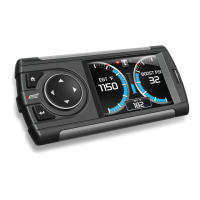
The provided manual describes the Edge CS2/CTS2 device, a vehicle performance monitor and accessory system designed to provide drivers with real-time data, performance tuning, and diagnostic capabilities. It comes in two main variants: the CS2 (button-operated) and the CTS2 (touchscreen).

Function Description

The Edge CS2/CTS2 device serves as a comprehensive vehicle monitoring and enhancement tool. Its primary functions include:

  • Real-time Data Display: It shows various engine parameters such as Intake Air Temperature (IAT), Engine Oil Temperature (EOT), Engine Coolant Temperature (ECT), Exhaust Gas Temperature (EGT), Boost Pressure (PSI), RPM, Vehicle Speed (MPH), Gear, and Battery Voltage. The CTS2, with its larger screen, can display multiple gauges simultaneously, while the CS2 offers a more compact display.
  • Performance Tuning (Attitude CS2/CTS2): For compatible vehicles, the device allows users to adjust power levels up/down, enhancing vehicle performance. The Insight CS2/CTS2 can also be used to adjust EFILIVE or Smarty POD power levels on select models.
  • Diagnostic Capabilities: It provides access to diagnostic information and can help identify potential issues with the vehicle.
  • Alert System: The device features an alert indicator that illuminates Red when an alert limit is exceeded, notifying the driver of critical conditions.
  • Maintenance Management: It helps drivers stay on top of vehicle maintenance. A Green light on the alert indicator signifies a Diesel Particulate Filter (DPF) regeneration cycle, while a Blue light indicates a pending maintenance item. The CTS2 has a dedicated "Maintenance Item Due" notification.
  • Performance Testing: Users can conduct performance tests to measure vehicle capabilities.
  • Mileage Coach: This feature helps drivers optimize their fuel efficiency.
  • Expandable Accessory System (EAS): Both CS2 and CTS2 devices are compatible with the EAS, allowing for the connection of additional sensors and accessories to monitor even more parameters.
  • Backup Camera Integration (CTS2 only): The CTS2 model has a built-in video port for connecting an Edge backup camera, which automatically engages when the vehicle is in reverse. It also supports off-the-shelf NTSC signal RCA jack cameras.

Important Technical Specifications

  • Device Types: CS2 (button-operated) and CTS2 (touchscreen).
  • Connectivity: Connects to the vehicle's OBDII port via a 16-pin connector and an OBDII/HDMI cable.
  • Power: Powers on automatically when the vehicle starts. Can be powered up without starting the vehicle by ensuring the key is in the run position and touching the screen (CTS2) or pressing the ENTER button (CS2).
  • Display:
    • CTS2: Features a larger, full-color touchscreen display capable of showing multiple gauges and a graphical interface for navigation.
    • CS2: Features a smaller, segmented display with button controls.
  • Mounting: Utilizes an Arkon windshield mount with a suction cup and a locking tab for secure attachment.
  • Ports:
    • USB Port: For updating software and calibration files.
    • HDMI Connector: For connecting the device to the OBDII cable.
    • EAS Input Hub (Accessory Port): For connecting additional sensors like EGT probes, turbo timers, and universal 5V sensors.
    • Video-In Port (CTS2 ONLY): For connecting a backup camera.
  • Sensors: Includes a Light Sensor Window that detects ambient light and automatically adjusts screen brightness.

Usage Features

Installation Process:

  1. Locate OBDII Port: The 16-pin OBDII port is typically found under the dash, below the steering wheel. The manual provides an illustration of possible locations.
  2. Connect/Route OBDII/HDMI Cable: Remove side dashboard panels (and potentially the panel under the steering wheel) to route the OBDII/HDMI cable from the OBDII port, under the dash, up between the door seal trim, and to the top of the dash. It's recommended to leave 6-10 inches of cable exposed at the top for device positioning and to keep the EAS Input Hub exposed under the dash for accessory access.
  3. Position Device: Choose a desired location on the windshield for the device and mount. Clean the chosen area thoroughly with the supplied alcohol wipe and let it dry for 2-3 minutes.
  4. Mount and OBDII/HDMI Cable Connection: Attach the suction cup portion of the mount to the device by inserting tabs into slots and sliding up. Then, insert the HDMI connector from the OBDII cable into the back of the device. This step is easier if done before mounting the device to the window.
  5. Position and Lock Device: Ensure the mount's locking tab is in the "Unlocked" position. Press the mount firmly onto the cleaned windshield and push the tab to the "Locked" position to create suction.
  6. Verify Position and Viewing Placement: After mounting, sit in the driver's seat to ensure the viewing angle is optimal and the device does not create a blind spot. An adjustment knob allows for fine-tuning the viewing angle and height. Secure any excess cable behind the side panel using zip ties to prevent interference with pedal operation, then replace all removed panels.

Device Operation (CS2):

  • Home/Menu Button: Accesses the main menu or exits a menu screen.
  • Arrow Buttons (Left/Right): Toggles between gauge screens.
  • Arrow Buttons (Up/Down): Adjusts power levels (Attitude CS2) or EFILIVE/Smarty POD power levels (Insight CS2). In menus, selects items and increases/decreases values.
  • Enter Button: On a gauge screen, allows changing gauge parameters (PID, Alert Settings, Gauge Color). On a menu screen, selects the highlighted option.
  • Alert Indicator: Illuminates Red for alerts, Green for DPF regeneration, Blue for maintenance items.
  • Power Level Indicator: Displays current power level.
  • Back-down Indicator (Attitude CS2 with Juice Module): Illuminates Yellow when the Juice module is decreasing power or approaching/exceeding the back-down set point limit.
  • Light Sensor Window: Automatically adjusts screen brightness.

Device Operation (CTS2):

  • Notification/Control Center Tab (Upper Tab): Reveals notifications (alerts, maintenance, backdown, regen status), adjusts power levels.
  • Pull-Up Main Menu (Lower Tab): Reveals the CTS2 Main Menu for navigation to performance tuning, layout, records, data log, performance testing, diagnostics, mileage coach, maintenance manager, options, and help.
  • PIDS (Gauge Parameters): Tapping on a displayed PID allows selection of a different PID, changing gauge bar/LED colors, or setting alerts.
  • Screen Swipe: Swiping left or right toggles between gauge screens or views the backup camera.
  • Light Sensor Window: Automatically adjusts screen brightness.
  • Home Icon: Returns to the most recently displayed gauge screen.
  • Up/Down Buttons (on gauge screen): Toggles power level up/down (Attitude CTS2) or adjusts EFILIVE/Smarty POD power levels (Insight CTS2).
  • Power Level Indicator: Displays current power level.
  • Color Mixer Button: Customizes screen look, background color, and opacity.
  • Background Button: Changes background image.

Maintenance Features

  • Software Updates: The device can be updated via its USB port to ensure the latest software and calibration files are installed. This is crucial for optimal performance and compatibility.
  • Maintenance Manager: The CTS2 features a "Maintenance Manager" within its Pull-Up Main Menu, allowing users to track and manage vehicle maintenance items. The alert indicator (blue light) also serves as a reminder for due maintenance.
  • Cleaning: The manual emphasizes cleaning the windshield area with an alcohol wipe before mounting the device to ensure a secure suction cup attachment.

Edge CS2 Specifications

General IconGeneral
BrandEdge
ModelCS2
CategoryAutomobile Accessories
LanguageEnglish

Related product manuals