52
Getting connected and installing drivers (Macintosh)
fig.3-7
5
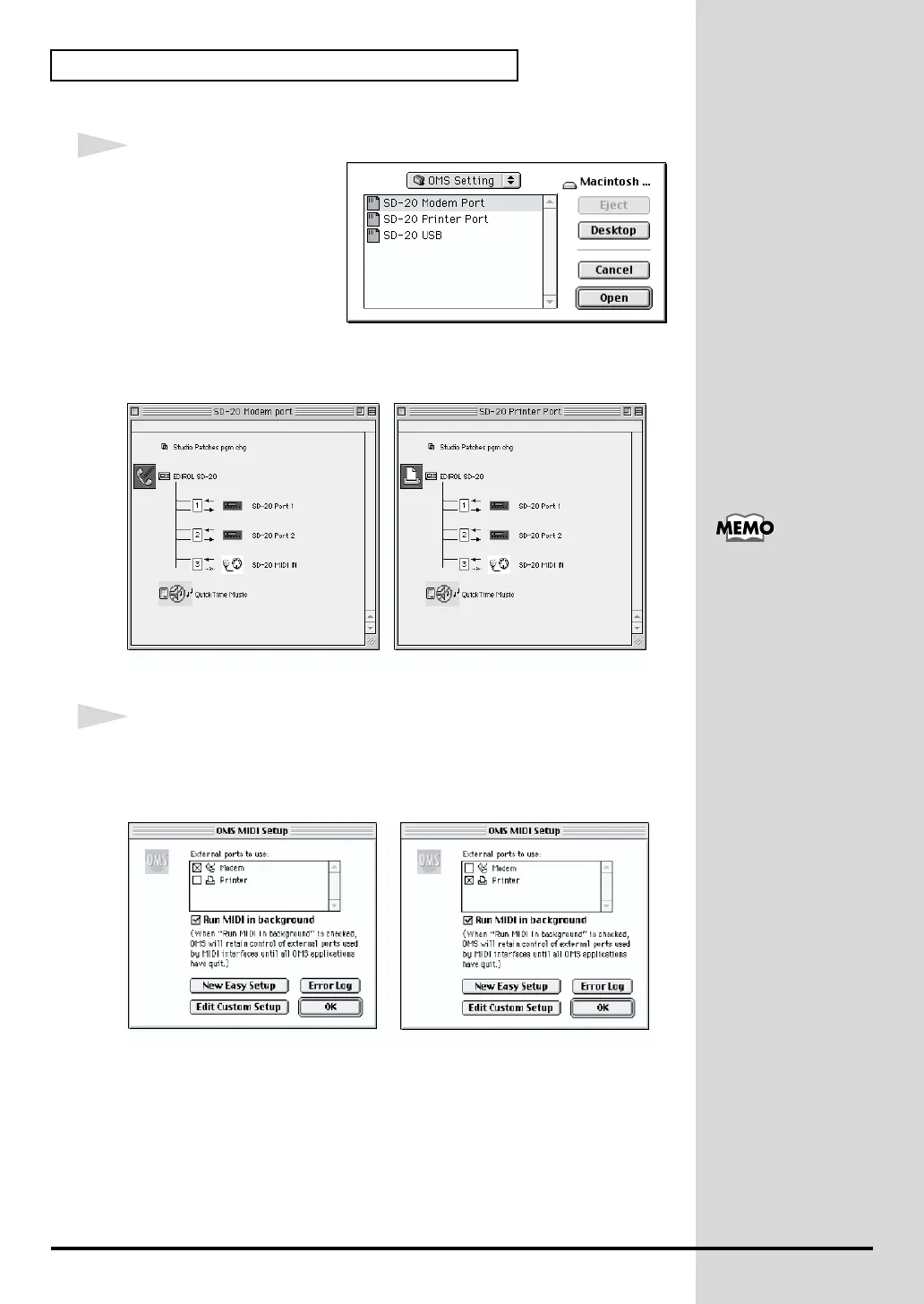
Choose “Open” from the
File menu.
Open the OMS Settings
folder copied in Step 1,
select the file for the name
of the port to which the SD-
20 is connected, and click
[Open].
A screen like the one shown here will appear.
fig.3-15_90
6
From the Edit menu, select OMS MIDI Setup.
In the OMS MIDI Setup dialog box that appears, check Run MIDI in
background, and click [OK].
fig.3-18
Opening the SD-20 Modem Port file
Opening the SD-20 Printer Port file
When connecting to a
combined modem/printer
port such as on
PowerBooks, select the
“SD-20 Modem Port” file.
Opening the SD-20 Modem Port file
Opening the SD-20 Printer Port file


 To Next Page