Intro- (Thank you for purchasing)
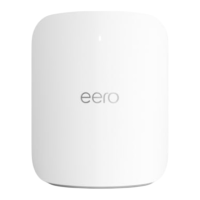
Thank you for purchasing the eero Router. This User Manual is designed to take you through
installation and setup. It also includes warranty terms, compliance and returns information.
Package contents (Hardware, brackets, screws, etc)
● One eero Router
● One 45W USB-C power adapter
● One CAT6a Ethernet cable
System requirements (Android/MacOS)
Internet connection, modem, Ethernet cable, and smartphone.
How do I set up eero?
Here’s how to get started getting your eero network online:
STEP 1: Download the eero app for iOS or Android:
Download the free eero app – you can find it on the Apple App Store or Google Play. eero supports
both iOS and Android (check
https://support.eero.com/hc/en-us/articles/207852793-Which-mobile-devices-can-I-use-to-set
-up-and-manage-my-eeros- for details on the versions we support).
You will not be able to set up your system on a web browser.
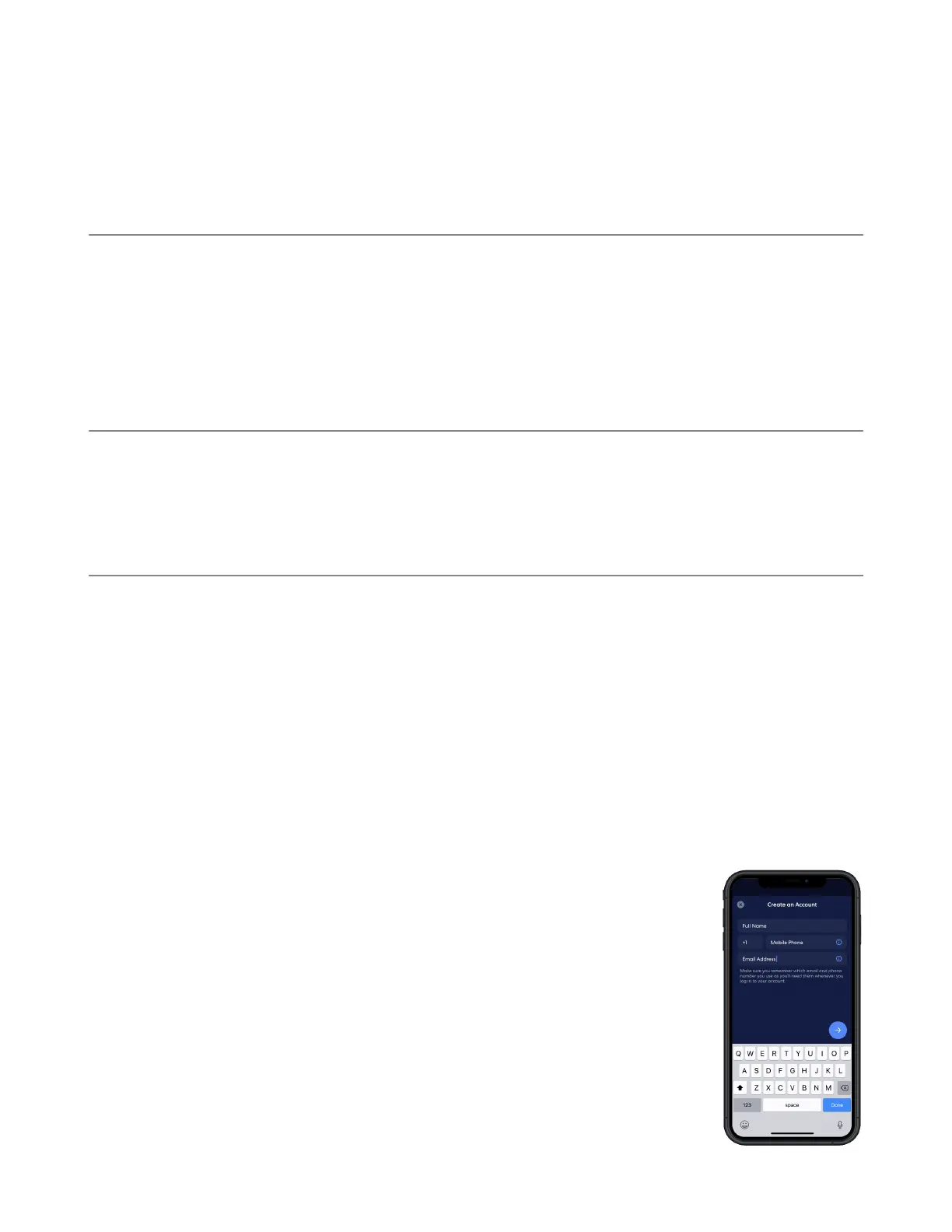
STEP 2: Create an eero account or Log In with your Amazon
Account
To begin setting up your new eero network, you will need to get Logged In. You
can either Log In using your Amazon Account information, or you can make an
eero account. You will need to enter your phone number and email address.
By default, we’ll send a verification code to your phone number Enter this
code on the verification screen of the app to create your account.


 To Next Page
 Loading...