

EasyManua.ls Logo

eir Smart WiFi Hub - User Manual

eir Smart WiFi Hub
6 pages
Print Icon
To Next Page IconTo Next Page
Loading...
eir Smart WiFi Hub
Quick Start Guide
Set it up
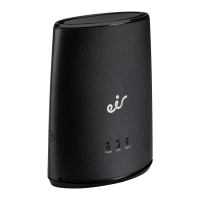
Getting to know your Smart WiFi hub
Getting the most from eir
My eir & my eir app
New to eir? Did you know you can
manage your account and view a
breakdown of your bills through
my eir. Its the easiest way to self
serve your account. Simply log
into my.eir.ie/register. You will need
your eir account number to log in.
To view, pay and compare your
bills online, simply download the
‘myeir’ app via Google Play or the
Apple App Store
eir sport pack
As an eir broadband customer
you can watch the eir sport pack
completely FREE, wherever and
whenever suits you, on your tablet
or smartphone or even cast to
your TV. Download the eir sport
app from Google Play or the
Apple App Store. Once you have
downloaded and registered your
details on “my eir” you can start
to watch the eir sport pack. If you
are an eir broadband customer
with a Sky box you can watch
the eir sport pack for free on your
Sky set top box. Simply go to
subscribe.eirsport.ie/eircustomer
eir Broadband Talk
eir Broadband Talk is an innovative
new service which uses fi bre
broadband instead of a traditional
home phone line to make and
receive calls. Your home phone line
is simply plugged into the back of
your modem instead of into your
phone socket.
You’ll enjoy exactly the same
quality of service as a standard
landline phone but with the added
bonus of being able to make calls
from your smartphone, tablet
or laptop using the home phone
minutes in your eir bundle. This
means you can use your home
phone account when you’re out
and about! For information on
how to Setup your eir Broadband
Talk go to eir.ie/eirbroadbandtalk
eir WiFi
As an eir customer you can
connect safely and securely to
over 100,000 WiFi hotspots
nationwide with eir WiFi. No more
having to ask for passwords as
you will automatically connect to
the WiFi of other eir broadband
customers.
And what’s even better, it takes
the hassle out of you having to
look for your password when your
friends and family visit, as they
will automatically connect to your
WiFi. Don’t worry your personal
information will be totally safe
and secure and data usage won’t
be aff ected. Simply log into my eir
to register.
Fix It
Check the lights
Check what lights are lit up on
your Smart WiFi hub (see Fig.6a).
The following lights should be lit
green on an optimally working
Smart WiFi Hub, Power, Link and
Wi-Fi. If all 3 green lights are not
active, check that the power cable
is connected securely and that the
Smart WiFi Hub is powered on.
Slow Speed Problems
Run a broadband speed test
by verifying https://www.eir.ie/
support/broadbandspeedtest/
Testing on an Ethernet cable will
provide a true representation of
the broadband speed coming
into your house. If your speeds
are slow over Ethernet, you
might need to contact us to
troubleshoot. If your Ethernet
is working fi ne, disconnect all
devices from WiFi and run a speed
test over WiFi with a single device
connected.
Ensure your WiFi is working
Check if you have a WiFi signal
(Fig.6a). Check that the WiFi light
is on. Check the Link LED, if it is
off or blinking red the connection
to your modem has been lost
and will need to be reconnected,
please refer to (Fig.1a) for setup
instructions. If you have tried out
the trouble shooting tips and are
still facing issues please contact
our technical help desk on
1890 260 260.
WPS button Ethernet ports
Power
supply
Power
button
LED’s
Fig.6a Fig.6b
Fig.7
Indicator Status Description
Power
Green The eir Smart WiFi is powered on.
Blinking Green Software upgrade in progress (Please do not switch off )
O The eir Smart WiFi is powered off .
Link
O No link to the modem
Green Excellent link to the modem
Orange Good link to the modem
Red Poor link to the modem
Blinking Red Connection to the modem has been lost
WiFi
Green Wifi is enabled
Blinking Green WPS is triggered and WPS pairing slot is open
O The Wifi is disabled
Power Link WiFi
Power Link WiFi
Question and Answer IconNeed help?

Do you have a question about the eir Smart WiFi Hub and is the answer not in the manual?

Summary

Smart WiFi Hub Setup

Getting to Know Your Smart WiFi Hub

Overview of the eir Smart WiFi hub and its LED indicators for Power, Link, and WiFi status.

Getting the Most from eir Services

My eir & My eir App

Manage your account and bills via the my eir website and mobile app.

eir Sport Pack Access

Access the eir sport pack for free on multiple devices as an eir broadband customer.

eir Broadband Talk Service

Information on the fibre broadband phone service, including setup for calls.

eir WiFi Hotspots

Connect to over 100,000 nationwide eir WiFi hotspots securely and automatically.

Troubleshooting Common Issues

Guidance on checking hub lights, slow speeds, and WiFi connectivity problems.

Set Up Your WiFi Hub

Connecting to Your eir Fibre Modem

Detailed steps for connecting the Smart WiFi hub to your eir fibre modem, both wirelessly and wired.

Smart WiFi Hub Features

Whats in the Box

Identifies the included items for the Smart WiFi Hub: hub, power supply, and Ethernet cable.

Optimizing WiFi Location

Recommendations for placing the Smart WiFi Hub to ensure the best signal strength and performance.

Connecting Devices

Connecting Devices to Smart WiFi Hub

Instructions for connecting devices wired or wirelessly to mesh and non-mesh compatible hubs.

Overview

The eir Smart WiFi Hub is a device designed to extend and manage a home's Wi-Fi network, particularly for eir broadband customers. It functions as a Wi-Fi extender, capable of operating in both "mesh compatible" (companion) mode with eir F3000 modems or newer, and "non-mesh compatible" (standalone) mode with other modems. The device aims to improve Wi-Fi coverage and signal strength throughout a home.

Function Description:

The primary function of the eir Smart WiFi Hub is to extend an existing Wi-Fi network. When used in mesh compatible mode with an eir F3000 modem or newer, it automatically adopts the Wireless Network (SSID) of the modem, creating a seamless mesh network. This allows devices to connect to the strongest available Wi-Fi signal as users move around their home. In standalone mode, it creates its own Wi-Fi network, requiring users to connect to its specific SSID and enter a password.

The device features LED indicators for Power, Link, and Wi-Fi status, providing visual feedback on its operational state.

  • Power LED:
    • Green: The eir Smart WiFi is powered on.
    • Blinking Green: Software upgrade in progress (users are advised not to switch off).
    • Off: The eir Smart WiFi is powered off.
  • Link LED: This indicator shows the quality of the connection to the modem.
    • Off: No link to the modem.
    • Green: Excellent link to the modem.
    • Orange: Good link to the modem.
    • Red: Poor link to the modem.
    • Blinking Red: Connection to the modem has been lost.
  • Wi-Fi LED:
    • Green: Wi-Fi is enabled.
    • Blinking Green: WPS is triggered and WPS pairing slot is open.
    • Off: The Wi-Fi is disabled.

The Smart WiFi Hub supports both wireless and wired connections. For wireless setup, it utilizes a WPS (Wi-Fi Protected Setup) button for easy pairing with the modem. For wired connections, it includes Ethernet ports, allowing devices to be connected directly to the extender for a stable connection.

Usage Features:

Setup:

  1. Power: Connect the power adapter to the Smart WiFi power port, plug it into the closest power outlet to the modem, and switch the Smart WiFi on.
  2. Connecting to the Modem (Wireless):
    • Wait for the Power LED to turn green.
    • Press the WPS button on the modem and then on the Smart WiFi Hub.
    • The Wi-Fi LED will blink green, indicating WPS pairing is active.
    • The Smart WiFi Hub will adopt the modem's SSID, and the Wi-Fi LED will change from blinking green to a constant green.
    • The Link LED will indicate signal strength (red, orange, or green). For optimal performance, the Link LED should be green or orange. If red or off, the Smart WiFi Hub is too far from the modem and needs to be moved closer.
  3. Connecting to the Modem (Wired): Connect an Ethernet cable from one of the Ethernet ports on the Smart WiFi Hub to an Ethernet port on the modem.

Device Connection:

  • Mesh Compatible (Companion Mode - eir F3000 modem or newer):
    • Wired: Connect a device to one of the Ethernet ports on the Smart WiFi Hub using an Ethernet cable.
    • Wireless: Devices should automatically connect to the Smart WiFi Hub using the modem's SSID. If not, manually select the modem's SSID and enter the password.
  • Non-mesh Compatible (Standalone Mode - other modems):
    • Factory Reset: If the Smart WiFi Hub was previously used in companion mode, a factory reset is required. This is done by pressing the factory reset button (located at the rear) for 3 seconds. It is recommended to disable Wi-Fi on the primary modem in standalone mode to avoid conflicts.
    • Wired: Connect a device to one of the Ethernet ports on the Smart WiFi Hub using an Ethernet cable.
    • Wireless: Select the SSID located on the back of the primary Smart WiFi Hub and enter the password.

Optimal Placement:

  • Do's: Position the Smart WiFi Hub halfway between a problematic Wi-Fi area and the modem. Place it in an area where the Link LED shows green (excellent link) for best results.
  • Don'ts: Avoid placing the device in confined/covered locations, on soft surfaces (like couches or carpets), or delicate surfaces. Do not place it outside. Avoid areas where the Link LED shows red (poor link) or is off (no signal).

Troubleshooting:

  • Checking Lights: Ensure Power, Link, and Wi-Fi LEDs are green for optimal operation. If not, check power connections.
  • Slow Speed Problems:
    • Run a broadband speed test via https://www.eir.ie/support/broadbandspeedtest/.
    • Test speed with an Ethernet cable directly connected to the modem for a true representation of the broadband speed.
    • If Ethernet speed is fine, disconnect all devices from Wi-Fi and re-run a speed test with a single device connected via Wi-Fi.
  • Wi-Fi Not Working:
    • Check if the Wi-Fi signal is present and the Wi-Fi light is on.
    • If the Link LED is off or blinking red, the connection to the modem is lost. Refer to setup instructions for reconnection.
    • If issues persist after troubleshooting, contact eir technical help desk at 1890 260 260.

Maintenance Features:

  • Software Upgrades: The device indicates software upgrades via a blinking green Power LED, advising users not to switch it off during this process.
  • Factory Reset: A factory reset button is available at the rear of the device, allowing users to restore it to its default settings, particularly useful when switching between companion and standalone modes.
  • eir Smart WiFi Hub Quick Start Guide: The device comes with a quick start guide for initial setup and troubleshooting.
  • Online Support: For advanced settings and further assistance, users can visit eir.ie/smartWiFi.

eir Services Integration:

The eir Smart WiFi Hub is part of a broader ecosystem of eir services, including:
  • My eir & my eir app: Allows users to manage their account, view bills, and self-serve.
  • eir sport pack: eir broadband customers can watch eir sport content for free on tablets, smartphones, or cast to TV. Sky box users can also watch for free.
  • eir Broadband Talk: An innovative service that uses fibre broadband for home phone calls, allowing calls from smartphones, tablets, or laptops using home phone minutes.
  • eir WiFi Hotspots: eir customers can connect to over 100,000 Wi-Fi hotspots nationwide safely and securely, automatically connecting to other eir broadband customers' Wi-Fi.

Technical Specifications (Inferred from manual):

  • Connectivity: Wireless (Wi-Fi) and Wired (Ethernet ports).
  • Power: Requires a power adapter (black).
  • Buttons: WPS button, Power button, Factory Reset button.
  • Indicators: Power LED, Link LED, Wi-Fi LED.
  • Compatibility: Designed for optimal use with eir F3000 modems or newer in mesh mode, but also supports standalone operation with other modems.
  • Included in box: eir Smart WiFi Hub, Power supply (black), Ethernet cable (white with yellow connectors), Quick Start Guide.

eir Smart WiFi Hub Specifications

General IconGeneral
Brandeir
ModelSmart WiFi Hub
CategorySwitch
LanguageEnglish