- 5 - - 6 - - 7 - - 8 -
*
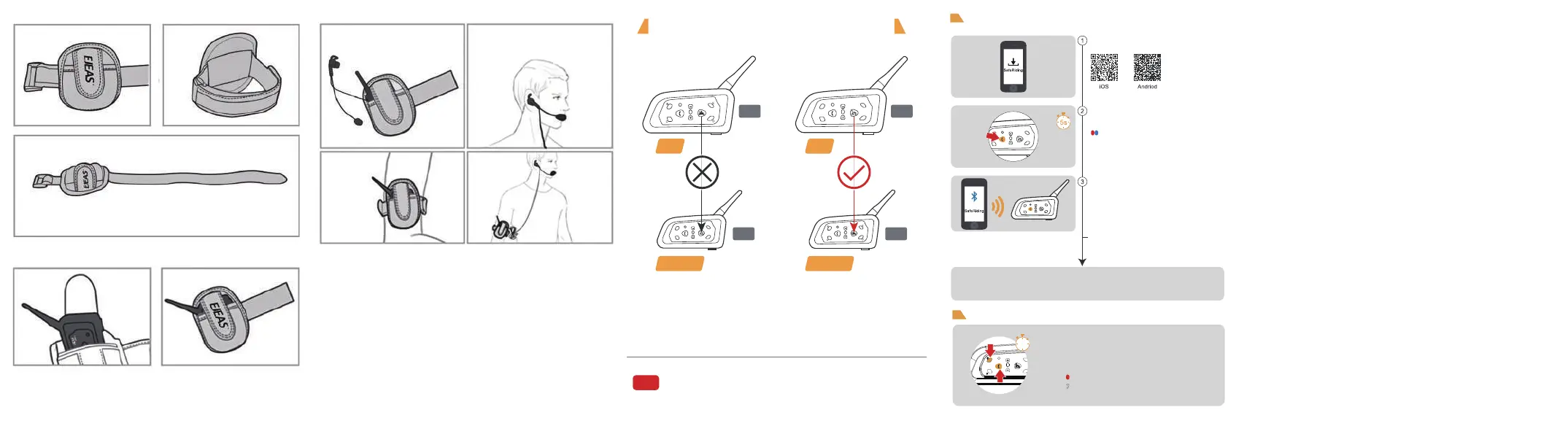
Pairing Instructions for the Intercom
If the machine cannot be paired, please clear the pairing first,
and use the other one as the main machine to pair.
B
C
E
D
New
Old
B
C
E
D
Old
New
Note
Main Main
Sub-machine Sub-machine
When the old version of the machine is used as the main machine, it
cannot be successfully paired with the new version of the machine.
The new version of the machine must be used as the main machine
to successfully pair with the old version of the machine.
Mobile App
APP provides intercom group, music control, FM control, switch
off, check authenticity and other functions.
Restore Default Settings
2s
Press and hold (approx. 5s)
<Phone Button> until the red and
blue lights flash alternately.
Open the APP, click on the Bluetooth icon in the
top right corner, the interface shows the name of
the intercom device searched, select the intercom
device to be connected,and click to connect.
(IOS system needs to enter the phone pairing
again, in the system settings->Bluetooth, connect
audio Bluetooth)
Open the APP the next time you use it. Click the
Bluetooth icon in the top right corner and click to
select Intercom for connection from the paired
devices.
Red and blue lights alternate quick flash
3 Quick Flashes
Press and hold both <B button> and <Phone
button> for about 2s, the red light flashes 3 times
quickly to delete the pairing record, and then the
intercom will automatically power on again.
“Di,Di,Di”
Download and install SafeRiding mobile
APP for the first time.
B
C
E
D


 To Previous Page
 Loading...