EasyManua.ls Logo

EJEAS MS20 - User Manual

EJEAS MS20
16 pages
Print Icon
To Next Page IconTo Next Page
Loading...
MS20
User Manual
Mesh Group Intercom System
More
Languages
Question and Answer IconNeed help?

Do you have a question about the EJEAS MS20 and is the answer not in the manual?

Summary

Product Operation

Operation Diagram

Illustrates various button press actions like click, double-click, and long press for device control.

Power ON;OFF

Instructions for turning the device on and off, including voice prompts and light indicators.

Low Battery Indication

Details on how the device indicates low battery status with light and voice prompts.

Charging Indication

Information on the indicator light behavior during USB charging.

Mesh Intercom

Microphone Mute

How to mute and unmute the microphone during Mesh Intercom using the M Button.

VOX Voice Sensitivity

Adjusting voice activation sensitivity levels for Mesh Intercom to suit user needs.

Pairing Steps as Members

Intercom Reconnection

Steps to reconnect to the Mesh network after powering on the intercom.

Turn off MESH Intercom

Procedure to turn off the Mesh Intercom function using the M Button.

Pairing Steps as Listeners

Intercom Channel Switching

How to switch between the 5 available channels for intercom communication.

Bluetooth Intercom

How To Pair With The Device

Guide on pairing the intercom with another device via Bluetooth for intercom communication.

Pairing with The Old Models

Instructions for pairing the device with older EJEAS intercom models.

Pairing With Headsets or Other Branded Bluetooth Intercoms

Intercom Connection

Steps for establishing an intercom connection with other Bluetooth devices.

Intercom Disconnection

Procedure for disconnecting an active intercom session.

Mobile Phone Pairing

Bluetooth Reconnection With Mobile Phones

How the device automatically reconnects to the last paired mobile phone.

Call Answering

Instructions on how to answer an incoming call using the Phone/Power Button.

Mobile Phone Operations

Call Management Functions

Guides on managing calls: rejection, hanging up, redialing, and canceling redial.

Phone Priority

Explains the priority of incoming calls over music, FM radio, and intercom.

Voice Assistant

How to activate and use the voice assistant feature via the Phone/Power Button.

Music Control

Instructions for controlling music playback: play/pause, next/previous song, and volume adjustments.

FM Radio

FM On;Off

Steps to turn the FM radio on and off, including frequency range and listening while talking.

Switching Channels

How to switch between FM radio frequencies using Volume +/- buttons.

Volume Adjustment

Adjusting FM radio volume levels, both when using FM alone and with intercom.

Music Share

Music Sharing Process

Steps to share music played by Bluetooth on your phone with another device.

Exit Music Sharing

How to stop music sharing by pressing the Phone/Power Button and Volume - again.

EUC Remote Controller

Buttons Introduction

Overview of the buttons on the EUC Remote Controller and their corresponding actions and functions.

EUC Pairing

EUC Handle Operation

Describes how Mesh intercom reconnect/disconnect and mobile phone control work on the EUC handle.

System Settings

Restore Default Settings

Procedure to restore factory default settings, clear pairing records, and reboot the device.

Firmware Upgrades

Instructions for updating the device firmware using a computer and USB cable.

Mobile App

App Installation and Pairing

Guide on downloading, installing the EJEAS SafeRiding app, and pairing the intercom with it.

App Features

Overview of functions provided by the app, including group intercom, music, and FM control.

Overview

EJEAS MS20 Mesh Group Intercom System

The EJEAS MS20 is a multi-hop mesh network intercom system designed for group communication, music sharing, and mobile phone integration, primarily for use in scenarios like motorcycle riding. It supports communication with up to 20 people across 5 channels, offering a maximum communication distance of about 2 kilometers. The system operates on a communication frequency of 470-488MHz, providing a longer transmission distance and better anti-interference ability compared to traditional Bluetooth chain intercoms. When participating in campaign mode as a listener, there is no limit to the number of people who can join the intercom in a listen-only manner.

Product Details:

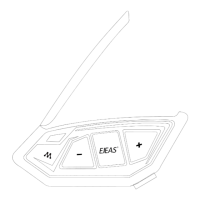
The device features an antenna, an LED light (indicating Blue, Red, Green states), and several control buttons:

  • M Button: Used for various functions including microphone mute/unmute, intercom pairing, and channel switching.
  • Volume - Button: Adjusts volume down, decreases FM frequency, and is part of pairing sequences.
  • Phone/Power Button: Controls power on/off, answers/rejects calls, plays/pauses music, activates voice assistant, and is part of pairing sequences.
  • Volume + Button: Adjusts volume up, increases FM frequency, and is part of pairing sequences.
  • USB Charging Interface/Headphone Jack: For charging the device and connecting headphones.

Core Functions and Features:

  • MS20 Intercom (Mesh Group Intercom System):

    • Multi-hop mesh technology for robust group communication.
    • Supports up to 20 participants across 5 channels.
    • Maximum communication distance of 2 kilometers.
    • Automatic switching between Bluetooth music and Mesh intercom when someone speaks.
    • Microphone Mute: Short press the M Button to mute your microphone during Mesh Intercom, preventing your voice from being sent to others. Press again to unmute.
    • VOX Voice Sensitivity: The system enters sleep mode when no speech is detected and activates upon speaking. Sensitivity can be adjusted across 5 levels (default is 3), with level 5 being the most sensitive and level 1 the least sensitive. To adjust, after turning on Mesh intercom, press and hold the M Button + Volume + to cycle through sensitivity levels (1->5->1).
  • Bluetooth Intercom:

    • Allows pairing with other EJEAS devices or other branded Bluetooth intercoms.
    • Automatic switching between Mesh intercom and Bluetooth intercom: When no one is speaking on the Mesh network, it switches to Bluetooth intercom. If someone speaks on the Mesh network while in Bluetooth intercom, it automatically switches back to Mesh Intercom.
    • To switch to Mesh intercom from Bluetooth intercom, press the M Button.
  • Mobile Phone Integration:

    • Mobile Phone Pairing: Connects to mobile phones for playing songs, making calls, and waking up voice assistants. Supports connecting up to 2 mobile phones simultaneously.
    • Bluetooth Reconnection: Automatically reconnects to the last connected phone via Bluetooth upon power on. If no connection, click the Phone/Power Button to reconnect.
    • Call Answering: Click the Phone/Power Button when a call comes in.
    • Call Rejection: Long press the Phone/Power Button for about 2 seconds.
    • Hang Up: Click the Phone/Power Button during a call.
    • Call Redial: Double-click the Phone/Power Button when in standby or playing music.
    • Cancel Redial: Click the Phone/Power Button during redial.
    • Phone Priority: Incoming calls interrupt Bluetooth music, FM radio, and intercom, resuming after the call ends.
    • Voice Assistant: Press and hold the Phone/Power Button in standby or music playing mode to activate the mobile phone's voice assistant (e.g., "Open Music," "Previous Song," "Next Song," "Call EJEAS," "Open Navigation").
  • Music Features:

    • Music Share: Share music played via Bluetooth on your phone to another device. This function cannot be used during Bluetooth intercom or when two phones are connected simultaneously. One device acts as the host (connected to the phone), and the other as the slave. To initiate, press Phone/Power Button + Volume - simultaneously on both host and slave.
    • Music Play/Pause: Click the Phone/Power Button.
    • Previous Song: Long press the Volume - button (2 seconds).
    • Next Song: Long press the Volume + button (2 seconds).
    • Volume Adjustment: Use Volume - and Volume + buttons.
  • FM Radio (76-108MHz):

    • FM On/Off: Press and hold Volume + + Volume - (approx. 1 second) to turn FM radio on or off. When on, it automatically searches for stations.
    • Switching Channels: Short press Volume - for Frequency - and Volume + for Frequency +.
    • Volume Adjustment: FM has 7 volume levels. Use Volume - and Volume + buttons. FM can be used during intercom.

Usage Features:

  • Power ON/OFF:

    • ON: Long press Phone/Power Button for 1 second until the blue light flashes slowly with a voice prompt ("Di, Di, Di, Di, Di").
    • OFF: Long press Phone/Power Button + M Button until the voice prompt says "Power off." The indicator light turns off.
    • Reset: The device automatically powers off while charging and can be used while charging after powering on.
  • Pairing Steps as Members (Mesh Intercom):

    1. All devices enter intercom pairing state: Long press M Button (about 5 seconds) until red and green lights flash alternately and "Mesh Pairing" is heard.
    2. Select one device as the paired server: Press M Button on the server device. It will beep, and red and green lights will flash alternately ("Bi").
    3. Wait for "Pairing Successful" from all devices, then "Channel n, xxx.x megahertz" to start communication.
  • Intercom Reconnection: Short press M Button on power-on to "Join the Mesh." Wait for "Channel n, xxx.x megahertz" to resume communication. If powered off without turning off the intercom, it automatically restores on next power-on.

  • Turn off MESH Intercom: Press and hold M Button (about 1 second) until "Mesh Close" is heard.

  • Pairing Steps as Listeners (Mesh Intercom):

    1. Take the intercom to be paired, enter listening mode pairing: Long press M Button + Volume - (about 5 seconds) until red and green lights flash alternately and "Listen Mesh Pairing" is heard.
    2. Take a paired intercom as a paired server, enter listening mode pairing: Press and hold M Button + Volume - (about 5 seconds) to prompt "Listen Mesh Pairing." (Note: Unjoined machines can only be joined again through the server.)
    3. Short press M Button on the server. It will beep, and red and green lights will flash alternately ("Du").
    4. Wait for "Pairing Successful" from all intercoms, then "Channel n, xxx.x MHz" to join the network and communicate.
  • Intercom Channel Switching: Short press M Button + Volume - (backward) or M Button + Volume + (forward) to switch between 5 channels. All team members must be on the same channel.

  • Pairing with Headsets or Other Branded Bluetooth Intercoms Search:

    1. Long press Phone/Power Button + Volume + (approx. 5 seconds) until red and blue lights flash alternately and "Intercom Pairing" is heard.
    2. Click Phone/Power Button + Volume + again. "Intercom Searching" is heard, and red and blue lights flash alternately.
    3. The intercom searches for other intercoms in pairing state and initiates pairing upon discovery.
  • Intercom Connection/Disconnection: Blue light flashes rapidly for "Intercom Connected." "Intercom Disconnected" for disconnection.

  • EUC Remote Controller (Optional):

    • Pairing:
      1. On the MS20: Press and hold Phone/Power Button + Volume - (about 5 seconds) until "Remote Control Pairing" is heard, and red and blue lights flash alternately.
      2. On the EUC remote: Press and hold FM Button + Volume - (about 5 seconds) to clear previous records until red and blue lights come on.
      3. Click any button on the EUC remote to complete pairing.
    • Operation: EUC remote buttons (FM, C, B, A, Volume +, Volume -, Phone) control various functions like Bluetooth intercom connection/disconnection, FM on/off, music sharing, VOX sensitivity, call handling, and voice assistant activation.

Maintenance Features:

  • Low Battery Indication: Red light flashes twice with a "Low Battery" voice prompt. The device automatically powers off when the battery is extremely low.
  • Charging Indication: Red light is always on when using USB charging.
  • Battery Inquiry: After connecting to a phone via Bluetooth, the power icon on the phone displays the current battery level.
  • Restore Default Settings: Press and hold Phone/Power Button + Volume + + Volume - for about 5 seconds. "Restore Default Settings" is heard, pairing records are deleted, and the phone automatically reboots.
  • Firmware Upgrades: Connect the device to a computer with a USB data cable. Download and open the "EJEAS Upgrade.exe" software. Click "Upgrade" and wait for the process to complete.
  • Mobile App (EJEAS SafeRiding):
    • Download and install the app (available for iOS and Android).
    • To connect: Press and hold Phone/Power Button (approx. 5 seconds) until red and blue lights flash alternately to enter phone pairing. Open the app, click the Bluetooth icon, select the device name ("MS20"), and connect. (For iOS, phone pairing may need to be re-entered in system settings -> Bluetooth, connect audio Bluetooth).
    • The app provides intercom group management, music control, FM control, switch off, authenticity check, and other functions.

EJEAS MS20 Specifications

General IconGeneral
BrandEJEAS
ModelMS20
CategoryIntercom System
LanguageEnglish

Related product manuals