Need help?
Do you have a question about the eKey home series and is the answer not in the manual?
Details on company quality management, product documentation, and liability.
Information regarding product liability, warranty, and copyright protection.
Explains DANGER, ATTENTION, and NOTICE symbols used in the manual.
Defines symbols for instructions, references, product names, and menu items.
Warns about operating devices with SELV and using only specified power supplies.
Advises mounting the control panel in a secure internal area to prevent tampering.
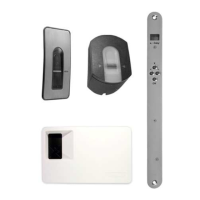
Illustrates the ekey system components and their arrangement.
Lists the standard components included with the system.
Defines the intended use and application areas for the access control system.
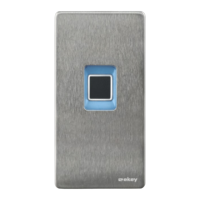
Explains how the finger scanner detects and processes fingerprints for access.
Describes the swipe area and sensor interaction for storing/identifying fingers.
Details how the code pad captures and compares PIN codes for access.
Explains input/confirmation buttons, status LEDs, and acoustic signals on the code pad.
Lists available menu items for system configuration via the code pad.
Details available models (mini 1, mini 2, micro 1) and their features.
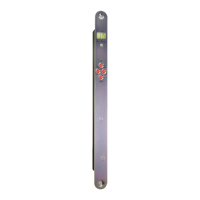
Explains the control panel's role, LEDs, and button operations.
Lists technical details for finger scanners and keypads, including power and memory.
Lists technical details for various ekey home control panel models.
Provides instructions for system setup and initial power connection for finger scanner and code pad.
Outlines available operating modes like app, admin finger, and admin code.
Instructions on how to find and download the ekey home mobile application.
Step-by-step guide for initial pairing of a mobile device with the finger scanner.
Instructions on how to modify app, admin, and user coupling codes.
Guide on how to store administrator and user fingerprints using the ekey home app.
How to disable Bluetooth functionality on the finger scanner after a period of inactivity.
Steps to pair more mobile devices with the finger scanner using the coupling code.
How to reset couplings to switch between different Bluetooth finger scanners.
Procedure to set a user-specific coupling code for mobile device access.
Steps to reset the app security code if forgotten, restoring default.
How to secure the system by changing codes when a mobile device is lost.
Explains methods to open doors using the app, finger scanner, RFID, or digital input.
Guide on how to store the four required administrator fingers for system programming.
Instructions for storing up to 99 user fingerprints for door access.
Guide on storing up to 99 RFID transponders for door access.
Details on opening doors using stored fingers or RFID transponders.
Procedure to remove individual user fingerprints from the system.
Steps to remove individual RFID transponders from the system.
How to perform a full deletion of all stored user fingers and transponders.
Steps to access the admin menu using the default or current admin code.
Instructions for changing the admin code via the admin menu.
How to configure the brightness threshold for automatic keypad back-illumination.
How to set the back-illumination brightness to predefined levels.
How to configure the time the relay remains active after an event.
How to configure acoustic and optical signals when buttons are pressed.
How to enable or disable the acoustic signal for door opening.
Guide on how to store user-specific PIN codes for door access.
Procedure to remove individual user PIN codes from the system.
Details on opening doors using the code pad or digital input.
How to reset the system to defaults using the app or finger scanner.
How to reset the system to defaults using the code pad.
How to reset the system to defaults using the control panel.
How to reset the system to defaults using the digital input on specific models.
Information on obtaining software updates for the system components.
Explains error displays on the finger scanner and their remedies.
Explains error displays on the code pad and their remedies.
 General
| Brand | eKey |
|---|---|
| Model | home series |
| Category | Control Panel |
| Language | English |

 To Next Page