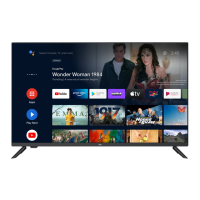
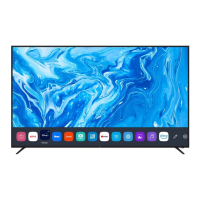
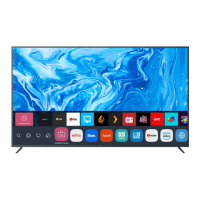
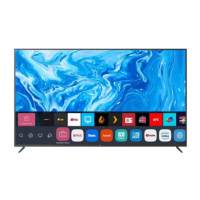
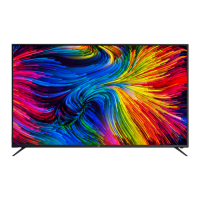
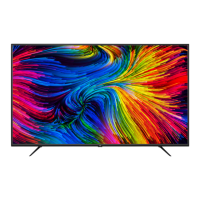
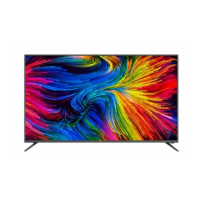
This document describes the EKO 32" Full HD Smart TV, model K32FSG11, which runs on Android TV™ and features Google Assistant. This instruction manual provides comprehensive details on its setup, operation, and maintenance.
Function Description
The EKO 32" Full HD Smart TV is a television designed for home entertainment, offering a range of smart features powered by Android TV. It allows users to access various streaming services, apps, and digital content. The TV integrates Google Assistant for voice control, enabling users to search for content, control smart home devices, and get information. It supports multiple input sources, including HDMI, USB, and antenna, and can connect to the internet via Wi-Fi or Ethernet. The TV also includes a Personal Video Recorder (PVR) function for recording live TV.
Important Technical Specifications
- Operating System: Android™ 11 for Android TV™
- Resolution: 1920 x 1080 (Full HD)
- Display Colours: 16.7 Million
- Contrast Ratio: 3000:1
- Aspect Ratio: 16:9
- Refresh Rate: 60Hz
- Ethernet / Wi-Fi: Yes/ 802.11 b/g/n
- Multimedia Playback Format (USB Mode):
- Music: MPEG1
- Photo: JPEG, PNG, BMP, MPO
- Movie: MPEG, TS, TRP, TP, MP4, MOV, 3GP, AVI, MKV
- Power Source: 100-240V ~ 50/60Hz
- Power Consumption: 48W
- USB: 5V === max. 500mA
- Dimensions:
- With stand: 735.8 (w) x 179.7 (d) x 474.9 (h) mm
- Without stand: 735.8 (w) x 76.3 (d) x 434.1 (h) mm
- Weight:
- Net: 4.2 kg
- Gross: 5.5 kg
- Accessories: 1 x Instruction Manual, 2 x AAA Batteries, 1 x Remote Control, 2 x TV Stand (Left and Right), 1 x Warranty Card, Screws (For TV Stand)
- VESA Pattern: 200 (w) x 100 (h) mm (for wall mounting)
Usage Features
- Initial Setup: The TV guides users through an on-screen setup wizard for initial configuration, including pairing the Bluetooth remote control, connecting to a Wi-Fi network, accepting Google Terms of Service, setting location preferences, and agreeing to send diagnostic information to Google. It also covers setting up a password, selecting the time zone, choosing TV mode (Home or Retail), enabling Chromecast built-in, and performing a channel scan.
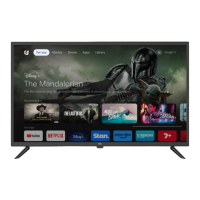
- Android TV™ Home Screen: Once set up, the home screen provides access to Google Assistant, the main menu, Discover (for recommended content), Apps, Settings, and a display of current time. Users can add apps to the home screen and access movies or shows.
- Google Play: Users can sign in with a Google Account to download applications from Google Play, expanding the TV's functionality.
- Google Assistant: Pressing the Google Assistant button on the remote allows for voice control, enabling quick searches for movies, shows, and smart home device management.
- Discover: This feature provides suggestions for new movies and shows based on viewing history and interests. Users can sign into Google Play to get recommendations and select apps they would like recommendations for.
- Input Menu: Accessing the INPUT menu allows users to switch between various input sources such as Antenna, Cable, ATV, Composite, HDMI1, HDMI2, and HDMI3.
- Settings Menu: The Settings menu provides access to various configurations:
- Network & Internet: Manage Wi-Fi connections, view available networks, and add new networks.
- Channel Menu: Configure channels, including auto channel update and parental controls.
- Device Preferences:
- About: View system information, device name, factory reset option, status, legal information, model, Android TV OS version, and software version.
- Date & Time: Set automatic date and time, time zone, and 24-hour format.
- Input Settings: Configure HDMI control (CEC), device auto power off, TV auto power on, HDMI EDID version, and view CEC device list.
- Power Settings: Set Sleep Timer (Off, 10, 20, 30, 40, 50, 60, 90, 120 minutes), Picture off, Switch Off Timer, No Signal Auto Power Off (15 minutes), and Auto Sleep (4 hours).
- Picture Settings: Adjust Picture Mode (Standard, Vivid, Sport, Movie, Game, Energy Saving, User), Backlight, Brightness, Contrast, Saturation, HUE, Sharpness, Gamma, Color Temperature, Advanced Video, Color Tuner, and 11 Point White Balance Correction. A "Reset to Default" option is available.
- Sound Settings: Adjust System sounds, Sound Style (Standard, Auto, Bypass, PCM, Dolby Digital Plus, Dolby Digital), Balance, Bass, Treble, Sound Surround, Equalizer Detail, Speaker Delay, Digital Output, Digital Output Delay, Auto Volume Control, Downmix Mode (Stereo), and Dolby Audio Processing. A "Reset to Default" option is available.
- Home Screen & Screen Saver: Customize channels, enable video/audio previews, reorder apps/games, and access open source licenses. The Screen Saver settings allow users to configure when the screen saver starts and to start it immediately.
- Google Assistant Settings: Manage accounts, accept permissions, enable searchable apps, and configure SafeSearch filter.
- Parental Control: Block specific channels, restrict programs, and block TV port inputs. Users can set and change a PIN for parental controls.
- PVR (Personal Video Recorder): Allows recording of live TV. Users can access the RECORDING menu, view "TV Options," and manage recordings via "Record List," "Device Info," "Schedule List," and "Time Shift Mode." A USB drive (FAT32 format) is required for this function.
- Remote Control: The remote control includes buttons for power, numbers, Google Play, Netflix, YouTube, menu, OK, back, exit, volume, channel, and media playback controls. It also features specific function buttons for Power, Mute, Number keys, Info bar, Netflix, YouTube, Google Play, Back, Home, OK, Setup, VOL+/-, CH+/-, Red/Green/Yellow/Blue keys, SUBTITLE, Record, Play, Time shift key, and Stop.
- Subtitle Functionality: Users can turn off subtitles on live TV via the MENU, ADVANCED SETTINGS, and SUBTITLE options.
Maintenance Features
- General Safety Information: The manual provides extensive safety warnings, including precautions against electric shock, fire, and injury. It advises against exposing the TV to rain or moisture, modifying the product, using damaged power cords, and placing the TV on unstable surfaces. It also warns against placing objects on top of the TV or blocking ventilation openings.
- Installation: Instructions for attaching the stand and wall mounting are provided. For wall mounting, a qualified installer is recommended.
- Remote Control Battery Replacement: Detailed steps are provided for opening the battery cover and replacing the 2x AAA batteries, ensuring correct polarity.
- Troubleshooting (FAQs): A comprehensive list of common problems and their solutions is included, covering issues such as "Ghost" or double image, no power, no picture, good/poor picture but no sound, snowy picture and noise, horizontal dotted line, TV not responding to remote control, and pixels (dots) that are always dark or always lit.
- Customer Support: Contact information for customer support is provided, including a phone number (02 8279 8606), email (help@eko-entertainment.com.au), and website (www.eko-entertainment.com.au). A QR code is also available for scanning to access the manual.

 Need help?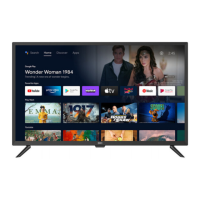

 To Next Page
 General