USB Adapter Connection
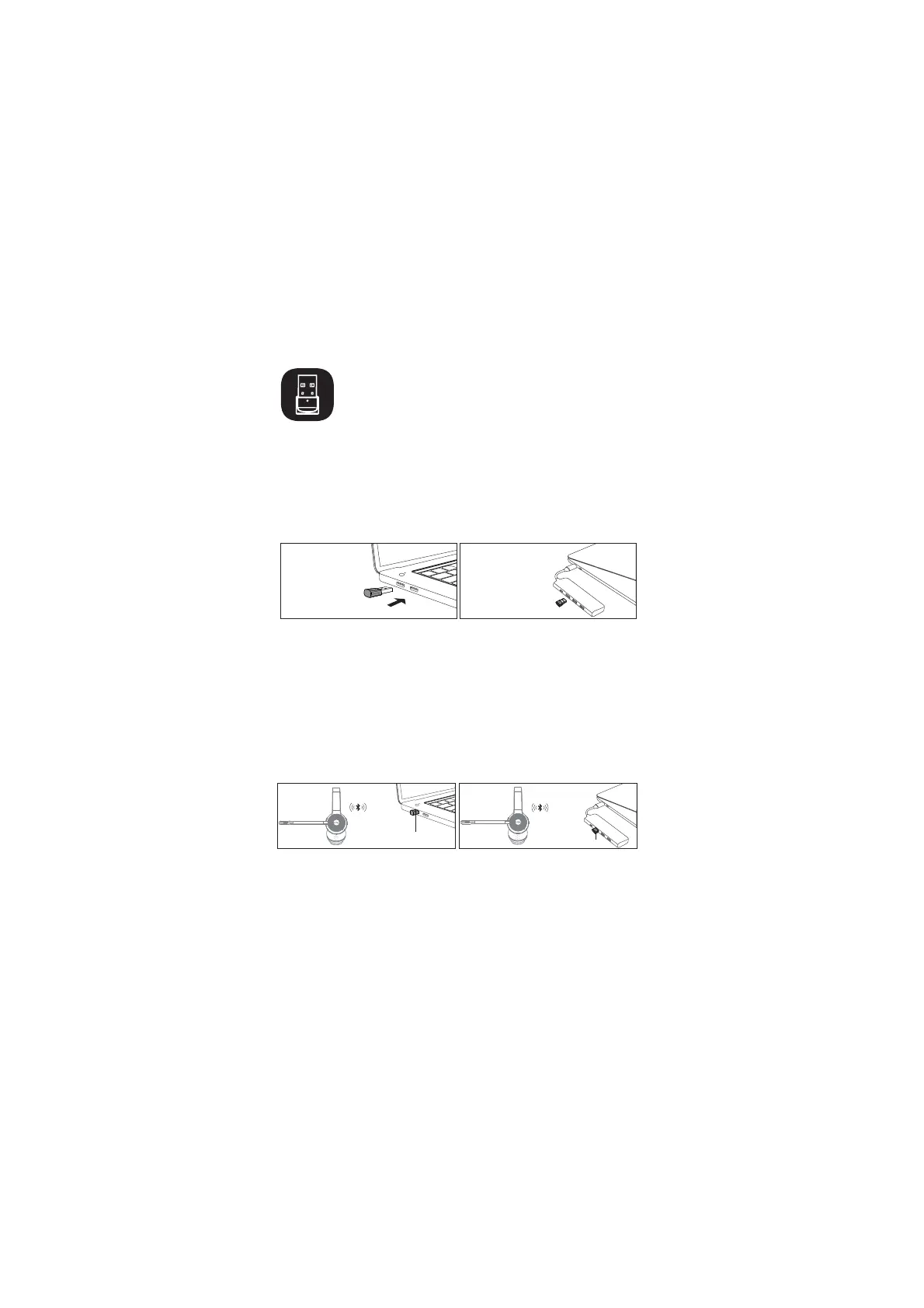
PC:
USB-A interface
Type-C interface
(Not included)
,QVHUWWKH86%DGDSWHULQWRWKHFRPSXWHUWKHDGDSWHUZLOODXWRPDWLFDOO\
VWDUWXSDQGGLVSOD\(.6$3&$GDSWHURQWKHFRPSXWHUDQGWKHEOXH/('
of the adapter will slowly flash into the pairing state.
7XUQRQWKHKHDGVHWDQGWKHKHDGVHWDQGDGDSWHUZLOODXWRPDWLFDOO\FRQQHFW
successfully.
Note: A computer with Bluetooth function can have Bluetooth connection and USB
adapter connection at the same time; Select one of the connection methods by switching
the audio driver. Select the audio driver with the name of EKSA-H16 for Bluetooth
connection, and select the audio driver with the name of EKSA PC Adapter for USB
adapter connection.
$IWHUVXFFHVVIXOFRQQHFWLRQWKHKHDGVHWEOXHOLJKWIODVKHVRQFHHYHU\
VHFRQGVDQGWKHDGDSWHUEOXHOLJKWUHPDLQVRQ
USB-A interface
Indicator flashes in blue light
Type-C interface
Indicator flashes in blue light
(Not included)


 To Next Page