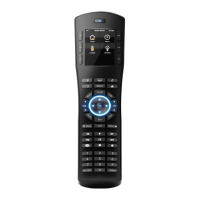
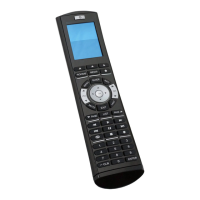
3 of 13
HHR NETWORK CONFIGURATION
The following steps will configure the HHR remote to communicate with the system controller via your
wireless network. Setup the remote(s) one at a time using the following procedure. For detailed
information about the HR30 wireless compatibility refer to the Wi-Fi Connections section later in this
document.
Notes:
• The HHR remotes may have issues connecting to the ELAN Configurator if you are using a MAC
with a Windows emulator. If this is the case, then use a Windows PC to configure the remote.
• You will need to have the wireless network SSID, encryption type and password, and a
predefined static IP address for each remote you are setting up. If you do not have this
information you will need to consult with the network administrator to get it.
• If you have trouble getting your HHR to connect to the wireless network refer to the Wi-Fi
Connections section below for tips and troubleshooting steps.
• Conflicts have been reported with the Spectralink Series 3640 WiFi Telephone. Both the Remote
and the phone system use Port 2000. Using these 2 systems on the same port will result in the
Remote dropping from the network, hang/lockups in the Remote, and rapid discharge of the
remote’s battery.
1. Check the system tab, in Configurator, to verify the system controller software version is as indicated
in this document header or newer.
2. Connect to your system controller with the Configurator application.
3. Add the HHR Com device on the interface tab as shown in the Configuration Details table below.
NOTE: Only one COM device is required for a system even if you have multiple HHR remotes.
4. Switch the HHR remote OFF using the power switch located under the bottom endcap.
5. Connect the remote to your PC with the included USB-USB micro cable.
6. Let the remote boot up to the “Enter password” screen.
7. On the remote press digits 3526 then press ENTER. The remote’s screen should display “Correct”
and switch to “USB active”.
8. If a window pops up saying there are disk / file errors, click on the “Fix” or “Run Scan” button, then
close the window after it runs.
9. If any other window notifications or explorer windows open on your PC close them now.


 To Next Page
 Loading...