5 of 13
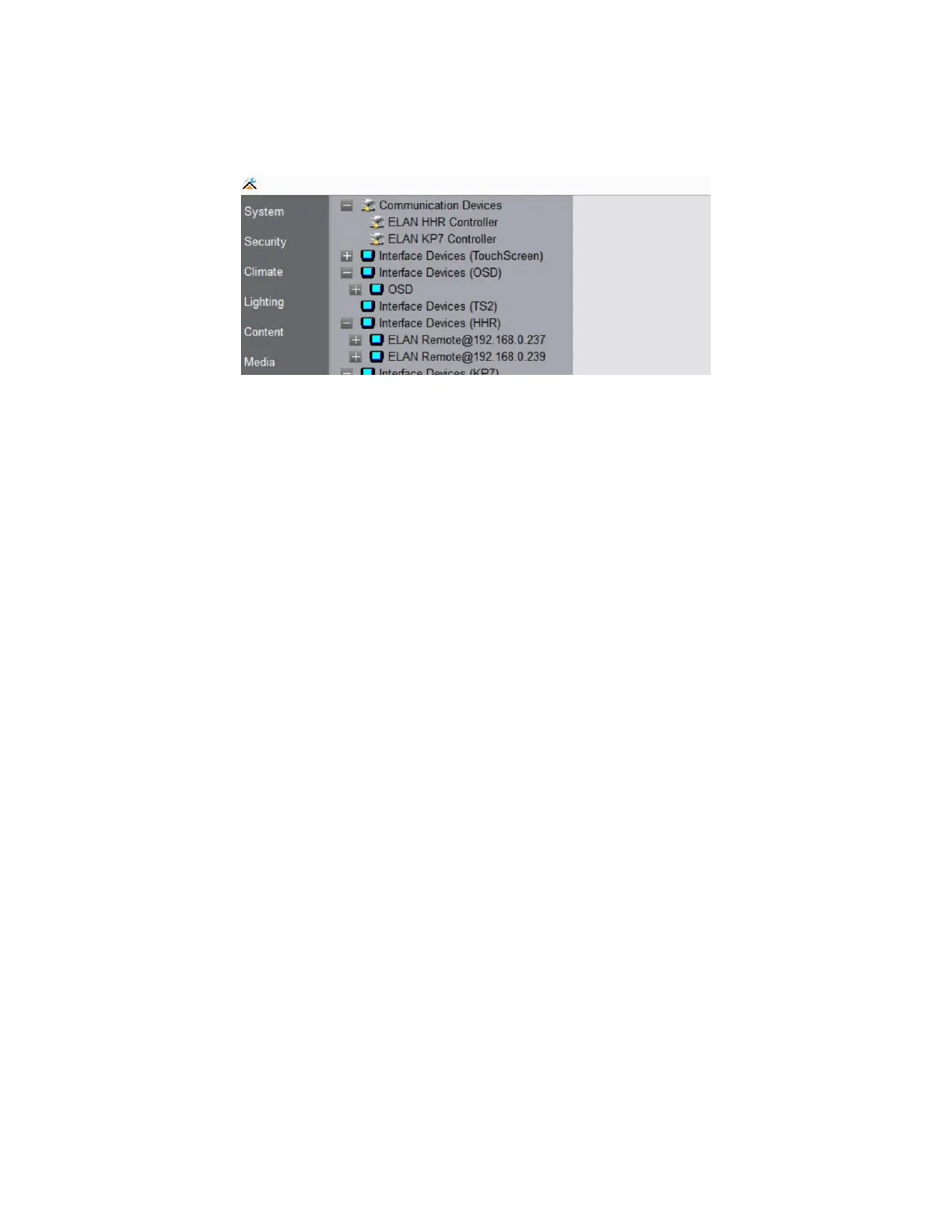
18. The remote will display “Configuring Radio” then connect to the access point and finally the system
controller. Once connected to the system controller it will automatically log an entry under Interface
Devices as shown below.
19. Click + next to the remote to expand its options and configure the remote’s display for each
subsystem. The choices include selecting subsystem visibility, hidden or shown. Click Apply when
done.
20. Wake up the remote to let it reconnect to the controller and download all the interface pages. Note
that this may take a few minutes and it is recommended to download to one remote at a time.
21. Verify the HHR firmware is as indicated in this document header or newer. If the firmware is not the
minimum from this document header, the ELAN Controller is expected to update the HR30 firmware
when it is configured. If the firmware revision is not correct after integrating the HR30 into the ELAN
system, contact ELAN tech support for details on updating.
a. Power up the remote
b. Simultaneously press the –CLR button, the HOME button, and the MUSIC button located
directly above the HOME button to access the SETUP MENU.
c. Use the arrow buttons to navigate the menu to Code version then click OK to view the HHR
version information.
22. Optionally configure the custom quick action buttons. Use the configurator to select the desired
button functionality:
a. Favorite – allows end user to save supported media now playing favorites for single button
press recall
b. Favorite Locked – same as above but configurator set only
c. Event Map Only – Set this to enable event map only functionality
d. Jump to Lighting - Jumps to a specified lighting page
e. Jump to Now Playing – Jumps to the HR30 zone now playing page
f. Light Scene/Link – Activate a light scene/link or map to an existing lighting keypad button
g. Light Switch – Toggle lighting load
23. Swipe Support: This is a new feature that allows the user to be able to swipe left or right to scroll
through pages or change songs being played. The user can also swipe up and down to go through
lists. Any HR30 page that has arrows to scroll should be able to use swipe instead of pressing the
arrows. This feature is on by default but can be turned off in Configurator.


 To Next Page
 Loading...