apt-get is a command line program, so to start with
you’ll need to open a terminal (see the command line
interface section on page 10 for more information on
this). Since package management affects the whole
system, all the commands need to be run with sudo.
The first thing you need to do is make sure you have
the latest list of software available to you. Run:
sudo apt-get update
Since all the software is handled through the
package manager, it can update all the software
for you so you don’t need to bother doing it for
each program separately. To get the latest versions
of all the software on your system, run:
sudo apt-get upgrade
This may take a little while, because open source
software tends to be updated quite regularly. In Linux
terms, you don’t install particular applications, but
packages. These are bundles of files. Usually, each one
represents an application, but not always. For example,
a package could be documentation, or a plug-in, or
some data for a game. In actual fact, a package is just
a collection of files that can contain anything at all.
In order to install software with apt-get, you
need to know the package name. Usually this
is pretty obvious, but it needs to be exactly right
for the system to get the right package. If you’re
unsure, you can use apt-cache to search through
the list of available packages. Tryrunning:
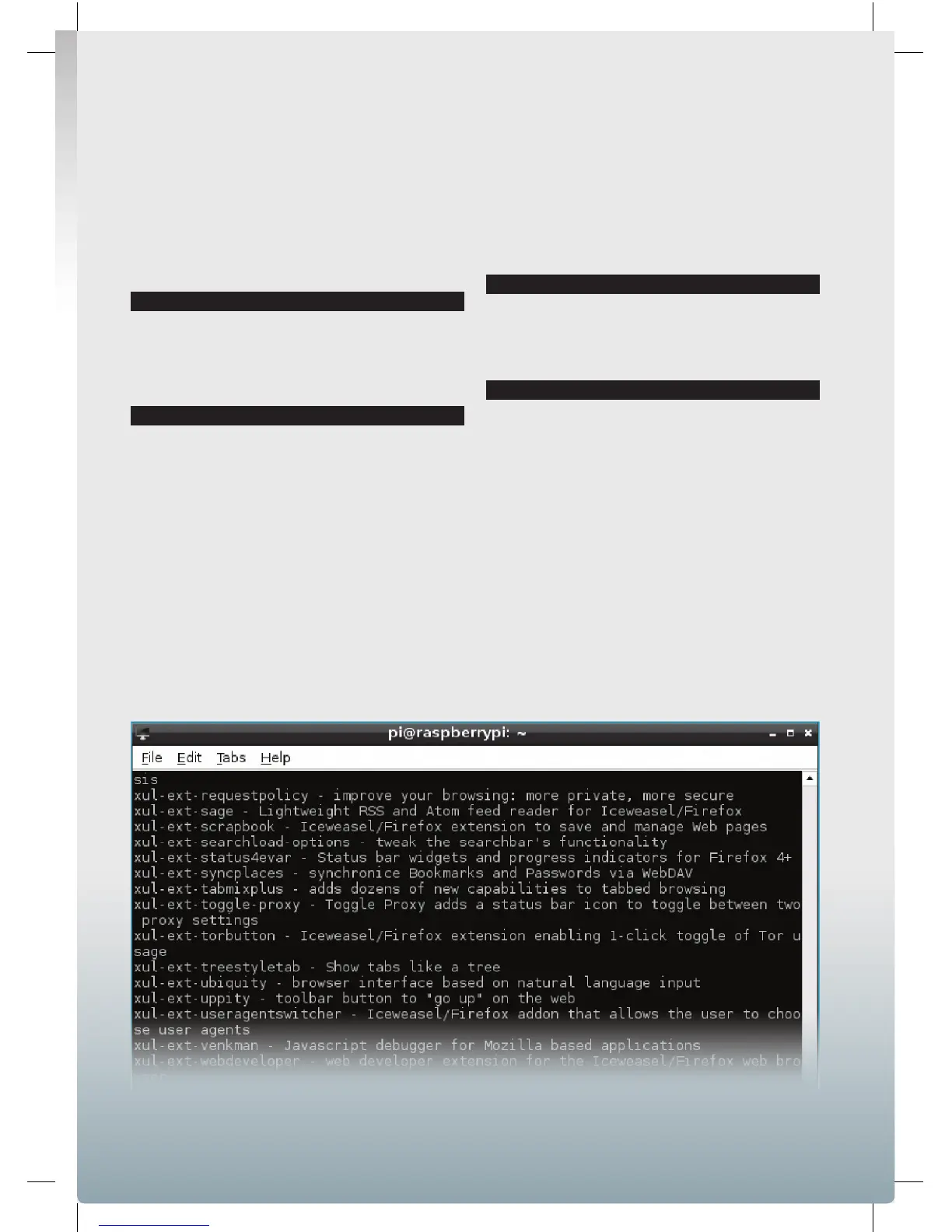
apt-cache search iceweasel
This will spit out a long list of packages that all
have something to do with the web browser
(
Iceweasel
is a rebranded version of
Firefox
).
To install
Iceweasel
, run:
sudo apt-get install iceweasel
You will notice that
apt-get then prompts you
to install a number of other packages. These are
dependencies. That means that
Iceweasel
needs the
files in these packages in order to run properly. Usually
you don’t need to worry about these – just press Y
and the package manager will do everything for you.
However, if your SD card is running low on space, you
may sometimes come across a program that has so
many dependencies that they’ll overfill the device. In
these cases, you’ll either need to free up some space or
find another application that has fewer dependencies.
■
apt-cache in a terminal will give you a list of available packages.
17
Raspberry Pi User Guide.indd 17 08/07/2014 14:44


 To Next Page