Basic operation
Use [Mute] button
Press the [Mute] button to mute the sound. Press the [Mute] button again to resume the sound.
Select picture modes
Press the [PICTURE] button to select the picture mode from four options: Standard, Movie, User and Vivid.
[n the "User" mode you can adjust the picture mode based upon your personal preference.
Select sound modes
Press the [SOUnd] button to select sound modes from Standard, Speech, User, and Music. [n the User Mode,
you can adjust the audio mode based upon your personal preference.
Select screen modes
Press the [ASPECT] button to select the aspect ratio between picture width and picture height (High Definition
16:9 pictures will be displayed in original format 16:9, named Wide).The options for SD (Standard Definition
4:3) are Normal, Wide, Zoomand Cinema
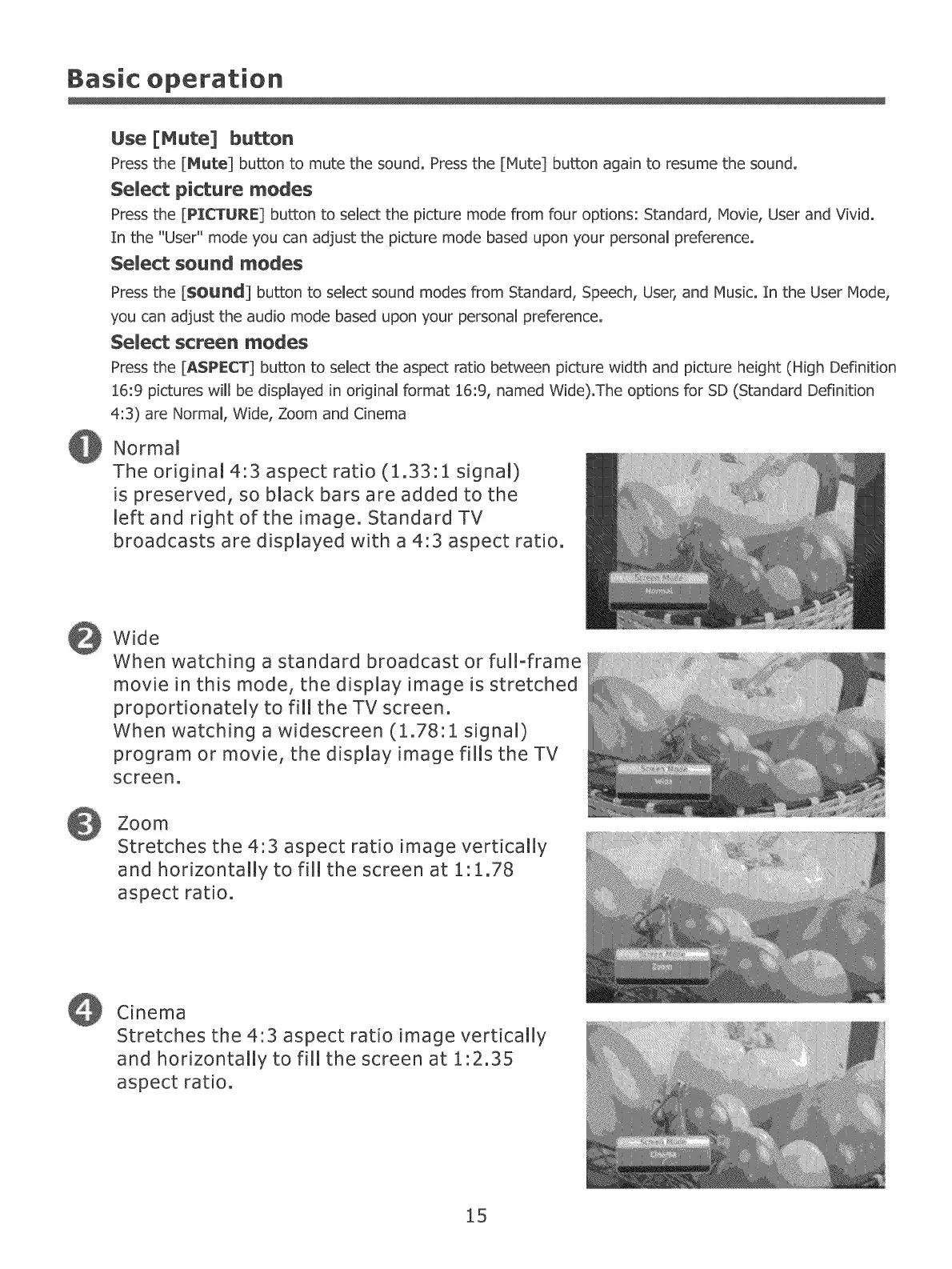
Normal
The original 4:3 aspect ratio (1.33:1 signal)
is preserved, so black bars are added to the
left and right of the image. Standard TV
broadcasts are displayed with a 4:3 aspect ratio.
Wide
When watching a standard broadcast or full-frame
movie in this mode, the display image is stretched
proportionately to fill the TV screen.
When watching a widescreen (1.78:1 signal)
program or movie, the display image fills the TV
screen.
Zoom
Stretches the 4°3 aspect ratio image vertically
and horizontally to fill the screen at 1"1.78
aspect ratio.
Cinema
Stretches the 4:3 aspect ratio image vertically
and horizontally to fill the screen at 1:2.35
aspect ratio.
15


 To Next Page