Need help?
Do you have a question about the Elgato 4K60 Pro and is the answer not in the manual?
Relocating the device to a different PCIe slot on the motherboard.
Ensure the motherboard's BIOS firmware is up to date.
Shut down, disconnect power, discharge, then restart PC.
Ensure the 'Fast Boot' feature in BIOS is disabled.
Disable the 'Fast Startup' option in Windows Power Options.
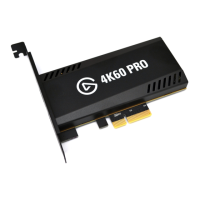
The Elgato Game Capture 4K60 Pro is a specialized internal capture card designed to integrate seamlessly with your personal computer system, enabling the capture of high-fidelity gaming footage. This device is engineered to facilitate the recording and streaming of gameplay content, providing a crucial link between your gaming console or another video source and your PC for content creation purposes. Its primary function is to receive video and audio signals from an external source, process them, and then make them available to your computer for further manipulation, such as recording, live streaming, or editing. The card is designed to handle high-resolution video, specifically 4K at 60 frames per second, ensuring that captured content retains a professional level of visual quality.
For optimal performance and recognition by your PC, the Elgato Game Capture 4K60 Pro requires proper installation within a compatible PCIe slot on your motherboard. The device's functionality is heavily reliant on the correct interaction with your system's hardware and software environment. Once installed, it acts as a dedicated hardware component that offloads the intensive task of video capture from your CPU, thereby allowing for smoother gameplay and more efficient content creation workflows. This dedicated processing capability is a key feature, as it minimizes the performance impact on your gaming experience while simultaneously ensuring high-quality capture.
Usage features of the Elgato Game Capture 4K60 Pro are primarily centered around its integration with your PC's operating system and associated software. To begin using the device, it must first be physically installed into an available PCIe slot. Following physical installation, the system's operating system, typically Windows 10, will need to recognize the device and install the necessary drivers. Once recognized, the capture card interacts with Elgato's proprietary capture software, which provides a user interface for configuring capture settings, previewing video input, and initiating recording or streaming sessions. This software allows users to select resolutions, frame rates, audio inputs, and other parameters to customize their capture experience according to their specific needs and the capabilities of their source device.
One of the key usage features is the ability to capture content from various sources, including gaming consoles like PlayStation, Xbox, and Nintendo Switch, as well as other HDMI-outputting devices. This versatility makes the Elgato Game Capture 4K60 Pro a valuable tool for content creators who work with multiple platforms. The device is designed to handle the complexities of video signal processing, including potential HDCP encryption, though specific bypass methods or compatibility may vary. Its internal design means it draws power directly from the PCIe slot, eliminating the need for an external power adapter and contributing to a cleaner setup within your PC case.
Maintenance features for the Elgato Game Capture 4K60 Pro are largely focused on ensuring its proper recognition and stable operation within your PC environment, rather than physical upkeep of the card itself. The device is a solid-state component with no moving parts, meaning it generally does not require routine physical maintenance like cleaning or lubrication. Instead, maintenance primarily involves software and system-level checks to troubleshoot any issues that may arise.
A crucial maintenance feature is the ability to troubleshoot recognition issues by trying the card in different PCIe slots on your motherboard. This helps to rule out potential conflicts with specific slots or lane limitations that some motherboards may have. Understanding your motherboard's manual regarding PCIe lane allocation is an important aspect of this maintenance, as it can prevent installation errors that lead to the card not being recognized.
Another significant maintenance aspect involves keeping your motherboard's BIOS up to date. An outdated BIOS can sometimes lead to compatibility issues with new hardware, and ensuring the BIOS is current can resolve recognition problems. This requires consulting your motherboard manufacturer for guidance on the update process, as it can be a sensitive operation.
Furthermore, system-level troubleshooting, such as performing a "Cold Boot," is a recommended maintenance step. This involves completely shutting down the PC, disconnecting the power cord, pressing the power button to discharge residual energy, and then reconnecting and restarting. This process can help reset the system's hardware detection mechanisms and resolve temporary glitches that prevent the capture card from being recognized.
Disabling "Fast Boot" features in both your motherboard's BIOS and Windows 10 Power Options is another important maintenance consideration. While "Fast Boot" is designed to speed up system startup, it can sometimes interfere with the proper initialization of hardware components, including capture cards. Disabling these features ensures that the system performs a full hardware initialization during startup, which can be critical for the Elgato Game Capture 4K60 Pro to be detected correctly.
Regularly checking for and installing updated drivers for the Elgato Game Capture 4K60 Pro, as well as keeping your operating system updated, are also vital maintenance practices. Software updates often include bug fixes, performance improvements, and enhanced compatibility, all of which contribute to the stable and reliable operation of the capture card. While the physical card itself is robust, its performance and recognition are highly dependent on the surrounding software and hardware ecosystem, making these system-level maintenance steps essential for its long-term functionality. The overall design philosophy emphasizes a "set it and forget it" approach once properly installed and configured, with maintenance primarily revolving around ensuring the host PC environment remains conducive to its operation.
 General
| Interface | PCIe x4 |
|---|---|
| HDR Support | Yes |
| Passthrough | Yes |
| Video Input | HDMI 2.0 |
| Video Output (Passthrough) | HDMI 2.0 |
| Latency | Ultra-low latency |
| Operating System Compatibility | Windows 10 (64-bit) |
| Max Capture Resolution | 480p |
| Supported Resolutions | 1080p, 1080i, 720p, 576p, 480p |
| System Requirements | Intel Core i7 or AMD Ryzen 7 |

 To Next Page