Notebook Manual 34
3.3 Using the touchpad / clickpad
The touchpad / clickpad is a rectangular electronic panel located just
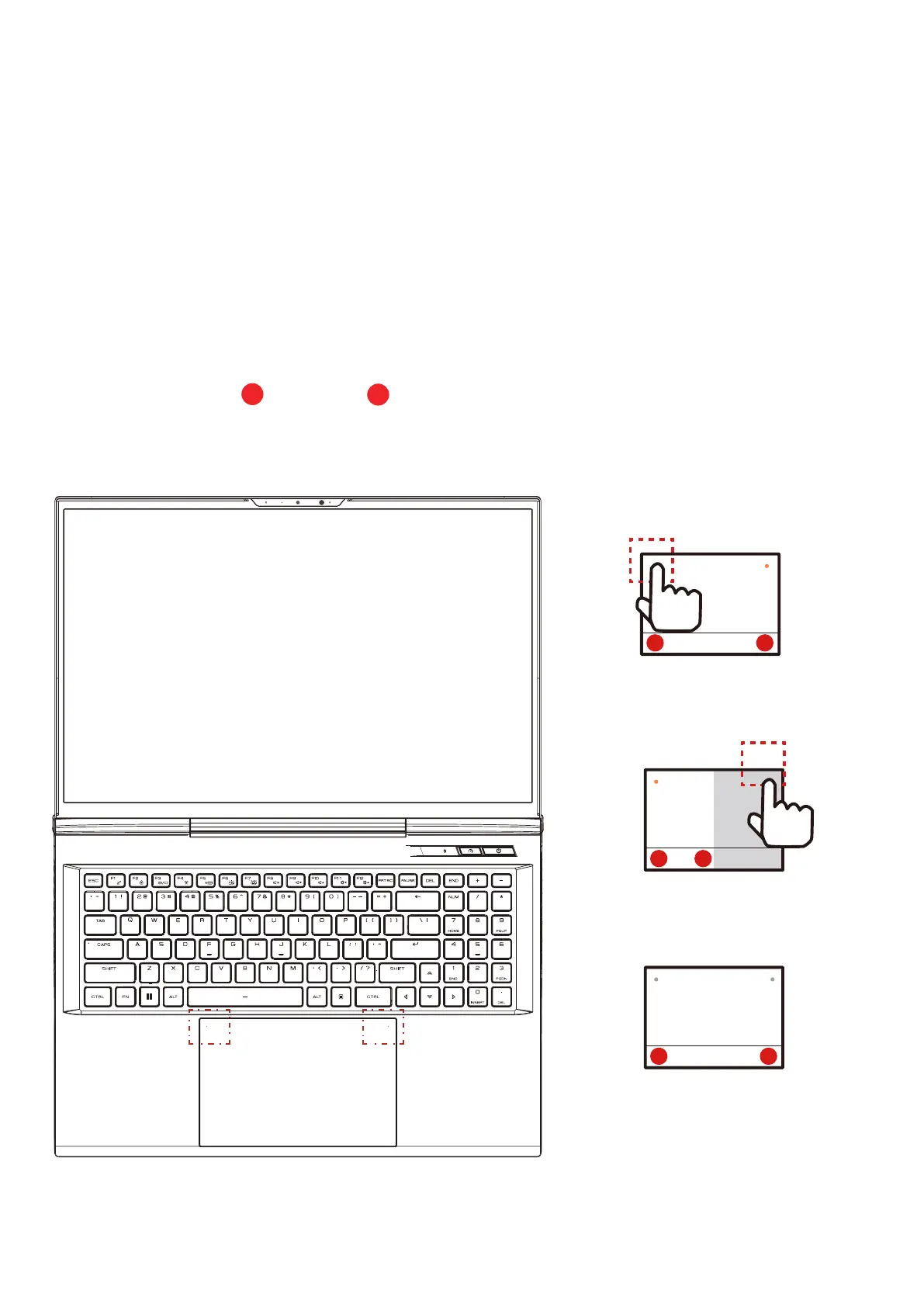
below your keyboard. Tap the left corner twice to enable or disable
(Green light) the touchpad functionality. You can use the static-
sensitive panel of the touchpad / clickpad and slide it to move the
cursor. You can use the buttons below the touchpad as left and right
mouse buttons.
Press the left
1
and right
2
buttons located on the edge of the
touchpad / clickpad to make selections and run functions. These two
buttons are similar to the left and right buttons on a mouse. Tapping
on the touchpad / clickpad produces similar results.
• Tap left corner twice to enable or
disable complete touchpad functionality
1
2
1
2
• Tap the right corner twice to enable
or disable the right half touchpad
functionality
• No light on the left or right, the
touchpad is on and functional in
all areas
1
2


 To Next Page