30
GB
Automatic answer function
This function, which is only available in HANDS FREE mode, activates the
monitor audio connection automatically when a call is received from the
speech unit or intercom device, without the need to push the TALK/LISTEN
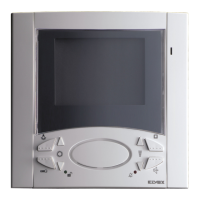
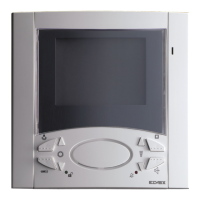
button . The "audio active" condition is indicated by the illumination
of the red LED at the bottom left corner of the monitor, which is nor-
mally used to indicate RINGTONE MUTE. The audio is activated automa-
tically 5 seconds after the call is received. To enable this function, with the
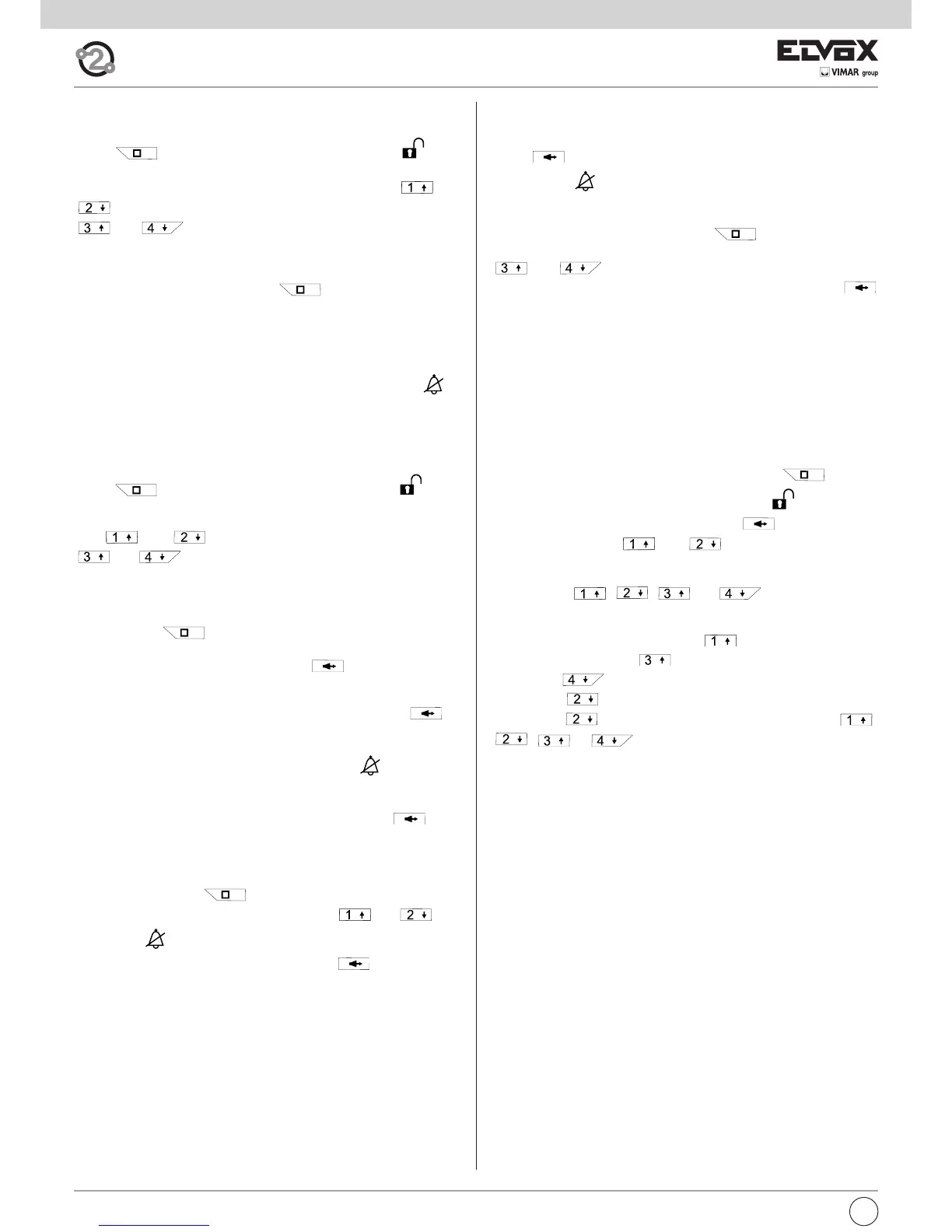
monitor switched OFF press push-button for 2 seconds to enter
SETTING mode; simultaneously press and hold down push-buttons
and until the red LED underneath starts flashing. At this
point, while the LED is flashing, press the TALK/LISTEN push-button
to confirm the change. The function is confirmed if the red LED switches off.
To disable this function, follow the same procedure. If HANDS FREE mode
was not active during the enabling process, it will be activated automatically
when the AUTOMATIC ANSWER function is enabled. If the automatic an-
swer function is subsequently disabled, the HANDS FREE function will re-
main active.
Adjusting the conversation volume
The term “conversation volume" refers to the perceived volume of the cal-
ler's voice when he/she is standing in front of the speech unit (entrance
panel), or speaking through an intercommunicating interphone or monitor.
To adjust the conversation volume, the user must be in communication with
a speech unit or intercom device. Press push-button for 2 se-
conds to enter SETTING mode; once the green LED starts flashing,
press and hold the TALK/LISTEN push-button and adjust the vo-
lume with push-buttons and . This procedure applies both
in HANDS FREE mode and in PUSH-TO-TALK mode.
Push-buttons , , and
These four push-buttons can be programmed to perform up to 4 functions
including intercom calls and auxiliary commands, when the monitor is not
in setting mode. By default, push-button is associated with the AUX
2 command, push-button is associated with the F1 command,
push-button with F2.
Push-button is not associated with any command. To program
push-button or to change the function of push-buttons ,
, or , use programmer type 950C or the SaveProg
software for PC, except for assigning the functions of intercommunicating
calls and self-start service to a specific panel, as described below in the pa-
ragraph “Programming push-buttons”.
SETTINGS
Ringtone volume and melody selection functions
These settings can be adjusted with the display switched off. Press push-
button (self-start) for 2 seconds, until the green LED at the
bottom right flashes. This LED is normally used to indicate DOOR OPEN.
This flashing indicates “SETTING” mode, during which buttons and
can be used to adjust the ringtone volume and push-buttons
and to select the melody.
The monitor will remain in “SETTING” mode (green LED flashing) until the
arrow buttons are pressed. SETTING mode is cancelled when the arrow
buttons are not pressed for more than 5 seconds. Nevertheless the user
can exit this mode by pressing button again until the green LED
switches off.
Ringtone mute function
Ringtone mute is activated using the same procedure described above for
adjusting the ringtone volume. Once the volume has been adjusted to the
lowest setting by repeatedly pressing the down arrow, the red LED in
the bottom left-hand corner illuminates to indicate that ringtone mute is
activated.
Brightness and contrast control functions
These settings can be adjusted with the display switched on. Press push-
button (self-start) for 2 seconds, until the green LED at the
bottom left flashes. This LED normally serves as the OPEN DOOR indica-
tor. This flashing indicates entry into “SETTING” mode, during which but-
tons and can be used to set the contrast and buttons
and to select the brightness. When the maximum and mi-
nimum values are reached, this is indicated by a beep. The monitor will re-
main in “SETTING” mode (green LED flashing) until the arrow buttons are
pressed. SETTING mode is cancelled when the arrow buttons are not pres-
sed for more than 5 seconds. Nevertheless the user can exit this mode by
pressing button again until the green LED switches off.
Communication mode selection function ( button)
It is possible to choose between two different modes of communication
with speech units or intercom devices:
1. HANDS FREE mode: press the TALK/LISTEN push-button at
the start of the conversation only, to activate the audio, and at the end
of the conversation to deactivate the audio. The "audio active" condi-
tion is indicated by the illumination of the red LED at the bottom
left corner of the monitor, which is normally used to indicate RINGTONE
MUTE.
2. PUSH-TO-TALK mode: keep the talk/listen push-button pres-
sed during the conversation; release it at the end of the conversation.
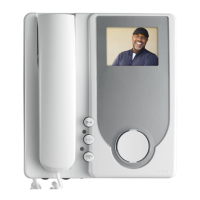
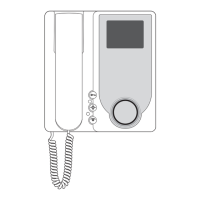
The 7200 series monitor is factory set to HANDS FREE communication
mode. To switch from one mode to the other, with the monitor switched
OFF press push-button for 2 seconds to enter SETTING mode;
simultaneously press and hold down push-buttons and until
the red LED underneath starts flashing. At this point, while the LED
is flashing, press the TALK/LISTEN push-button . to confirm the
change. The function is confirmed if the red LED switches off.


 To Next Page
 Loading...