The Embrava Desk Sign is a smart device designed to manage and display the availability of workspaces in an office environment. It integrates with an Embrava Device Management System (DMS) Portal and an Integrated Workplace Management System (IWMS) to provide real-time information about desk availability.
Function Description:
The Embrava Desk Sign serves as a visual indicator of workspace status, showing whether a desk is "Available" or "Reserved." It features an LED bar that changes color to reflect the status, providing a quick visual cue for employees. The device connects to a network (either Wi-Fi or wired Ethernet) to communicate with the Embrava DMS, which manages its configuration and integrates with booking systems. This allows for dynamic updates of desk availability based on bookings made through the IWMS. The sign displays key information such as the desk name (e.g., "Desk A1"), current status, and reservation times. It is designed to be mounted in various ways, including on partitions, desks, walls, or glass surfaces, offering flexibility in office layouts.
Important Technical Specifications:
- Power: The device can be powered via USB-C (using a USB-C to USB-A cable) or Power over Ethernet (PoE) through an Ethernet adapter.
- Connectivity:
- Wireless: Wi-Fi (requires outbound access to port 443 and port 8883 for functionality).
- Wired: Ethernet (requires outbound access to port 443 and port 8883 for functionality).
- Mounting Options:
- Partition/Desk Mount (SKU: MNTPART01): Includes a mount bracket, adhesive stickers, and screw hooks.
- Wall/Glass Mount (SKU: MNTMAG01): Includes a mount plate, plate adhesive, rear cover, rear cover adhesive, and plate screws.
- Dimensions (Wall/Glass Mount plate): Approximately 1.5 inches (40mm) wide and 0.6 inches (15mm) deep.
- Regulatory Compliance: FCC Class B digital device, compliant with Part 15 of the FCC Rules. It is designed to avoid harmful interference in residential installations and is subject to two conditions: (1) it may not cause harmful interference, and (2) it must accept any interference received, including interference that may cause undesired operation. FCC RF Radiation Exposure Statement indicates compliance with FCC's RF exposure guidelines, placing the product at least 20cm from nearby persons.
- Operating Voltage/Current: Rating: 5V 450mA.
- Model: DESKSIGN01.
- Serial Number (S/N) and Ethernet MAC Address: These are provided on the device packaging and the device itself for setup and network configuration.
Usage Features:
- Workspace Management: Integrates with Embrava DMS and IWMS to manage and display workspace availability.
- Real-time Status Display: Shows "Available" or "Reserved" status with an LED bar for quick visual identification.
- Touchscreen Interface: Allows users to interact with the device, for example, to select a Wi-Fi network or access menu options.
- Network Configuration: Supports both wireless (Wi-Fi) and wired (Ethernet) network connections. The device guides users through the network setup process, including selecting a Wi-Fi network and entering passwords.
- Configuration Download: Once connected to the Embrava DMS, the device automatically downloads its configuration for the assigned workspace.
- Flexible Mounting: Can be mounted on various surfaces using specific accessories, including partitions, desks, walls, and glass, catering to diverse office designs.
- Cable Management: Provides options for hiding cabling, such as routing cables through a cable channel or using conduit, for a clean installation.
Maintenance Features:
- Troubleshooting: The device manual provides guidance on troubleshooting common issues, including:
- Error Messages: Explanations for messages like "Device is not registered with Embrava," "Unable to connect to the Embrava DMS," and "Device is not mapped to a workspace." These messages guide users to check registration, network connectivity (including required outbound ports 443 and 8883), or workspace mapping within the DMS/booking system.
- Rebooting the Desk Sign: Instructions for performing a controlled reboot through the device's menu.
- Restoring Factory Settings: Steps to reset the device to its original factory settings, which can be done by tapping the screen during boot-up or through the menu.
- Support Resources:
- FAQ: A comprehensive list of frequently asked questions available on the Embrava website (https://www.embrava.com/faq) for self-service problem resolution.
- Support Call Logging: A process to log a support call via the Embrava website (https://www.embrava.com/support-call) if issues cannot be resolved through the FAQ.
- Firmware Updates: The device displays its firmware version (e.g., "Desk Sign v2.0.2-2.0.12"), indicating that firmware updates are part of its maintenance cycle, likely managed through the DMS.
- Cleaning: When applying adhesive stickers for mounting, it is recommended to first clean the surface to ensure proper adhesion.

 Need help?
 General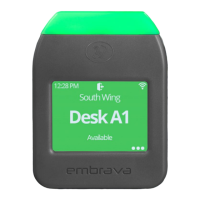

 To Next Page