Setting up audio
Please make sure that the eMeet webcam is selected as
the input device in the application you are using to access
this feature.
You can also select it in the Mac’s System Preferences
choose the Sound pane and go to the Input tab to
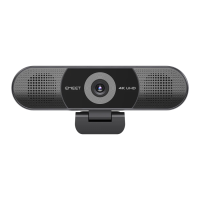
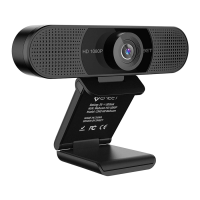
designate the webcam’s microphone (“HD Webcam
eMeet C960”) as your system default. You can manual
adjust the Input or Output volume of the webcam as you
prefer.
Setting up the microphone (Win 7 / 8 / 8.1 / 10 &Vista)
Open your Control Panel from the Start menu and
select the Hardware and Sound panel.
In the Sound menu, click Manage Audio Devices and
then the Recording tab along the top of the settings
windows which appears.
Make sure that“HD Webcam eMeet C960”is
selected as the default device under Recording, and
then click OK to save your changes.
For Window Users
The eMeet Webcam is compatible with most Windows
operation system included Windows vista / 2000 / XP /
Vista /7/8/8.1/10.
˙
˙
˙
8


 To Next Page