To Next Page
A
Andrew KnoxSep 2, 2025
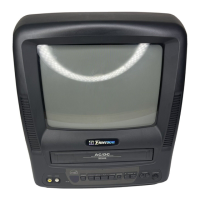
Why can't I record on my Emerson EWC1304?
- CchenhunterSep 3, 2025
If your Emerson TV VCR Combo cannot go into record mode, make sure the tape has an erase-prevention tab. If there is no tab, cover the hole with plastic tape.

Why can't I record on my Emerson EWC1304?
If your Emerson TV VCR Combo cannot go into record mode, make sure the tape has an erase-prevention tab. If there is no tab, cover the hole with plastic tape.
How to improve picture quality on Emerson TV VCR Combo?
If your Emerson TV VCR Combo has no picture or a poor picture, try these steps: * Adjust or replace the antenna. * Adjust the picture controls. * Check for any broken pins on the antenna cable.
Why is there no picture on my Emerson EWC1304 during playback?
If your Emerson TV VCR Combo is showing no picture but the audio is OK during playback, head cleaning may be necessary.
How to remove black box on Emerson EWC1304 screen?
If your Emerson TV VCR Combo is showing a black box on the screen, it is likely in TEXT mode. To resolve this, select a CAPTION mode (“C1”, “C2”) or turn Caption “OFF.”
Why does my Emerson TV VCR Combo remote not work?
If your Emerson TV VCR Combo's infrared remote control isn't working, ensure the AC cord is connected to a power outlet and check the batteries in the remote control.
How to fix no picture or poor picture on Emerson EWC1304?
If you are experiencing no picture or a poor picture on your Emerson TV VCR Combo, try adjusting the direction or replacing the antenna. You can also adjust the picture controls.
How to fix no sound or poor sound on Emerson EWC1304?
If you experience no sound or poor sound on your Emerson TV VCR Combo, first, adjust the volume control on the remote or the main unit. If that doesn't work, press the MUTE button to restore the sound.
What to do if my Emerson EWC1304 TV VCR Combo has no picture and sound?
If your Emerson TV VCR Combo has no picture and sound, verify that the AC cord is connected to a working AC outlet. Also, check the antenna connection and ensure the TV/VCR has programmed its tuner memory.
Why Emerson TV VCR Combo has no power?
If your Emerson TV VCR Combo has no power, ensure the AC cord is properly connected to an AC outlet and that the power is turned on.
What to do if my Emerson EWC1304 TV VCR Combo has no picture or sound?
If your Emerson TV VCR Combo shows no picture or sound, ensure the AC cord is connected to the outlet. Check the antenna connection and allow the unit to program its tuner memory.
Guidance on selecting a suitable place for unit installation and environment.
Instructions to avoid electrical shock and fire risks during operation.
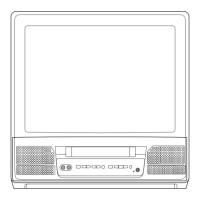
Description of buttons and indicators on the front panel of the TV/VCR.
Identification and function of buttons on the remote control.
Details of ports and connections on the rear of the unit.
Instructions for inserting batteries into the remote control.
Guide for connecting the TV antenna or cable service to the unit.
Connecting external sources like VCRs or cameras to the front A/V jacks.
Steps for tuning in and watching TV channels on the unit.
How to adjust Brightness, Contrast, Color, Tint, and Sharpness.
Setting up the unit for optimal video game input.
Procedure to fix screen color issues caused by magnetism.
Setting the unit to turn on automatically at a specified time.
Setting the unit to turn off automatically after a desired period.
Enabling and using dialogue or text captions for programs.
Scanning available channels and setting up the tuner memory.
Adding or deleting channels from the unit's memory.
Setting the unit's internal clock for accurate timer functions.
Enabling the unit to synchronize the clock with broadcast time signals.
Configuring the clock for Daylight-Saving Time changes automatically.
Choosing the display language for the unit's on-screen menu.
Guidelines for handling, storing, and preventing damage to video cassettes.
Explanation of SP and SLP recording and playback speeds.
Basic steps for playing and stopping a video tape.
Improving picture clarity by adjusting the tape tracking.
Viewing static images and reducing picture noise during playback.
Improving playback quality for worn or rented tapes.
Setting the unit to repeat tape playback automatically.
Automatically stopping the tape at the counter zero point.
Skipping or finding specific scenes at high speed.
Advancing the tape to a specific playback time.
Displaying elapsed tape time in hours, minutes, and seconds.
Automatic tape rewind and eject at the end of the tape.
Basic steps for recording a TV program directly.
Temporarily stopping and resuming the recording process.
Instant recording with selectable length using a single button.
Instructions for copying tapes from an external VCR or camcorder.
Programming the unit to record programs automatically based on a schedule.
Adjusting recording start/end times for scheduled programs.
Steps to correct or cancel existing timer recordings.
Automatically rewinding to the start of recorded programs.
How to clean the exterior surfaces of the unit safely.
Utilizing the built-in function for automatic video head cleaning.
 General
| Brand | Emerson |
|---|---|
| Model | EWC1304 |
| Type | TV VCR Combo |
| Screen Size | 13 inches |
| Screen Type | CRT |
| VCR Type | VHS |
| Tuner Technology | Analog |
| Inputs | RF, Composite |
| Number of Speakers | 1 |
| Remote Control | Yes |
| Outputs | Composite |