1
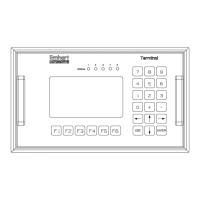
1. Menu Access and Selection
When switching the TMP weld unit on the screen display will be activated. The
TMP will identify itself by presenting unit and peripherals types as well as the
corresponding software versions.
Software version 1 Software version 2
T U C K E R #########
System software V ##.##
Keypad/Display V ##.##
Central CPU V ##.##
SMPS V ##.##
Interface ########### V ##.##
Output 1 #### / #### V ##.##
Output 2 #### / #### V ##.##
Output 3 #### / #### V ##.##
Output 4 #### / #### V ##.##
Output 5 #### / #### V ##.##
<F1..F5> <ESC>
Now please press the key to open the main menu.
OPERATION
Weld parameter monitor
Programming
Statistics
Fault reset
Status weld sequence
Status customer interface
Status Feeder/Stud-Divider
Status TMP
Functions
Warnings
<↓↑> <ENTER> <F1..F5>
As soon as the main menu appears on the screen the sub-menues listed can be
selected.
1. Position the cursor with the direction keys and on the corresponding
submenu and confirm your selection with .
2. Sub-menus with alterable contents may also be selected by pressing one of the
function keys listed below directly.
• Function key : open main menu "Function Keys"
• Function key : open main menu "OPERATION"
• Function key : open main menu "Programming"
• Function key : open main menu "Monitor Parameters"
• Function key : open main menu "Reset Fault"
• Function key and open changing over languages.
T U C K E R #########
System software V ##.##
Keypad/Display V ##.##
Central CPU V ##.##
SMPS V ##.##
Interface ########### V ##.##
Output 1 #### / #### V##.## LM V ##.##
Output 2 #### / #### V##.## LM V ##.##
Output 3 #### / #### V##.## LM V ##.##
Output 4 #### / #### V##.## LM V ##.##
Output 5 #### / #### V##.## LM V ##.##
<F1..F5> <ESC>
Artisan Technology Group - Quality Instrumentation ... Guaranteed | (888) 88-SOURCE | www.artisantg.com


 To Next Page
 Loading...