4.0 Setting up a secured connection using
WPS
The EM4543/EM4544/EM4571 can be secured using WPS. WPS is a handy feature,
which allows you to secure your wireless network by pressing the WPS button on both
your Eminent router and your wireless WPS adapter. The Eminent router and your
wireless WPS device will then automatically ‘agree’ to use a SSID and WPA2 AES
security key. The connection between the Eminent wireless router and your WPS
device will be established automatically.
Make sure the wireless WPS adapter is installed on your computer.
4.1 Using the WPS button (Router and Wireless WPS
adapter)
Note: The following steps are created using Windows 7.
1. Make sure your computer has been started and your Wireless WPS adapter is
installed on your computer. Also make sure your Wireless Eminent router has an
internet connection.
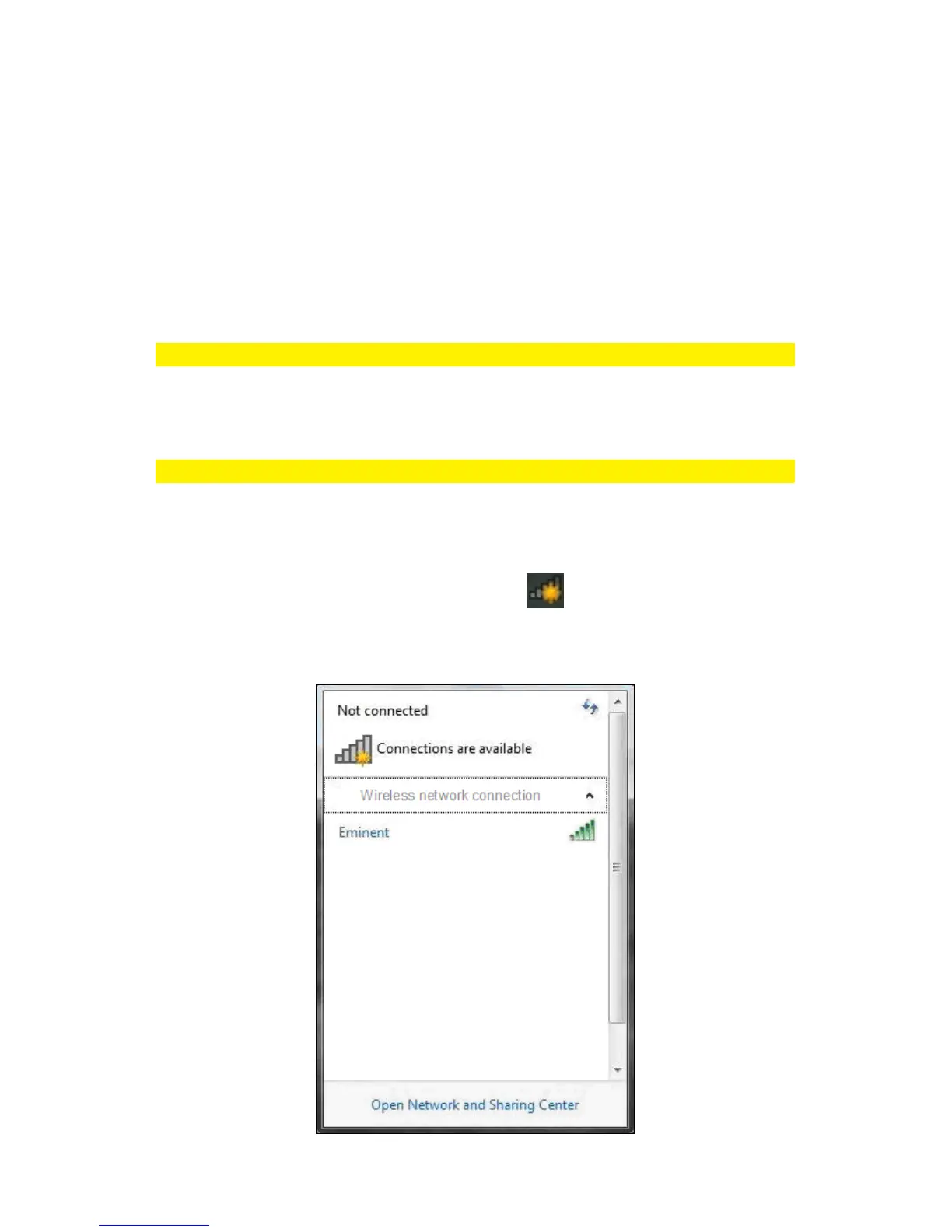
2. If correct, an icon of the wireless connection ( ) will be added to your taskbar.
3. Click the icon after which a list of available wireless networks will be listed as
shown in the following image:



 To Next Page