19
The time of the rst temperature change will be ashing; you can set the time
by repeatedly pressing
(10 minute increments), then conrm with .
The temperature value will begin ashing; set by repeatedly pressing .
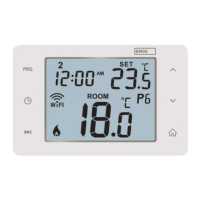
P1 will appear below the set temperature, indicating the 1st temperature
change in the day.
Conrm by pressing . Continue by setting the start of the second temperature
change (P2 will appear under the temperature).
Set the time and temperature by following the same steps as when setting the
1st temperature change.
Continue the process until all 6 temperature changes (P1 to P6) are set.
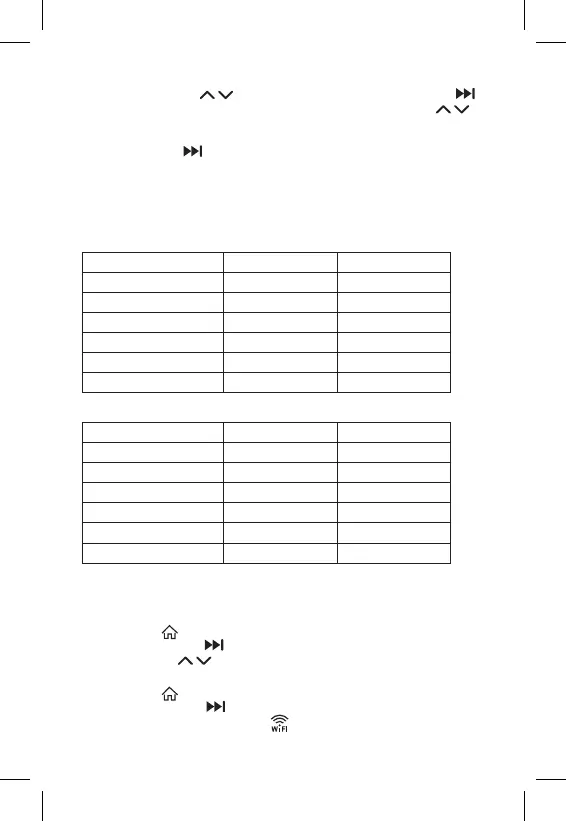
Factory pre-set times and temperatures are as follows:
Monday to Friday
Temperature change Time Temperature
P1 6:30 20 °C
P2 8:30 16 °C
P3 12:00 16 °C
P4 14:00 16 °C
P5 16:30 21 °C
P6 22:30 7 °C
Saturday to Sunday
Temperature change Time Temperature
P1 7:30 20 °C
P2 9:30 20 °C
P3 11:30 20 °C
P4 13:30 20 °C
P5 16:30 20 °C
P6 22:30 15 °C
Screen Illumination
Pressing any button will illuminate the screen for 15 seconds.
Other Technical Settings
Long-press the button for about 5 seconds.
Repeatedly pressing the button selects from the functions below, values are
adjusted using the buttons.
Connecting the Thermostat to WiFi (COFI)
Long-press the button for about 5 seconds.
Then press and hold the button for 3 seconds.
E2 will appear on the screen and the icon will be ashing.


 To Next Page