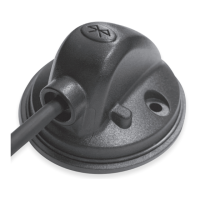
This document describes the EMOVE Bluetooth Adaptor, a device designed to connect to the control box of an EMOVE caravan manoeuvring system or a Finding Level mover. It enables users to control their caravan mover via a dedicated smartphone app called "My EMOVE," available on both iOS (version 7.0 and above) and Android (version 4.3 and above).
Function Description:
The EMOVE Bluetooth Adaptor acts as a bridge between the caravan's manoeuvring system and a smartphone. Once installed and paired, it allows the "My EMOVE" app to replicate the functions of the traditional remote control handset, providing a convenient way to manoeuvre the caravan, engage/disengage rollers, and, for specific models, utilize auto-levelling and corner steady adjustments. It is important to note that this product is not suitable for expanding a 4-motor twin axle manoeuvring system.
Important Technical Specifications:
- Product Name: EMOVE Bluetooth Adaptor
- Supplier Code: EMBT
- Minimum Android OS Requirement: Version 4.3 and above
- Minimum iOS Requirement: Version 7.0 and above
- Communication: Bluetooth
- Power Source: The adaptor connects to the caravan's control box, drawing power from the caravan's battery (voltage reading displayed in the app, e.g., 12.3v, 12.0v, 10.2v).
- Signal Range: To maintain signal strength, the distance between the remote control (smartphone) and the caravan should not exceed 5 metres during use.
Usage Features:
Installation and Setup:
- Prior to Installation: Ensure the EMOVE control box is installed by a qualified engineer. Park the caravan on a solid, level surface and use a lifting ramp to access the control box safely.
- Mounting the Adaptor: The Bluetooth adaptor should be mounted on the outside of the caravan using supplied screws to ensure optimal Bluetooth signal reception around the caravan.
- Cable Routing: Route the cable along the underside of the caravan floor, ideally inside trunking, to protect it from sharp edges and dirt. Connect the cable to the designated Bluetooth socket on the control box.
- Syncing Handset to Motherboard (Crucial Step): Before linking the Bluetooth adaptor to the smartphone, the control box must first be linked to the supplied remote control handset. This enables the app to replicate the handset's controls.
- Turn on the remote control handset (switch to "On"). The green LED will flash slowly.
- Press the reset button on the control unit. All three LED lights on the control unit will flash slowly.
- Press both the forward and reverse buttons on the remote control handset for about 3 seconds. A short beep confirms synchronization.
- After successful synchronization, the green LEDs on both the control unit and handset will illuminate continuously.
- For quad systems, repeat this procedure with the second electronic control unit, turning the remote handset "Off" and then "On" again to activate both.
- App Installation: Download and install the "My EMOVE" app from the Apple App Store or Google Play Store.
- Linking System to App:
- Switch on the manoeuvring system via the battery power isolation switch.
- Press the reset button on the control box (a beep will sound).
- Ensure the smartphone's Bluetooth is enabled.
- Open the app. Allow Bluetooth connectivity when prompted.
- The app will search for nearby EMOVE Bluetooth Adaptors, appearing as "BOLUTEK."
- Pair with the device.
- Select the EMOVE model from the screen (e.g., FL Version EM306, Manual Version EM203/EM303, Automatic Version EM303A/EM305, AutoSteady EM306).
- The app will then display the model's control panel.
- After initial successful synchronization, the app will automatically enter the operating screen without needing to re-select the Bluetooth connection or motor mover system, provided the battery power isolation switch is on and Bluetooth is enabled.
Operating Instructions (General for EM203/EM303 - Manual Engage, EM303A/EM305 - Automatic Engage, EM306 - Finding Level/AutoSteady):
- Basic Manoeuvring:
- Forwards/Reverse (Buttons A/B): Both wheels rotate in the selected direction.
- Direction Adjustment (Buttons C/E for forwards, D/F for reverse): Adjust direction while moving straight.
- Turning on Axis (Buttons C+F or D+E simultaneously): Turn the caravan on its own axis without moving forward or backward (single-axle function only).
- Direction Switch Delay: A 1-second delay occurs when switching direction within 2 seconds to protect electronics and motors.
- Automatic Engagement (EM303A/EM305, EM306):
- Engage (Button G): Activates motor-powered rollers to engage with the tyre. The app displays an engage icon until rollers are firmly pressed. Allow 3 seconds before manoeuvring.
- Disengage (Button H): Activates motor-powered rollers to disengage from the tyre. The app displays a disengage icon until rollers are fully disengaged. The H button illuminates red until disengaged. Once disengaged, the caravan cannot be moved.
- Finding Level (EM306):
- Finding Level Button (J): Automatically levels the caravan using the app's spirit level.
- Auto Corner Steady Functionality (EM306, AutoSteady):
- Upwards/Downwards Buttons (A/B): Sets the direction for corner steadies to move.
- Auto Button (D): Auto-adjusts all corner steadies upwards/downwards based on the chosen direction.
- Individual Corner Steady Adjustment (Buttons E, F, G, H): Adjusts specific corner steadies (front left, back left, front right, back right) based on the chosen upwards/downwards direction.
- Spirit Level (EM306):
- Spirit Level Button (L): Accesses the spirit level screen. A white spot in the middle indicates the caravan is level. Adjust corner steadies as needed.
- Compass:
- Compass Button (J/O/K): Accesses the compass function, which utilizes the smartphone's GPS.
- Settings Menu (Button G/I/K/H):
- Allows language selection and data cleanup (resetting the app). A confirmation prompt appears for data cleanup.
- Bluetooth Status Icon (H/J/I):
- Static Icon: Indicates the app is connected to the adaptor.
- Flashing Icon: Indicates the app is in the process of connecting.
- Voltage Reading (I/K/M/J): Displays the caravan battery's voltage.
Receiving Incoming Calls:
- The smartphone remains available for calls/messages while using the app.
- If another app uses the screen, allow a few moments for the "My EMOVE" app to reconnect to the Bluetooth Adaptor upon returning.
- During reconnection, the Bluetooth Status icon will flash, and control panel buttons will be greyed out. The EMOVE logo may cover the screen; swipe up to return to the control panel.
Important Usage Notes:
- Only one remote control (either the standard handset or the app) can be used at a time.
- In case of malfunction, immediately enable the handbrake and turn off the main isolation power switch.
- External terrain or objects may obstruct the remote signal, potentially causing momentary stops.
Maintenance Features:
- Software Updates: Regularly check for and install software updates for the "My EMOVE" app via the Apple App Store or Google Play Store.
- Device Condition: Ensure the smartphone or tablet used for the app is not damaged. Damaged screens or units can significantly affect app functionality. No warranty claims will be accepted for issues arising from a damaged device.
- No Modifications: Do not make any mechanical or electronic modifications to the system. Modifications will void warranty claims and cannot guarantee system function.

 Need help?
 General

 To Next Page