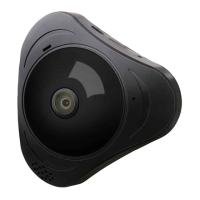
Panoramic VR IP Camera 360º
2
2) Wired connection: after the camera powered on, connect one end
of the cable to the camera, the other end to the router LAN port
(please be sure the router open the DHCP function), the network
light will be normally on after connection successfully.
Step 5: Add The Camera Through The WI-FI or Wired Network.
1) Through WI-FI: The camera will be connected to your mobile
device automatically once user has nished step 4.
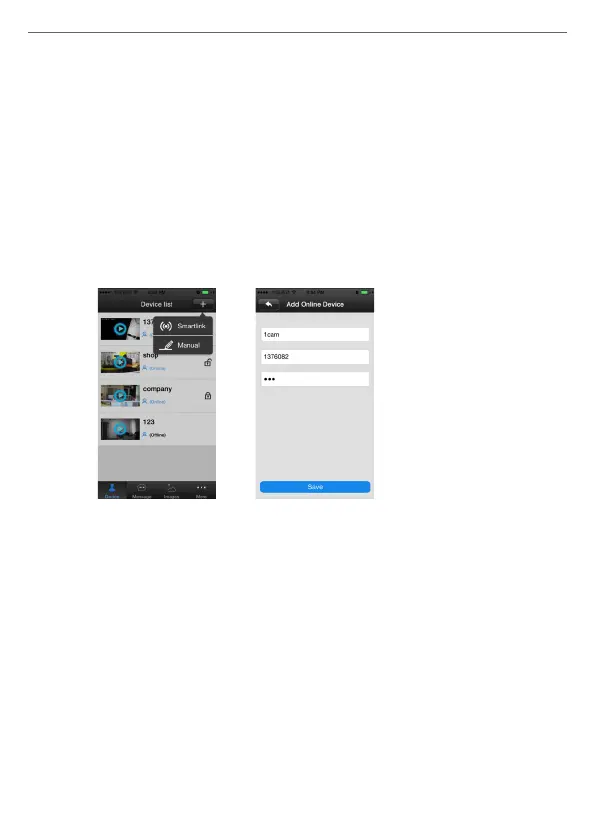
2) Add device manually On the device interface of the Yoosee
software, clickthe “+”, Fill up the needed information. Device name,
ID and Password are at the bottom of the IP Camera.
FAQ About Setup:
1. Q. Power on the IP Cam: (Start To Conguration) Sound will be sent by
the IP Camera. If not, the IP Camera may not be connected to the WI-FI
mode successfully.
A: There are two ways to x the problem.
Solution 1: Unplug the power cord and plug it again in seconds:
It will wake up the IP Camera system, which becomes more efcient to
recognize and accept the router around it.
After hearing Start To Conguration Sound, please try it connect it again
by WI-FI or Wired Network.


 To Next Page
 Loading...