Multi-Function Gigabit Wireless-N Client Bridge Version 2.0
18
3.2.4.2 Access Point Operating Mode
In order to configure the device as an Access Point,
select Access Point from the Operating Mode
drop-down list.
A dialog box will appear to notify you that the
system will restart in order for the change to take
effect. Click on the OK button to continue.
Please wait while the device counts down and
restarts into the new operating mode.
Once the device has restarted into Access Point
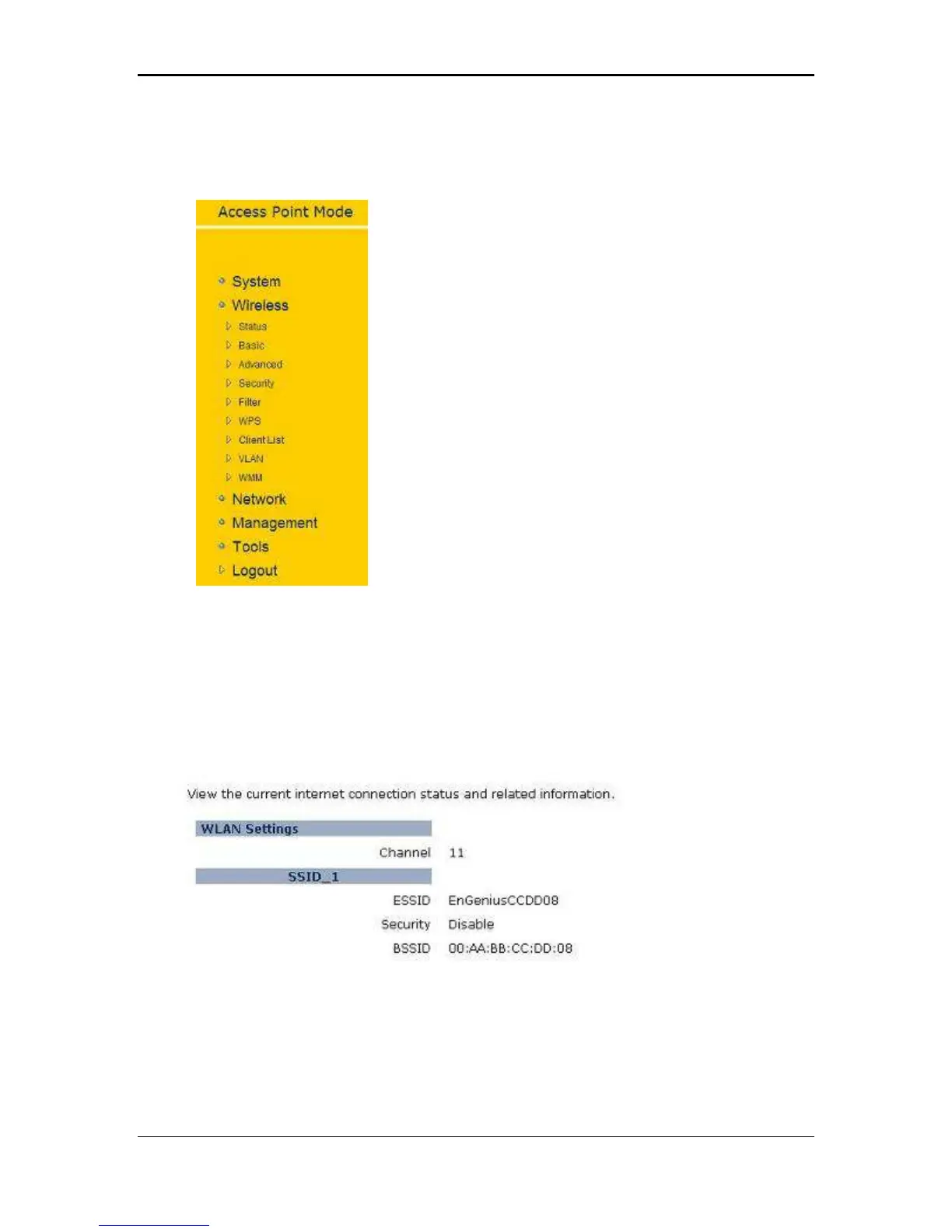
mode, you will see a new drop-down menu with
nine options which are: Status, Basic, Advanced,
Security, Filter, WPS, Client List, VLAN, and WMM.
Each of the options is described in detail below.
3.2.4.2.1 Status
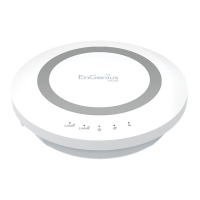
Click on the Status link under the Wireless drop-down menu. This page will display
the current wireless settings such as SSID, Channel, Security and BSSID (MAC
address)
3.2.4.2.2 Basic
Click on the Basic link under the Wireless drop-down menu. This page will display
the current wireless settings such as SSID, Channel, Security and BSSID (MAC
address).


 To Next Page