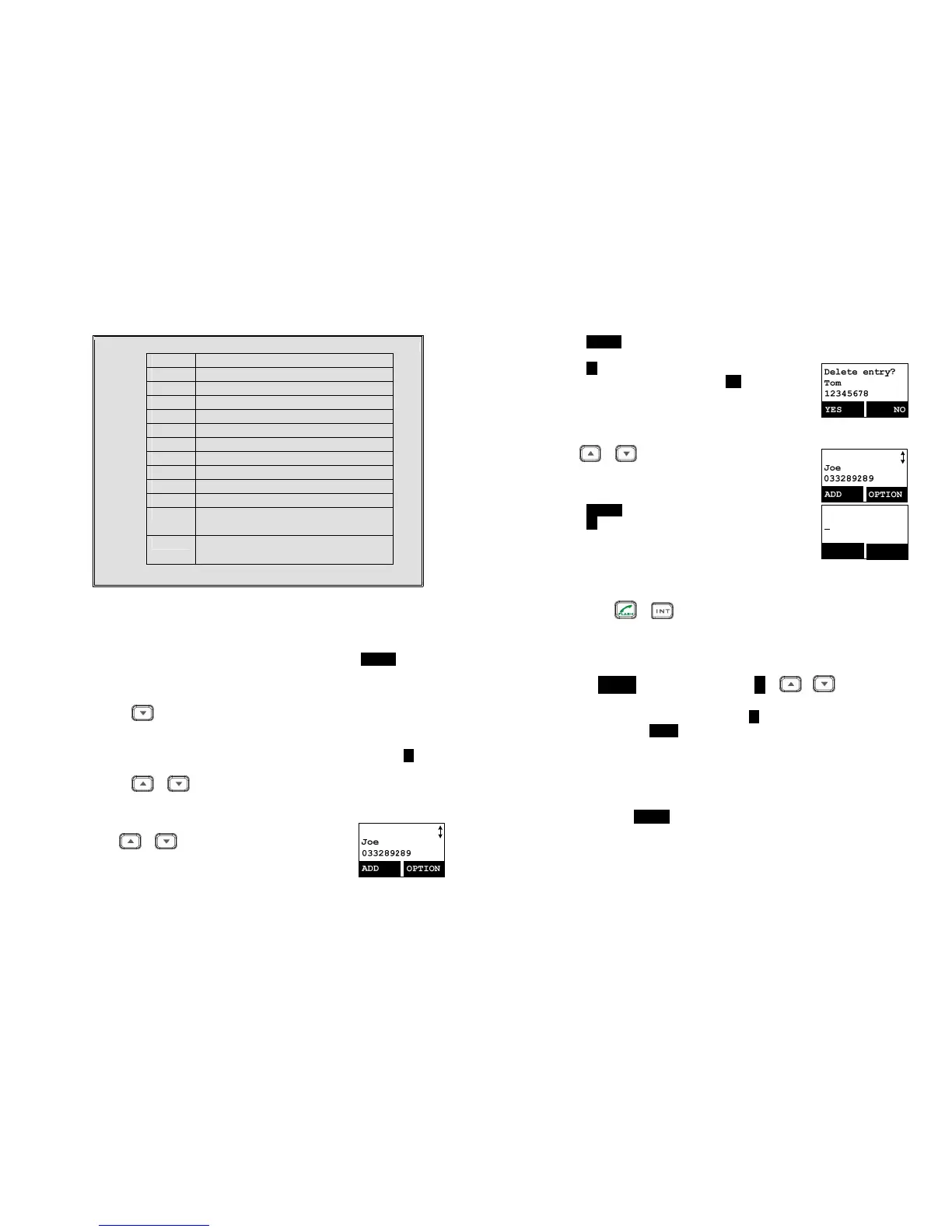
5. Character Table:
Key Characters and Orders
1 ‘ + , . * ( ) & 1
2 A B C 2
3 D E F 3
4 G H I 4
5 J K L 5
6 M N O 6
7 P Q R S 7
8 T U V 8
9 W X Y Z 9
0 0
*
Caps – when in character editing.
*– when in number editing.
#
Space & # – when in character editing
# & P (Pause) – when in number editing
4. The entries are alphabetically sorted and stored as a list in an ascending order
(A to Z) from the top of the list.
5. The first line of LCD display shows name and the 2
nd
line shows the phone
number. If the phone number is longer than 16 digits, press OPTION (Right)
soft key and select Option 3 “View Number” to view the complete number.
6. To search for a record:
a.
Use scrolling key to enter Phone Book mode.
b. Press a key that corresponds to the first character of the name you are
looking for.
c. For example, if you are looking for “EnGenius”, press the number 3 key
once.
d.
Use
or scrolling key to locate the exact record you are looking
for.
7.
To erase a phonebook entry:
a.
Use
or scrolling key or the alphabetical search
method to locate the record to be erased or edited.
Press OPTION (Right) soft key to enter the option menu.
Press 1 to erase the intended phone entry.
d.
LCD will show “Delete entry?” Press YES
To edit a phonebook entry:
a.
Use
or scrolling key or the alphabetical search
method to locate the record to be erased or edited.
Press OPTION (Right) soft key to enter option menu.
c.
Press 2 to edit the intended phone entry.
Name?
_
Caps = *
SAVE
DELETE
9. Dial from display:
a.
Press or to dial the phone number or Handset ID displayed.
10.
To transfer the phonebook to another handset:
To transfer phonebook, both parties have to enter the phonebook transfer
mode first by following below:
a.
Press OPTION right soft key followed by 5 or or scrolling key to
transfer while handset is in phonebook mode.
b. For the phone doing the sending, press 1 to enter sending mode.
i. Either press TX ALL(left softkey) to transfer all phonebook entries to
another handset(s)
Note: if you want to transfer all entries from an handset but the entry
is not from beginning (entry #1), it will only transfer the
remaining entries. For example, if you are have 10 entries, and
you start at entry #5, then it only transfers #5 through #10.
ii. Or press TX ONE (right softkey) to transfer just one entry to another
handset(s).
Note: you will need to at the desired entry before going to the TX
ONE option for that particular entry to be transferred.
iii. Press the 2-digit handset ID or group ID, then select all phonebook
entries or one entry to be transferred.


 To Next Page