28
Saving and Recalling Images
The DaVinci has the ability to save images from CCTV or OCR modes. This will allow
the user to take a snapshot of a document, save it, and view it at a later time.
Saving an Image
1. See Page 23 to turn on the Save & Recall feature on the DaVinci.
2. Place a document underneath the camera head and set the desired
Color Mode and Zoom.
3. Press and hold the button on the DaVinci Control Console for
2 seconds. When the image is saved the DaVinci will display “IMAGE
SAVED”. If the storage space is full, the DaVinci will display “DEVICE FULL”
with a voice prompt (if enabled)
mm.dd.yyyy – hh:mm [OCR/IMG] The DaVinci will name that image by the month,
day, year, time, and mode it was saved at.
*In CCTV mode, if you save the image consecutively within a minute,
the previous image saved will be overwritten.
**In OCR mode, if you save the image consecutively within a minute,
the DaVinci will display “Already Saved”
Recalling a Saved Image
1. Press and hold the RECALL
button on the DaVinci Control Console
for 2 Seconds.
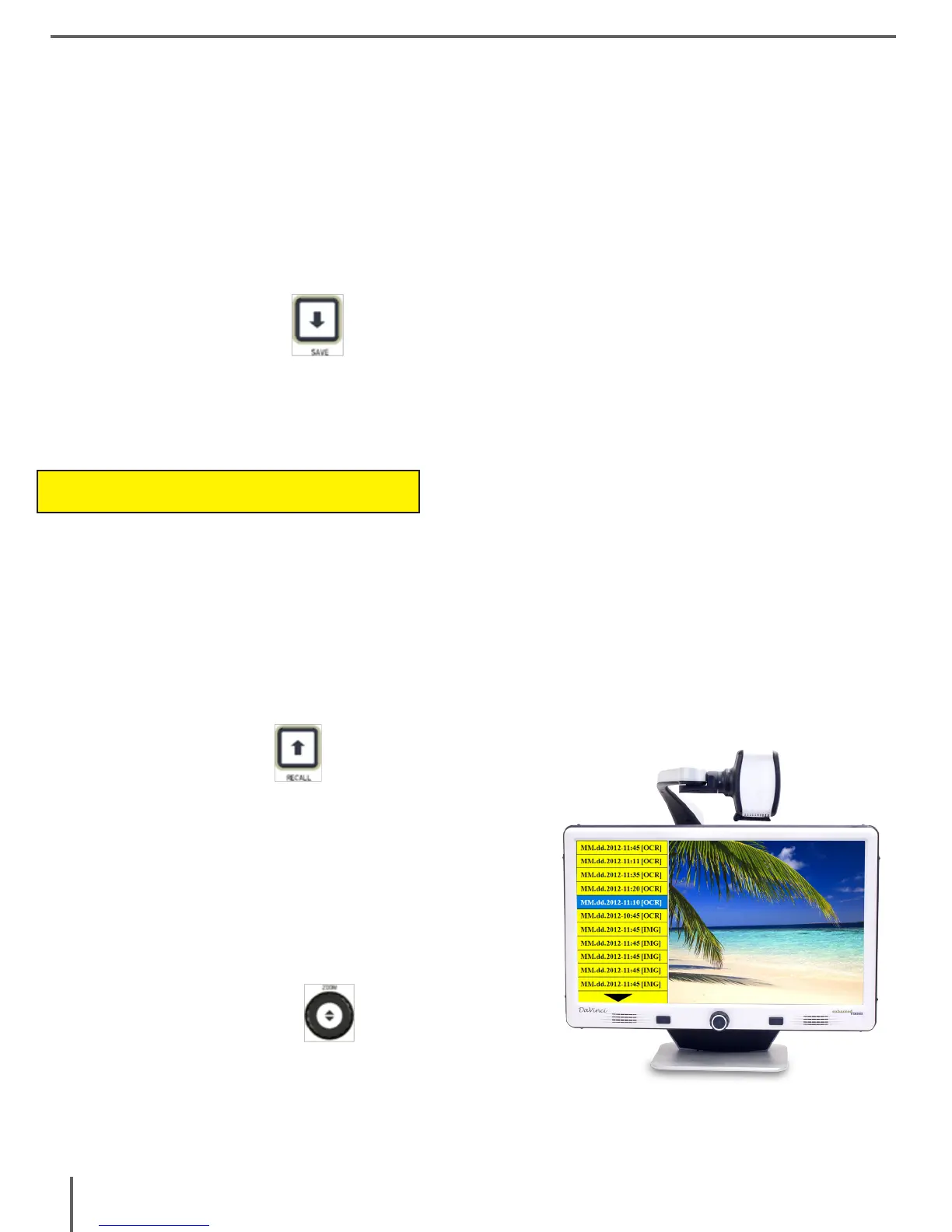
2.The DaVinci will enter the Recall Image menu
displaying a list of available images.
If the storage space is empty, the DaVinci will
display “NO FILES” with a voice prompt (if
enabled).
3. Use the Zoom Wheel on the DaVinci
Front Panel or DaVinci Control Console to navi-
gate through the list of images. When an image
file on the list is highlighted, it will display a preview
of that image on the right side of the screen.
saVing anD reCalling images saVing anD reCalling images



 To Next Page