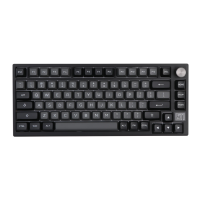
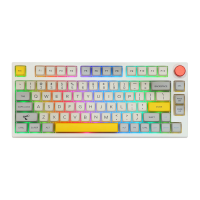
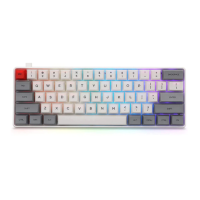
CHANGE RGB EFFECTS
Pressing Fn + Del at the same time allows you to switch the RGB effect of
your TH68 Keyboard.
Bluetooth Wired
WIRED OR WIRELESS
USB-C
2.4Ghz
Find the Connectivity Mode switch in the back of the keyboard and slide it to the left, right or
center to change the connection method.
PAIRING BLUETOOTH
FN + QIWIE Long Press for 3 seconds to pair Bluetooth device
FN + QIWIE Short Press to switch to last paired device
Turn the switch to the right to activate the Bluetooth pairing mode. Long press FN+Q/W/E to
start pairing. While pairing, the LED will flash quickly. After successfully pairing, the LED will stay
on for around 10 seconds. If the connection is failed in 30 seconds, the LED will be off and the
keyboard will be in sleep mode.
PAIRING WIRELESS 2.4GHz
FN+R
Long Press for 3 seconds to pair Wireless 2.4GHz
Turn the switch to the left to activate the 2.4G pairing mode. Insert the receiver into your
computer, you will see the LED flash quickly. After successfully paring, the LED will stay on for
around 10 seconds. If the connection is failed in 30 seconds, the LED will be off and the keyboard
will be in sleep mode.
PAIRING WIRED MODE
Keep the switch staying in the middle, and connect the keyboard with your device via a USB-C
cable.
BLUETOOTH a WIRELESS 2.4GHZ SPECIFICATIONS
Operating system should be windows 8 or above to support the Bluetooth function. The device
should support Bluetooth 5.0 or a higher version to use Bluetooth 5.0.
KEYBOARD WAKE UP/ SLEEP
If your keyboard is sleeping press any key to wake it up, it will remember the last device connected.


 To Next Page