52
R4C479
short.bk Rev_C
A5 size MAINT.FM
2/15/00 Pass 2
L
Proof Sign-off:
M.Otsuka _______
N.Nomoto _______
editor name _______
For Macintosh users
1. Make sure that the printer is on, and the
B
black and
A
color
ink out lights are off.
2. Click the Utility icon button in the Print or Page Setup
dialog box, then click the
Head Cleaning
button.
3. Follow the on-screen instructions.
Using the control panel buttons
Follow the steps below to clean the print head using the control
panel buttons.
1. Make sure that the
P
power light is on and that both the
B
black and
A
color ink out lights are off.
Note:
If the
B
black or
A
color ink out light is flashing or on, you cannot
clean the head.
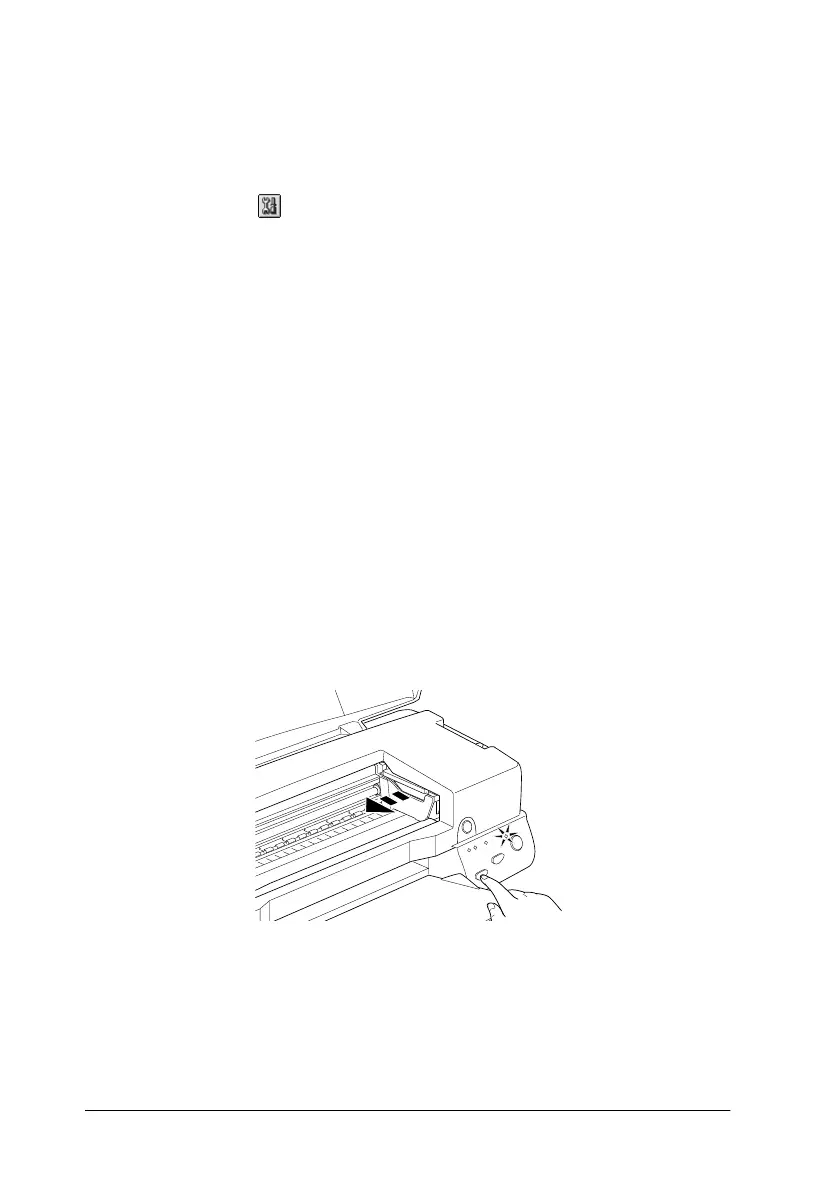
2. Hold down the
R
cleaning button for three seconds.
The printer starts cleaning the print head and the
P
power
light begins flashing. Print head cleaning takes about thirty
seconds to complete.



 To Next Page