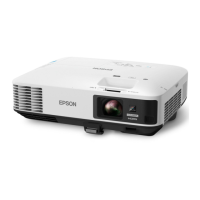
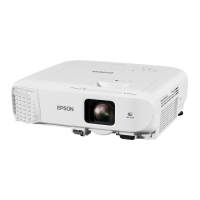
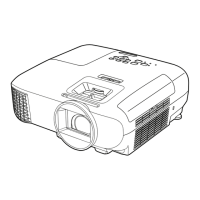
Epson 2250U Projector Instructions
Works with iPhone/iPad/Android Phone/Pad/Mac Computer/Windows Computer!
Wireless Connection !
(Flip sheet over for Cable)!
On Your Device
1. Connect to “Juneau Yacht Club” wireless network "
using password: jacksparrow!
1. Download “Epson iProjection” app as follows"
Windows Computer: https://ftp.epson.com/drivers/iProj_4.01.exe"
Mac Computer: https://ftp.epson.com/drivers/iProj_4.01.dmg"
For iPhone/iPad or Android phone, scan QR code at bottom of page!
2. Install and Open “Epson iProjection” app!
On Projector
1. Plug in Power Cord to Projector !
2. Open Shutter (A)!
3. Press “On/Off” button (B)!
4. Adjust Focus & Tele (C) & center image on screen!
5. Change Source (if necessary) to LAN!
On Your COMPUTER (View on projected image)
1. If not already on “Advanced Connection Mode”, click on that option!
2. Click box by “JYCProjector” and then “Connect” at bottom of window!
3. Screen should be mirrored. Use your device to manipulate presentation!
-OR-!
On Your PHONE/PAD
1. In Epson iProjection, click on “JYCProjector” if it appears!
2. If it doesn’t appear, click “QR Code Connection” & aim camera at screen image!
3. Click on “Mirror device screen”, “Start mirroring”, “Start Broadcast”!
4. Screen should be mirrored. Use your device to manipulate presentation!
"
To Stop
1. On COMPUTER, in Epson iProjection app, click on “Stop” , then click on “Leave”!
2. On PHONE/PAD, in Epson iProjection app, click on Disconnect !
3. On PROJECTOR or Remote, Click “On/Off” button (B)gain!
4. Close lens Shutter (A)!
5. Unplug power cord, let projector cool. Place projector, remote, & cord in bag.!
"
# # # # # # !

 Need help?

 To Next Page
 General