Home > How to Scan
Assigning a Function to the Scanner Button (for Windows)
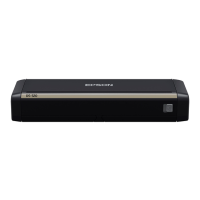
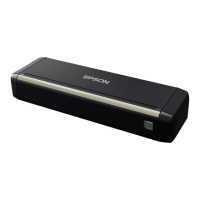
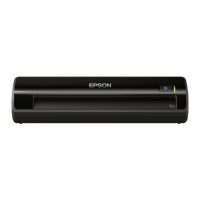
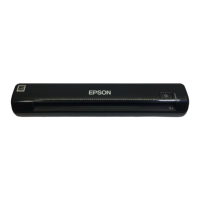
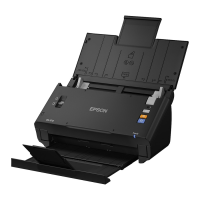
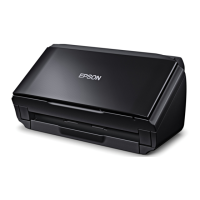
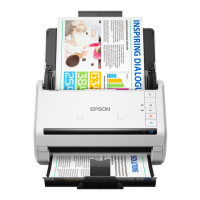
Using Document Capture Pro, you can set a specific scanning function to occur when you press the button on the
scanner.
Select or Start > All Programs or Programs > Epson Software > Document Capture Pro.
Click Settings.
Click Add in the Job Management window.
In the Job Settings window, enter a Job Name and select settings on the Scan and Output tabs as necessary.
Then select a Destination and click OK. For more information on settings in the Job Settings window, click Help.
Click Event Settings in the Job Management window.
Select your job name from the Start button list, then click OK.
Click OK in the Job Management window.



 To Next Page