TM-P80 User’s Manual 5
Part Names
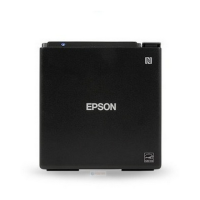
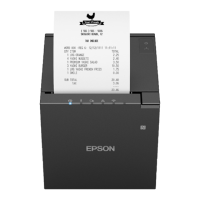
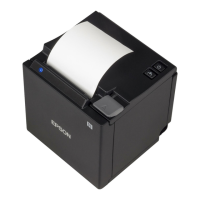
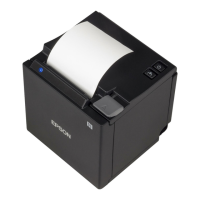
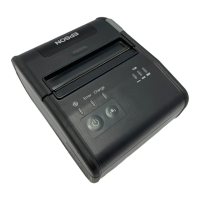
See Illustrations A.
NFC Tag
A mark is printed here to indicate the position of the NFC tag. To establish
communication with an NFC device, bring the device close to this mark.
For the functions using the NFC tag, refer to Technical Reference Guide.
Control Panel
The control panel (B) has the Power LED, Error LED, Charge LED, Battery LED,
Feed button, and Power button.
Control Panel (LEDs and Buttons)
Power LED (Blue)
Error LED (Orange)
Charge LED (Orange)
Battery LED (Blue)
Power button
Press this button to turn the power on or off. To turn the power off, hold the
button for more than 2 seconds.
Feed button
Press this button to feed paper.
Power LED Meanings
On Power is on.
Off Power is off.
Flashing The printer is powering-off and powering-on.
Printer Condition Error LED Meanings
Power On On Printer is offline (paper out, power-on initialization, roll
paper cover open, the remaining battery charge is at E
level).
Off Printer is in normal operation.
Flashing Printer is in error.
Printer Condition Charge
LED
Meanings
Power On and
battery
installed
On The battery is being charged.
Off The battery is fully charged.
Flashing There is abnormality in battery charging.
Printer Condition Battery
LED
Error
LED
Battery
charge status
Meanings
Power On 3 LEDs On Off Level H -
2 LEDs On Off Level M -
1 LED On Off Level L You c-an continue printing, but
replacement or charge of the
battery is recommended.
1 LED
flashing
Off Level S Replace or charge the battery.
3 LEDs Off On Level E The printer goes offline and printing
is no longer possible.





 To Next Page