EasyManua.ls Logo

Epson Pro L1060W - User Manual

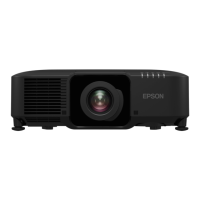
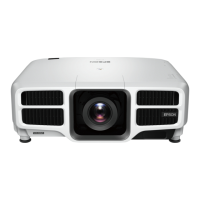
Epson Pro L1060W
6 pages
Print Icon
To Next Page IconTo Next Page
Loading...
Turn the projector on
Illuminate buttons temporarily
EPSON, Instant Off, and Quick Corner are registered trademarks and EPSON Exceed Your Vision is a registered logomark of Seiko Epson
Corporation.
PrivateLine is a registered trademark of Epson America, Inc.
Mac is a trademark of Apple Inc., registered in the U.S. and other countries.
Windows is a registered trademark of Microsoft Corporation in the United States and/or other countries.
HDBaseT and the HDBaseT Alliance logo are trademarks of the HDBaseT Alliance.
General Notice: Other product names used herein are for identification purposes only and may be trademarks of their respective owners.
Epson disclaims any and all rights in those marks.
This information is subject to change without notice.
© 2019 Epson America, Inc., 7/19
CPD-57480
Printed in XXXXXX
Automatically adjust
computer image
Change the aspect ratio
Open menus assigned by user
Zoom in or out on part of an image
Correct image distortion
Save and apply presets
Port to connect remote
control cable
Control one or multiple projectors
Hold down and use numeric keys
to select projector to control
Hold down and use numeric keys
to enter numbers
Select color modes
Turn the projector off
Select a source
Navigate through menu settings;
move pointer
Display a test pattern
Adjust the image position
Open projector menus
Select menu settings;
left mouse button
Temporarily turn off
display and audio
Move to next or previous
image when projecting from a
computer over the network
Control volume
Cancel current operation
or return to previous menu;
right mouse button
Display the Info menu
Switch image sources
Freeze the image
Split the screen between
two inputs
Adjust the focus
Change the image size
Reset menu settings to their
default value
Display the Home screen
Remote Control Map
Quick Reference
Pro L1060W/L1060WNL/L1070W/L1070WNL/L1060U/L1060UNL/
L1070U/L1070UNL/L1075U/L1075UNL
This Quick Reference card gives brief instructions on connecting your
projector and using common features. For details, see the online User’s
Guide.
IMPORTANT: Before using this product, make sure you read these
instructions and the safety instructions in the online User’s Guide.
Stereo mini jack cable
5BNC-to-VGA cable
VGA-to-component cable
VGA cable
HDMI cable
Mini-to-RCA cable
Ethernet cable
DVI cable
BNC-to-component cable
*413808300*
*413808300*
Question and Answer IconNeed help?

Do you have a question about the Epson Pro L1060W and is the answer not in the manual?

Overview

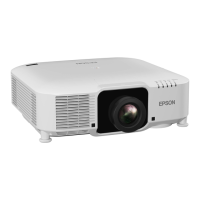
This document provides a quick reference guide for the Epson Pro L1060W, L1060WNL, L1070W, L1070WNL, L1060U, L1060UNL, L1070U, L1070UNL, L1075U, and L1075UNL projectors. It covers basic setup, operation, and troubleshooting, along with a remote control map and important legal notices.

Function Description:

These Epson Pro L-series projectors are designed for professional use, offering various connectivity options and image adjustment features. They are capable of projecting images from multiple sources, including computers, video devices, and network connections. Key functionalities include turning the projector on/off, switching between image sources, adjusting image position and shape, zooming, focusing, and managing language settings. The projectors support advanced features like Edge Blending for creating seamless widescreen images from multiple projectors, H/V-Keystone, and Quick Corner® for image shape correction. The "Direct Power On" feature allows the projector to power on automatically when connected to power, while "Instant Off®" technology enables immediate shutdown without a cooling period.

Important Technical Specifications (Inferred from connections and features):

  • Connectivity:
    • Video Inputs: HDMI (HDCP2.2), HDBaseT (HDCP2.2), DVI-D, VGA (via VGA-to-component or 5BNC-to-VGA), BNC (component), Mini-to-RCA.
    • Network: LAN (Ethernet), HDBaseT.
    • Audio Inputs: Audio 1, Audio 2, Audio 3.
    • Audio Outputs: Audio Out.
    • Control: RS-232C, Remote control port.
    • Service: Service port.
  • Image Features:
    • Aspect Ratio Adjustment: Supports changing the screen's aspect ratio to match the displayed image.
    • Image Positioning: Lens Shift (horizontal and vertical), adjustable feet for leveling.
    • Image Correction: H/V-Keystone, Quick Corner® for shape correction, Edge Blending for multi-projector setups.
    • Zoom and Focus: Motorized zoom and focus adjustments.
  • Compatibility:
    • HDCP2.2: Supported on HDMI and HDBaseT inputs.
    • Crestron Connected: Indicates network control compatibility.
    • HDBaseT: Supports long-distance transmission of video, audio, and control signals over a single cable.

Usage Features:

  • Turning On/Off:
    • Press the On button on the projector or remote. The status light turns blue when ready.
    • Direct Power On: If enabled, the projector turns on automatically when plugged in or when the power outlet switch is flipped.
    • Press the Standby button to turn off. A confirmation message may appear, requiring a second press.
    • Instant Off®: Allows immediate unplugging or turning off without a cooling period.
  • Switching Image Sources:
    • Use the Search button or specific source buttons (HDMI, HDBaseT, DVI-D, Computer, BNC, LAN, SDI) on the remote.
    • Use the Source Search button on the projector.
  • Menu Navigation:
    • Press the Menu button to access the projector's menu system.
    • Use arrow buttons to navigate and the left mouse button (or Enter/Select) to select.
    • Press Esc to exit menus or finish adjustments.
  • Language Settings:
    • Access via Menu > Extended > Language.
    • Select desired language (default is English).
  • Lens Type Selection:
    • Access via Menu > Extended > Operation > Advanced > Lens Type.
    • If greyed out, the projector has automatically detected the lens.
  • Screen Type Adjustment:
    • Access via Menu > Extended > Display > Screen > Screen Type.
    • Set to match the screen's aspect ratio.
  • Image Position Adjustment:
    • Press the Lens Shift button (remote) or Lens button (projector).
    • Use arrow buttons to adjust. Press Esc to finish.
    • Adjustable feet on the projector for leveling.
  • Zoom and Focus:
    • Press Zoom or Focus button on the remote.
    • Press the Lens button repeatedly on the projector until the adjustment screen appears.
    • Use arrow buttons to adjust. Press Esc to finish.
  • Image Shape Correction:
    • Utilizes H/V-Keystone and Quick Corner® features (details in the online User's Guide).
  • Other Image Adjustments:
    • Includes color, position, and Edge Blending (for multi-projector setups). Refer to the online User's Guide for details.
  • Remote Control:
    • Dedicated buttons for power, source selection, aspect ratio, test patterns, freeze, split screen, lens adjustments (shift, zoom, focus), distortion correction, menu navigation, volume, e-zoom, info display, and numeric input.
    • Can control one or multiple projectors.
    • Port for connecting a remote control cable.
  • Troubleshooting:
    • No Signal: Check status light (blue and not flashing), lens cover, cable connections. Change image source.
    • Notebook Display Issues: On Windows, press the function key (e.g., Fn + F7) to display on an external monitor (CRT/LCD icon). On Mac, go to System Preferences > Displays > Arrangement and check Mirror Displays.
  • Support:
    • Online User's Guide for detailed information.
    • Internet support via epson.com/support (U.S.) or epson.ca/support (Canada) for software, utilities, manuals, FAQs, and troubleshooting.
    • Telephone support (PrivateLine® Service) available during specific hours.
    • Purchase supplies and accessories (e.g., air filter V13H134A46) from authorized resellers or online at epsonstore.com (U.S.) or epsonstore.ca (Canadian).

Maintenance Features:

  • Air Filter: The document mentions the availability of an air filter (V13H134A46) for purchase, implying regular maintenance for cleaning or replacement to ensure optimal projector performance and longevity. Specific instructions for air filter maintenance would be found in the online User's Guide.

Epson Pro L1060W Specifications

General IconGeneral
BrandEpson
ModelPro L1060W
CategoryProjector
LanguageEnglish

Related product manuals