EasyManua.ls Logo

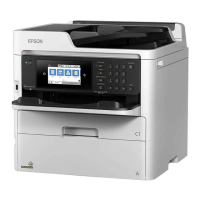
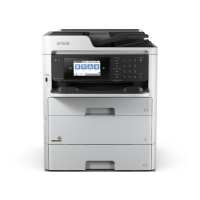
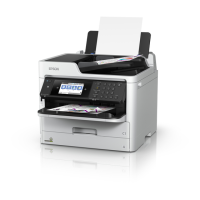
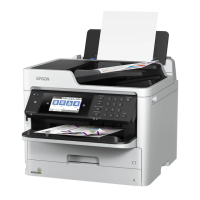
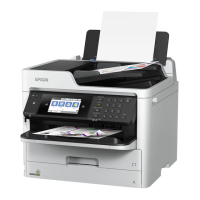
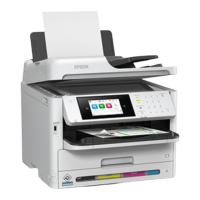
Epson WF-C579R - User Manual

Epson WF-C579R
4 pages
Print Icon
To Next Page IconTo Next Page
Loading...
Start Here
Note: Make sure the ink pack is fully inserted and level with the
top of the ink pack tray.
6 Insert the ink pack tray into the printer. Repeat steps 2 to
6 for the other ink packs.
Note: The ink packs are keyed to t into the correct color slot.
If you cannot insert the ink pack tray all the way, do not force
it. Make sure the ink pack color matches the color slot on the
printer.
7 Close the ink pack tray cover and lock it.
8 Select OK on the LCD screen to start charging the ink.
Ink charging takes approximately 9 minutes. A message
appears when ink charging is complete.
Caution: Do not unplug or turn o the product, raise the scanner
unit, or open the front cover while the product is charging or you’ll
waste ink.
4
Load paper
See the online User’s Guide for information about loading
capacity, available paper types and sizes, loading envelopes,
and using the rear paper feed slot or ADF.
1 Make sure the product is done charging the ink, then pull
out the paper cassette.
IMPORTANT: Before using this product, make sure you read these
instructions and the safety instructions in the online User’s Guide.
Note: This printer is designed for use with Epson
®
ink packs
only, not third-party ink. For important ink information, visit
www.latin.epson.com/tintaepson or see your printer box.
Important Safety Instructions: When using telephone equipment, you
should always follow basic safety precautions to reduce the risk of fire,
electric shock, and personal injury, including the following:
Do not use the Epson product near water.
Always keep this guide handy.
Avoid using a telephone during an electrical storm. There may be a
remote risk of electric shock from lightning.
Do not use a telephone to report a gas leak in the vicinity of the leak.
Caution: To reduce the risk of fire, use only a No. 26 AWG or larger
telecommunication line cord.
1
Unpack
Warning: The product is heavy and should be lifted and moved by
two people.
1 Remove all protective materials from the product.
Note: Keep the two protective pieces shown after removing them
from inside the product. You will need them if you transport your
product. See your product’s online User’s Guide for transportation
instructions.
2 Lift up the scanner unit and remove all protective materials
from inside the product, then close the scanner unit.
3 If your product has an additional paper cassette unit, place
the product on the included paper cassette unit as shown
and attach the included sticker.
4 Insert the output tray, then set it down gently.
2
Turn on and configure
1 Connect the power cord to the back of the product and to
an electrical outlet.
Caution: Do not connect to your computer yet.
2 Turn on the product.
Note: If an error code appears, turn o the product and check that
no protective material has been left inside the product.
3 Select your language, country, and time on the LCD screen.
Note: You can change these settings later using the product’s
control panel. For more information, see the online User’s Guide.
3
Install ink supply units
(ink packs)
Note: The included initial ink packs are designed for reliable printer setup
and cannot be used as replacement ink packs or resold. After setup, the
remaining ink is available for printing.
Caution: Keep the ink packs out of the reach of children and do not
drink the ink.
1 Unlock and open the ink pack tray cover.
2 Press an ink pack tray to release it, then pull the tray out.
3 Remove and discard the protective piece from the ink pack
tray.
4 Shake an ink pack 10 times, then remove it from the
packaging.
Note: Do not touch the green chip on the ink pack.
5 Move the handle forward, place the ink pack into the ink
pack tray, then move the handle back to its original position.
WF-C579R
4141509 Rev.0
1-F K

Question and Answer IconNeed help?

Do you have a question about the Epson WF-C579R and is the answer not in the manual?

Overview

This document describes the setup, usage, and maintenance of the Epson WF-C579R printer.

Function Description:

The Epson WF-C579R is a multifunction printer designed for office use, capable of printing, scanning, and faxing. It is designed to work exclusively with genuine Epson ink packs, ensuring reliable performance and print quality. The printer supports various connectivity options including wireless, wired (Ethernet), and direct USB connections, making it versatile for different network environments. It also supports mobile printing solutions like Epson iPrint, Epson Connect, and direct printing from Android devices, enhancing its usability in modern work settings. The device is designed for high-volume printing with its ink pack system, which offers both standard and high-capacity options.

Important Technical Specifications:

  • Ink System: Utilizes Epson ink packs (T01C120/T01D120 Black, T01C220/T01D220 Cyan, T01C320/T01D320 Magenta, T01C420/T01D420 Yellow). These are designed for reliable setup and subsequent printing.
  • Connectivity:
    • Wireless connection (2.4 GHz networks only).
    • Wired network connection (Ethernet cable required, not included).
    • Direct USB connection (USB cable not included).
    • Fax line connection (No. 26 AWG or larger telecommunication line cord recommended).
  • Mobile Printing: Supports Epson iPrint (for iOS and Android), Epson Connect, and direct printing from Android (v4.4 or later) devices. May require Epson Print Enabler or Mopria Print Service app.
  • Software/Drivers: Standard software package available for download. PCL and PostScript drivers are also available.
  • Power: Connects to an electrical outlet via a power cord.
  • Physical: The product is heavy and requires two people for lifting and moving. It can be expanded with an additional paper cassette unit.
  • Ink Charging Time: Approximately 9 minutes for initial ink charging.

Usage Features:

  • Initial Setup:
    1. Unpacking: Remove all protective materials, including those inside the scanner unit. Keep two specific protective pieces for future transportation.
    2. Assembly: If applicable, place the printer on the additional paper cassette unit and attach the included sticker. Insert the output tray gently.
    3. Power On: Connect the power cord to the printer and an electrical outlet. Turn on the product.
    4. Initial Configuration: Select language, country, and time on the LCD screen.
    5. Ink Pack Installation: Unlock and open the ink pack tray cover. Press an ink pack tray to release it, pull it out, remove and discard the protective piece. Shake each ink pack 10 times, remove from packaging, and insert into the ink pack tray, ensuring it's fully inserted and level. The ink packs are keyed to fit specific color slots. Close and lock the ink pack tray cover. Select OK on the LCD to start ink charging.
    6. Paper Loading: Pull out the paper cassette. Slide side edge guides out and set the front edge guide to the paper size. Insert paper glossy or printable side down, ensuring it's under the arrow mark and against the front edge. Slide edge guides against the paper (not too tightly). Insert the cassette flat and pull out the output tray extension. Select paper settings on the control panel.
    7. Fax Line Connection: Connect a phone cord to a telephone wall jack and to the LINE port on the product.
  • Software Installation:
    1. Ensure the product is NOT CONNECTED to the computer before installing software.
    2. Download and run the software package from the Epson support website.
    3. Follow on-screen instructions. When prompted for connection type, choose Wireless, Direct USB, or Wired network connection and follow specific instructions for each.
  • Troubleshooting:
    • Network Setup Issues: Print a network connection report, verify SSID, restart router, ensure 2.4 GHz network is enabled, unblock firewall alerts, and confirm correct network password/passphrase.
    • Print Quality Issues: Run a nozzle check and clean the print head if lines or incorrect colors appear.
    • Dark Screen: Ensure the product is on; touch the screen or press any button to wake it from sleep mode.
    • Printer Not Found (USB): Ensure the product is securely connected via USB.
    • Error Codes: If an error code appears during initial setup, turn off the product and check for any remaining protective material inside.
  • Safety Precautions:
    • Do not use near water.
    • Avoid using the telephone during electrical storms.
    • Do not use the telephone to report a gas leak.
    • Keep ink packs out of reach of children and do not drink the ink.
    • Do not unplug or turn off the product, raise the scanner unit, or open the front cover during ink charging to avoid wasting ink.
    • Firmware updates are provided periodically to address security, performance, and bug fixes, and may affect third-party ink functionality.

Maintenance Features:

  • Transportation: Keep the two specific protective pieces removed during unpacking for use when transporting the product. Refer to the online User's Guide for transportation instructions.
  • Ink Pack Replacement: The document implies a process similar to initial installation for replacing ink packs, involving opening the tray cover, releasing the tray, and inserting a new pack.
  • Cleaning: The document mentions cleaning the print head as a solution for print quality issues.
  • User's Guide: Comprehensive online User's Guide available for Windows (desktop/Apps screen icon) and Mac (Applications/Epson Software/Guide icon), providing detailed information on loading capacity, paper types, sizes, envelopes, using the rear paper feed slot or ADF, and other maintenance aspects.
  • Technical Support: Access to drivers, manuals, FAQs, and contact information for Epson support via website and regional phone numbers.

Epson WF-C579R Specifications

General IconGeneral
BrandEpson
ModelWF-C579R
CategoryPrinter
LanguageEnglish

Related product manuals