ESI GIGAPORT eX
7
2.3.1 Installation under Windows
The following text explains how to install GIGAPORT eX under Windows 10. If you use Windows
7, Windows 8 or Windows 8.1, the steps are basically the same. Do not connect GIGAPORT eX to
your computer before you install the driver – if you have connected it already, disconnect the cable
for now.
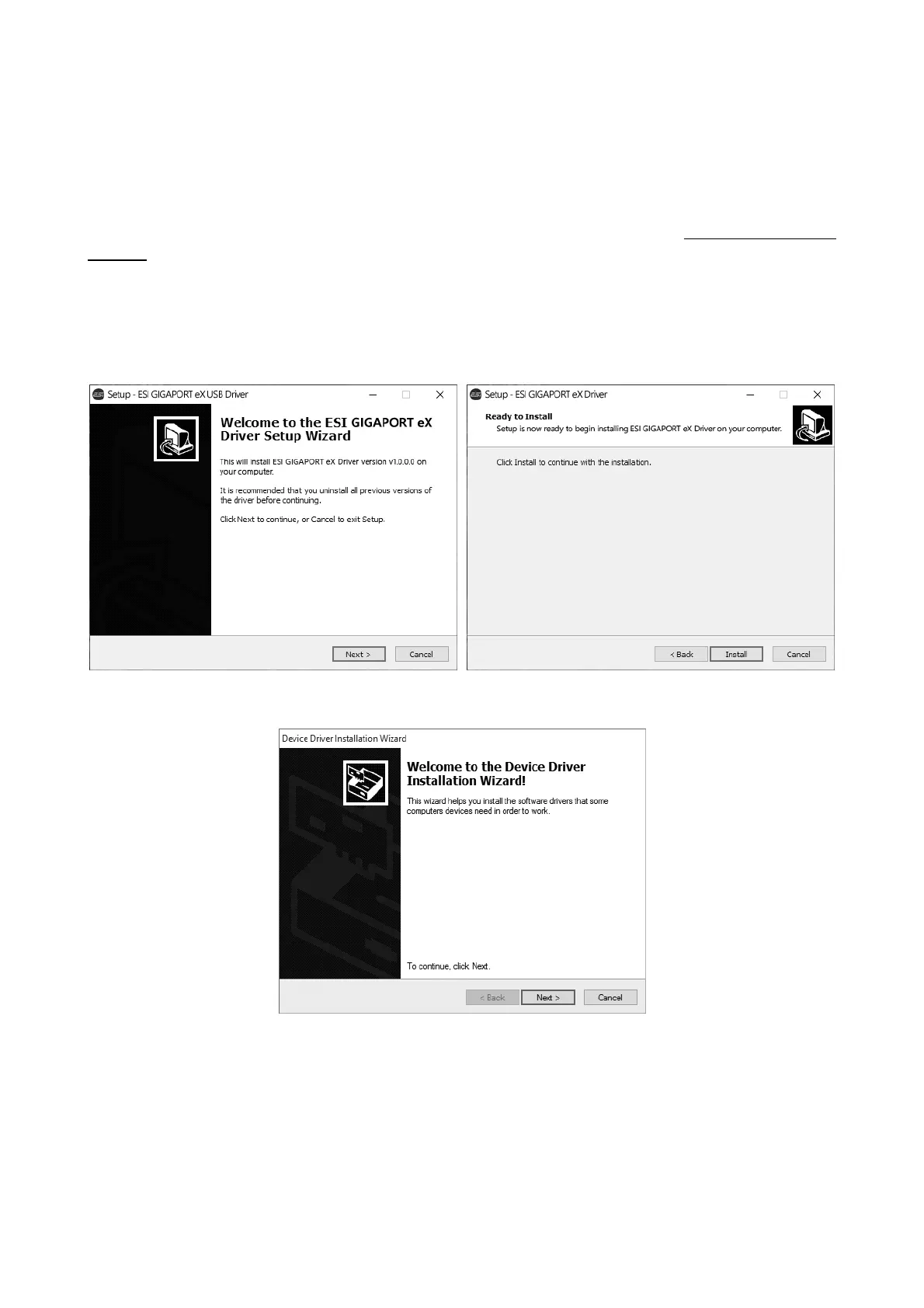
To start the installation, launch the setup program, which is an .exe file that is inside a recent driver
download from our website by double clicking on it. When launching the installer, Windows might
display a security message. Make sure to allow the installation. After that, the following dialog on
the left will appear. Click Next and then the dialog on the right will appear:
Now click Install. Files are now being copied. After some time an additional dialog will appear:
Confirm this by clicking Next. Again some files are being copied and in some cases you will be
prompted with a Windows Security message like this:


 To Next Page