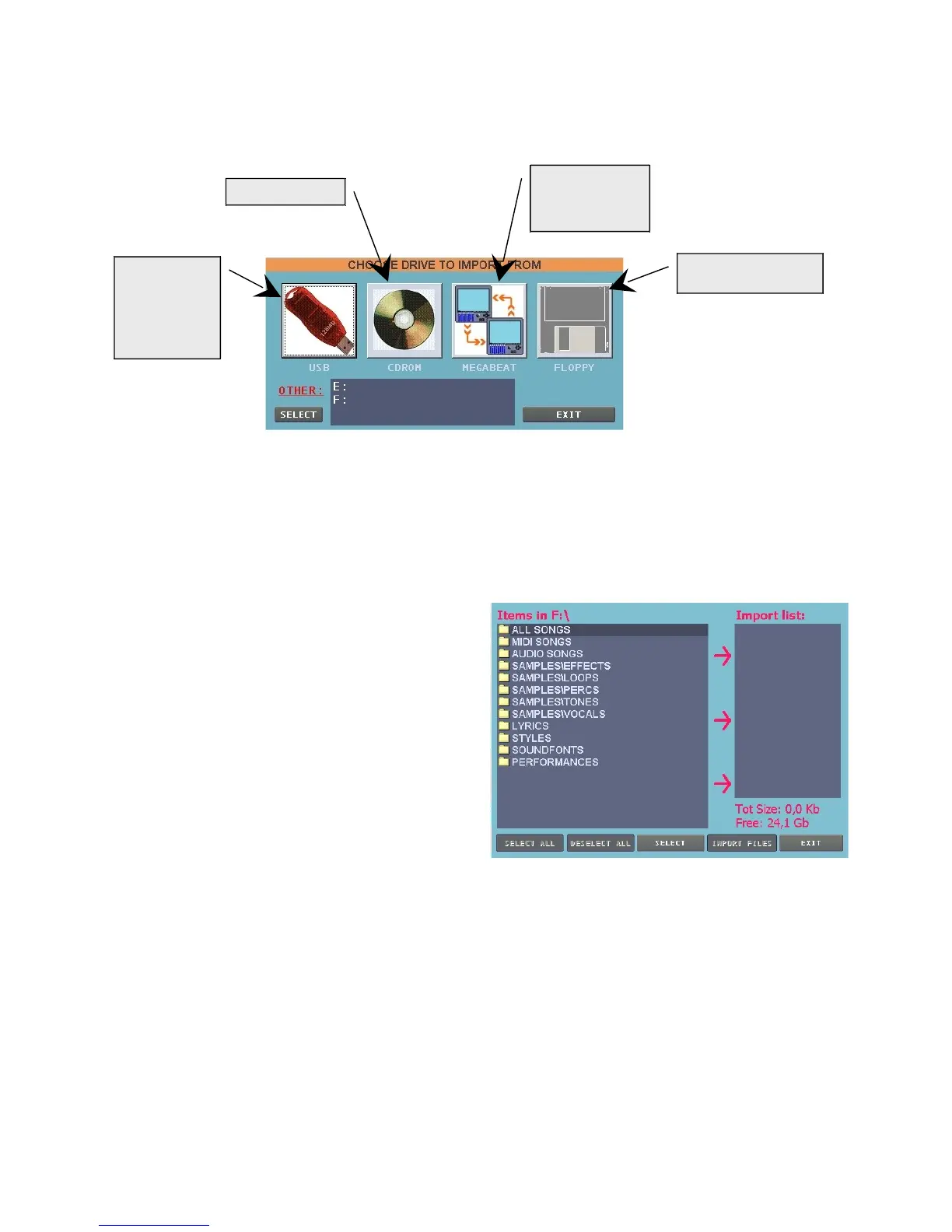
Choose the type of media you would like to import files from. You may choose from:
Please note that if one of these devices is connected, then it's symbol will be duly defined, while on
the contrary the symbol will be grey coloured.
If a CD/DVD Rom is connected, it will be also possible to import audio traces directly into
MatrixOne.
After choosing the driver to import from , it is
possible to choose the type of files to be
imported.
MatrixOne will analyse the device connected
viewing exclusively, in the next window, the type
of file previously selected.
Select the desired files or select them all through
the "SELECT ALL" key.
The selected elements will be listed in the "import
List" window on the right side of the window.
Press "IMPORT FILES".
The "PRELISTEN" key will allow you to listen to
the selected MIDI or Audio song before copying
it.
Once the import is finished, press “EXIT” to return to the "CONSOLE”.
B) To connect directly and exclusively to MatrixOne's website, in order to directly download
and install eventual available updates.
C) For display calibration, please note that display is duly calibrated by the manufacturer. Do
not carry out this operation if not strictly necessary.
D) To update the software if available in one of the devices connected.
E) Screensaver.
F) Perform this operation periodically, remembering that it may engage the unit for a long time.
This operation definitively eliminates the files that have been previously been cancelled,
freeing disk space and successively defragmenting the hard disk.


 To Next Page
 Loading...