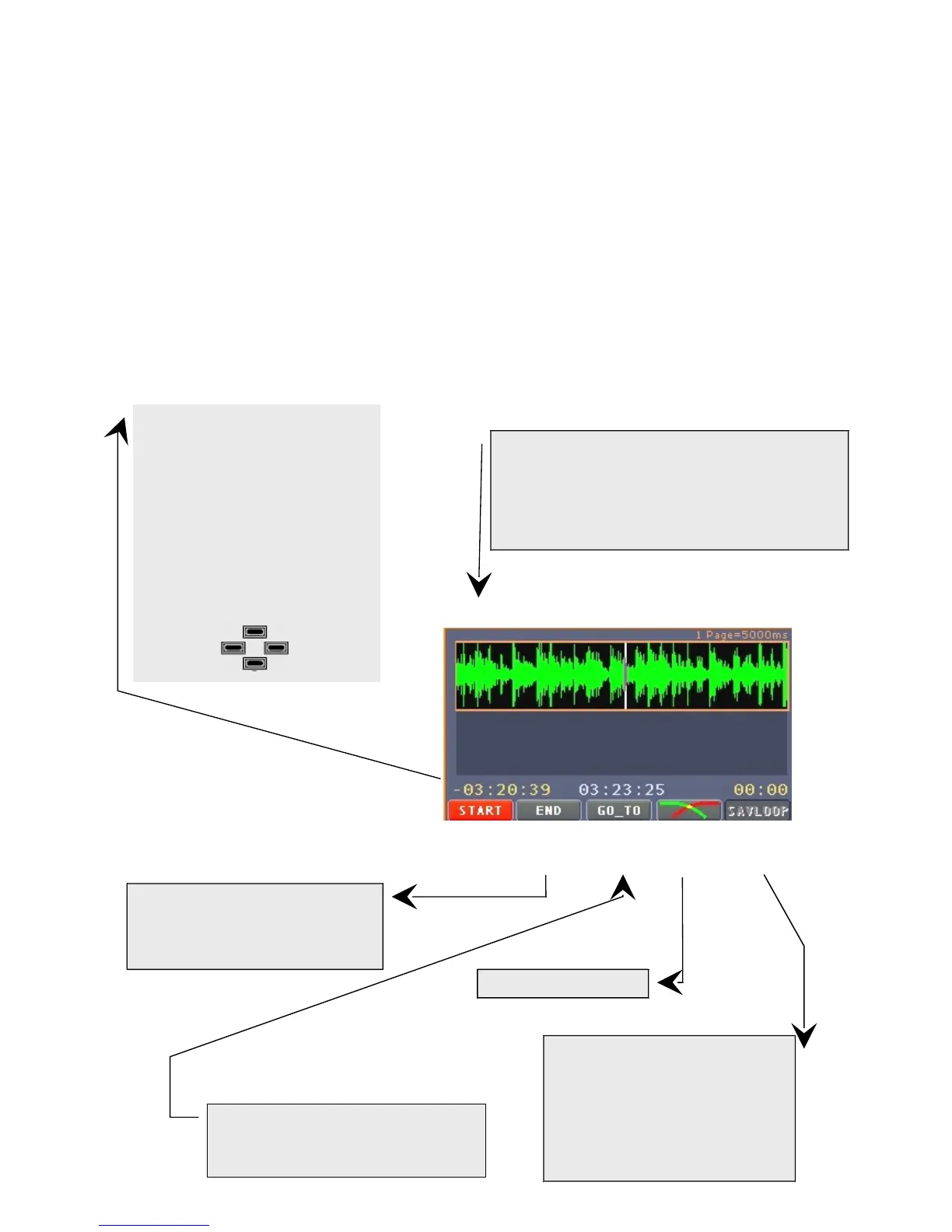
How to mark the initial cut:
During the song's performance
press, with slight anticipation, to
create the "START" point.
It may be possible to improve the
cut by means of the horizontal
zoom, selectable by the cursor
keys ▼▲
“CUE/CUT”
We would like to underline, beforehand, that within this function addressed to "cut" (and not only)
the songs per your needs, the view of both MIDI and Audio songs is represented by a waveform,
which is a very common issue for audio files, but represents a new concept for MIDI files.
A specific point within the MIDI file will not be, therefore, located by means of musical measures,
but graphically, through this model of waveform.
With a selected song (green), by pressing the "CUE/CUT" button, after the short message
"BUILDING WAVEFORM FROM FILE”, the window (usually assigned to group management) is
being replaced by the following window:
On top, the wave form. We advise, as in Audio
songs, to refer to the signal peak to identify a
specific point.
The signal peaks may be, with due context,
compared to the beginning of the beat, a quart, a
sixteenth, etc..
Function active only for Audio
songs. The song segment will be
automatically saved in the folder
SAMPLES LOOPS, where it will
be possible to select and load one
of the 9 pads available in the
SAMPLES section.
How to mark the final cut.
The instructions are the same as
the initial cut (START)
By pressing this key the cursor will
position itself on the selected cutting
point (red), “START” or “END”


 To Next Page
 Loading...