Troubleshooting
63
Chapter 5 Troubleshooting
5.1 Alarm check
During the operation of the robot, alarms that occur can be viewed using the teach pendant or
ESView.
Once an alarm occurs, the robot will stop its motion and the user will need to take necessary
actions to resolve the issue before resuming robot operation.
In the case of multiple alarms, only the information of the last alarm will be displayed in the
message prompt bar.
When an alarm occurs during the robot's motion, it will immediately stop its motion. The teach
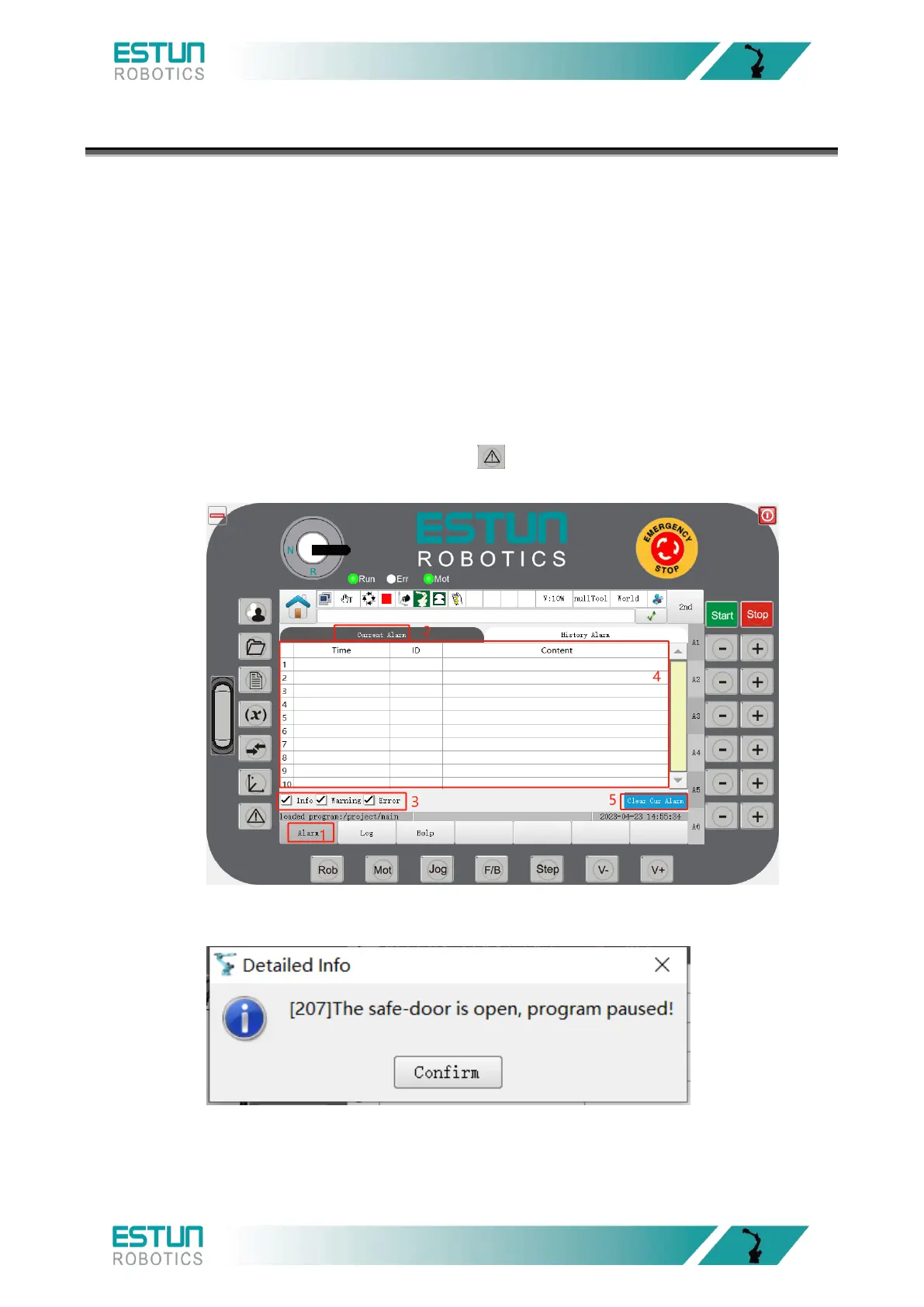
pendant will display the alarm icon, and users can access the System Log interface to view detailed
information about the alarm.
Step 1: Click on the "Log Management" tab or button on the Home page to enter the "Log
Management" page. Click the "Alarm" button below to view the current alarm information.
Step 2: Click on the "Content" of the current alarm to see detailed information such as
phenomenon, root cause analysis, and handling methods.
Step 3: If the current alarm has been confirmed as resolved, click the "Clear Current Alarm" button
below to clear the current alarm.
Step 4: Click on "Historical Alarms" at the top to access the "Historical Alarms" tab. Click the
"Retrieve Historical Alarms" button to get historical alarm information.



 To Next Page