14
English
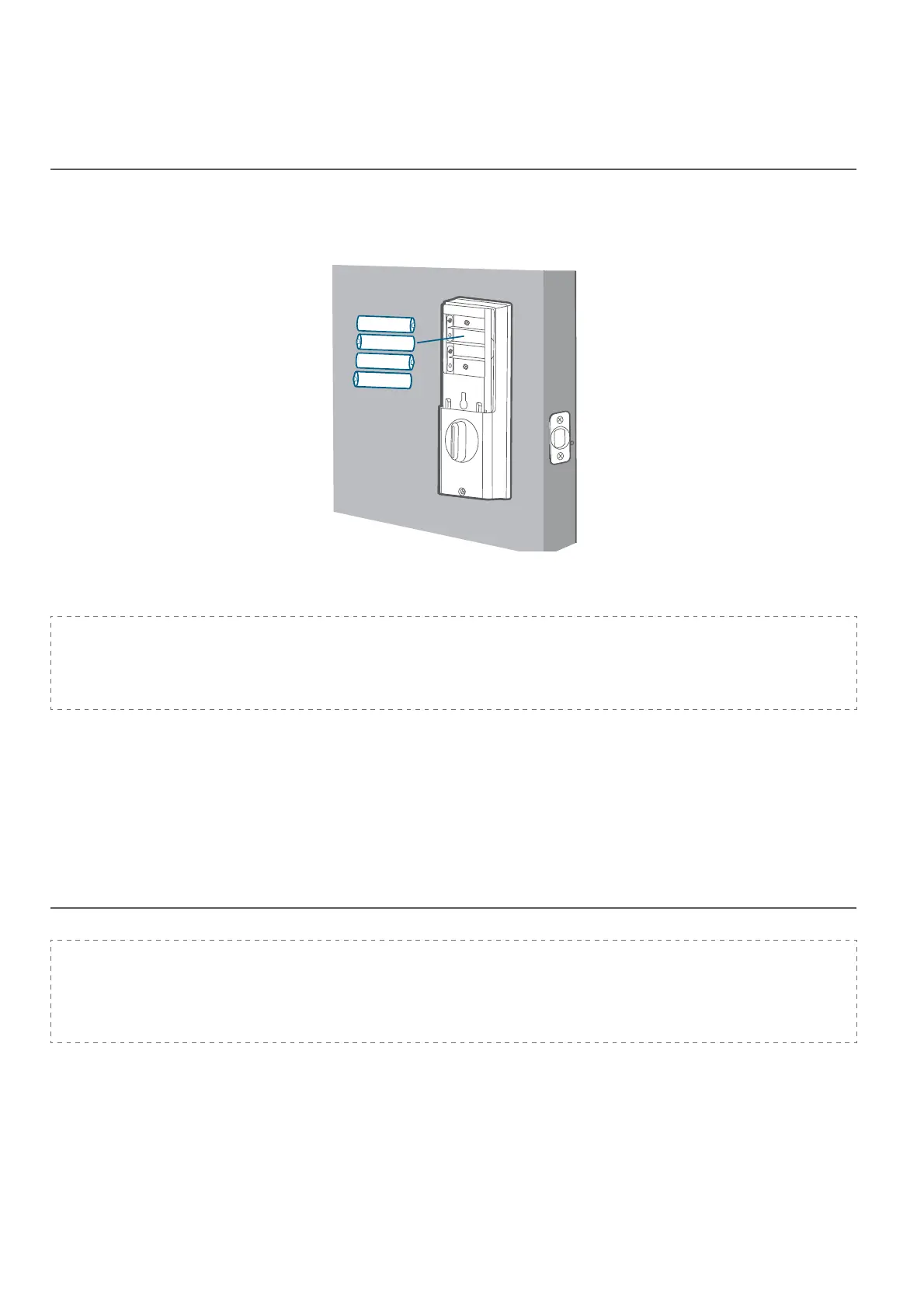
Step 6: Install Batteries
Insert four AA batteries into the battery compartment matching the polarity (+/-)
indicated.
You are all set! Follow the in-app instructions to set up the Smart Lock Wi-Fi.
Note:
Do not close the battery cover. This is to make sure you can scan the QR
code in order to access information about Smart Lock Wi-Fi, as well as easily
access the Setup button.
SETTING UP THE SMART LOCK WI-FI
Pair Your Phone with Smart Lock Wi-Fi
Note:
The lock will not lock automatically before the setup has completed. To avoid
being locked outside, pair your phone with the Smart Lock Wi-Fi and set an
access code for unlocking the door.
To pair your phone with Smart Lock Wi-Fi:
1. Scan the QR code on the back of the Smart Lock Wi-Fi to get Bluetooth information
of the Smart Lock Wi-Fi. Follow the on-screen instructions to complete the setup.


 To Next Page