EUM/OPS/MAN/13/730927
v3F e-signed, 15 April 2016
Ayecka SR1 DVB Receiver EUMETCast Setup Guide
Page 7 of 36
RED : Receiver #1 is not locked
Blinking RED :Receiver #1 is in lock process
Green: Receiver #1 is locked
4 CONFIGURATION AND MANAGEMENT OF THE SR1 RECEIVER
4.1 Install and Configure the USB to UART Bridge driver
The purpose of this section is to set up the communication from a Windows PC to the SR1 using the USB
interface.
The SR1 provides local configuration and management interface using Serial over USB, to use the Serial over
USB you must install the Virtual Com drivers, on the Client PC.
Before proceedings with the installation of the receiver, install the appropriate Serial over USB driver. You can
download the VCP Driver Kit at:
https://www.silabs.com/Support%20Documents/Software/CP210x_VCP_Windows.zip
To install the drivers:
Download the drivers and follow the installation instructions.
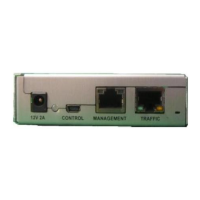
Connect the cables to the SR1 in the following order:
RF (use RF 1 from the Back Panel)
TRAFFIC
Management (USB port)
Power
Verify that the Power LED blinks between the Red and Green for ~15 seconds and then remains Green.
Go to “Device Manager” and verify that you can see “Silicon Labs CP210x USB Bridge (COM<n>)” then
configure it as follow:


 To Next Page