15
How to set up App, connect the device and use App
▪ Setting Up App
NOTES
1. The app supports iOS versions 13.0 and above and Android
versions 8.0 and above. The app is not available for use with
tablets.
2. This model does not support a WEP encrypted router.
3. The home wireless network name and password must contain
only letters, numbers and standard symbols.
4. The network accessing configuration of the robot requires a
wireless network of 2.4 GHz frequency range.
5. The robot must be connected to wireless network to enable
controlling the robot using the app. Once you have set up the
app and connected the robot to wireless network, the app
can be used to control the robot in wireless
network /2G/3G/4G/5G network environment.
6. If your home wireless network password is changed or the
you will need to reconnect the robot to wireless network
following the wireless network connection instructions.
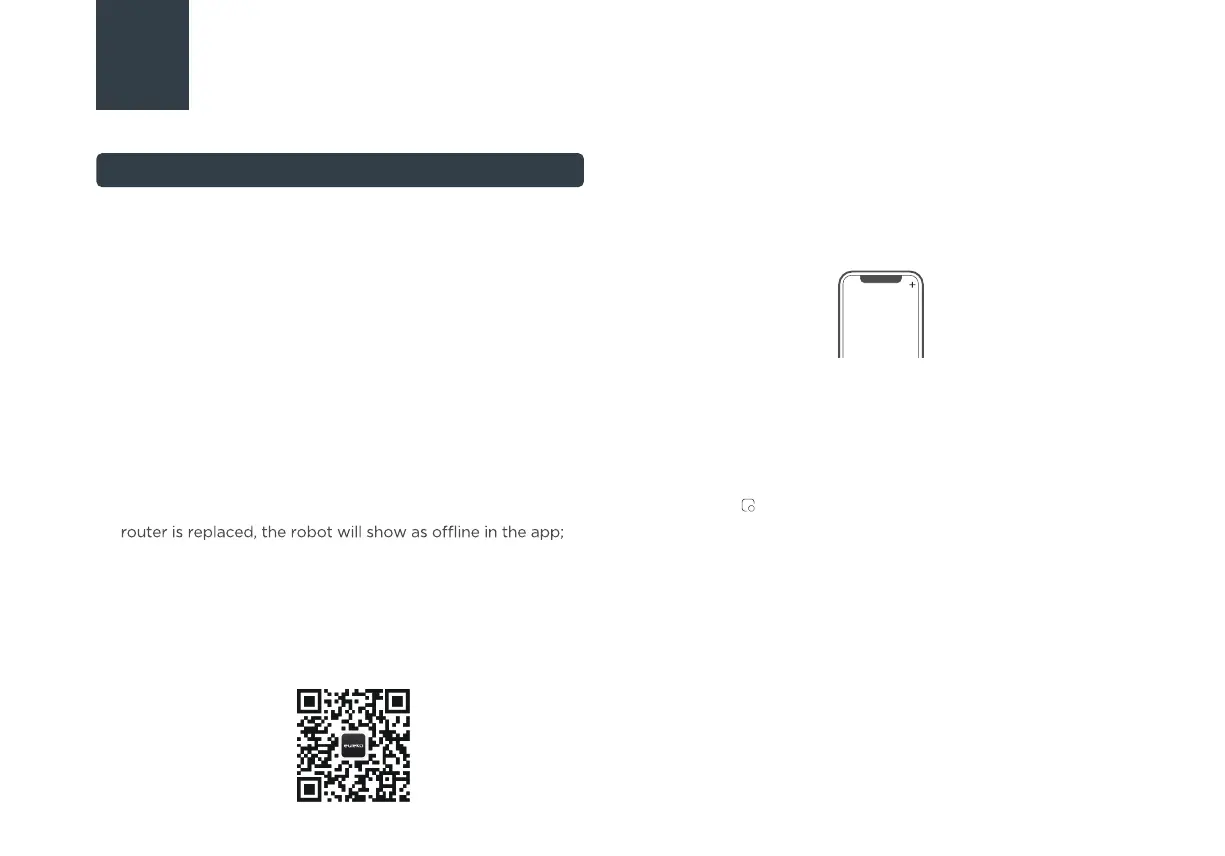
▪ Download the App
Scan the following QR code or search for eureka robot to
download the App. Follow the instructions in the app to create
a new account or login.
▪ Connect the Device
1. Connect your robot to the network that you plan to use for
operating the robot. Make sure the robot is placed within
good wireless network coverage.
2.
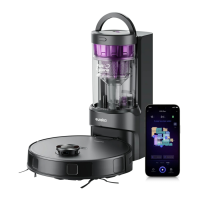
Connect your robotic vacuum to your wireless network. After
assembling and powering on the robotic vacuum, press and
hold the " " button for 3 seconds until a beep is heard. The
network indicator light should start flashing white. Follow
instructions on App for next steps.
▪ Add Device
Click “+” or "Add Device" in the App to add the device. Choose
E20 Plus.
Follow the instructions on the app and continue until the app
prompts that the connection is successful.
Setting Up App and Connecting the Device




 To Next Page