8e6b5250-532e-4fc8-bc8f-0be2f7ec7200 / DP1.0 / 2013-06-19 4 / 12 Eurolyser Diagnostica GmbH
The Tablet PC
The Eurolyser CUBE laboratory photometer is operated with a Tablet PC.
Connect the Tablet PC to the USB port of the plugged-in Instrument. Then turn on the Tablet PC.
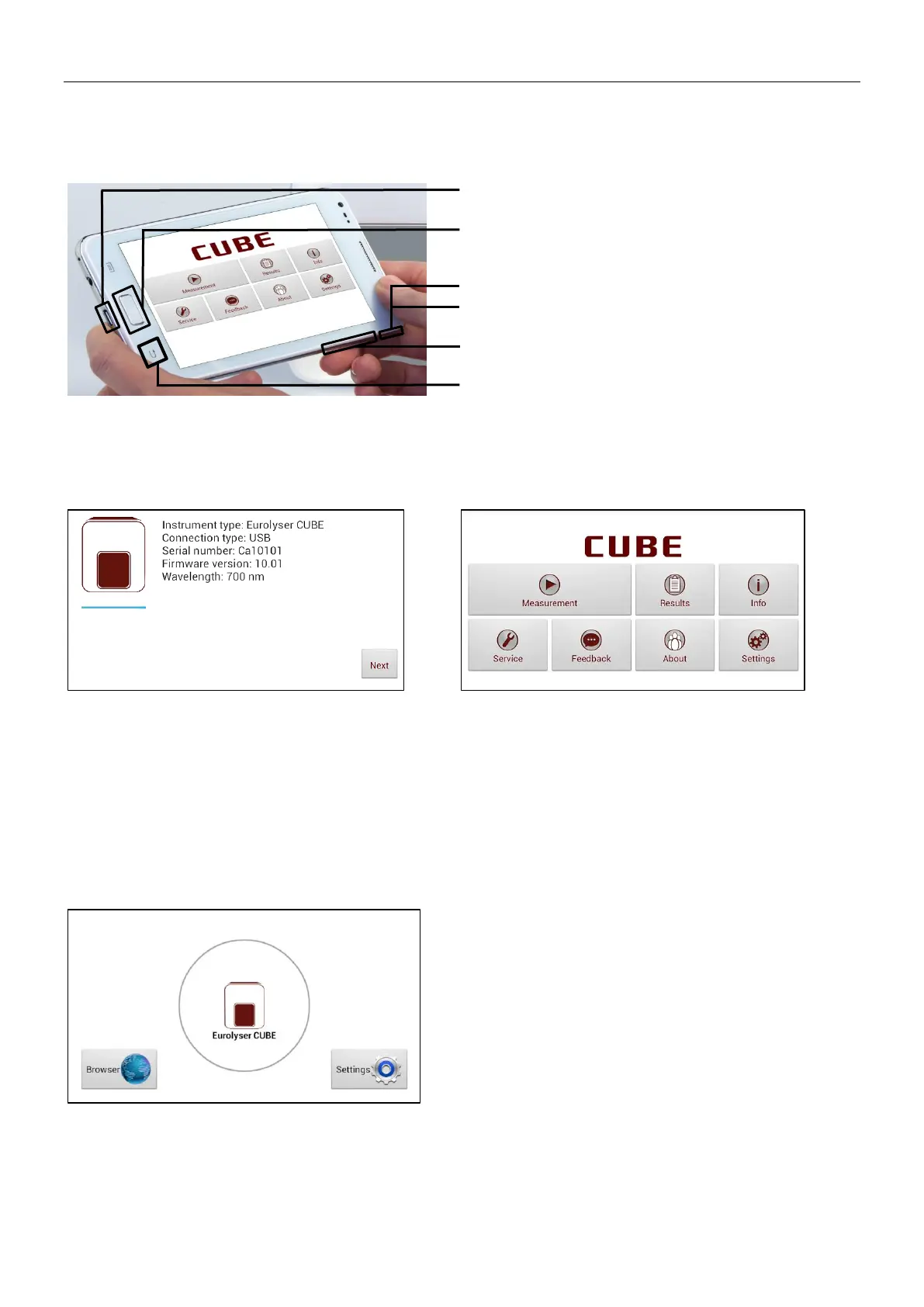
Tablet PC Buttons and Interface
Power Supply & USB Port
Home-Button: press to open the Launcher
see Eurolyser CUBE Launcher
On/Off switch: hold to turn the Tablet PC on/off
& Lock switch: press to lock or unlock the screen
Volume up/down buttons
Return-Arrow: press to undo an action or to return
to the previous screen
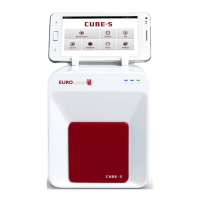
Starting/Operating the Tablet PC
The connection screen appears upon connecting
the Tablet PC with the CUBE Instrument.
Tap Next to continue.
The CUBE app starts and the main menu appears.
Note: while the Eurolyser CUBE Instrument is
warming up (indicated by the flashing green LED on
the front) the “Measurement” Button is grey and
inactive.
The Eurolyser CUBE Launcher
When the Tablet PC is not connected to the
analyzer or by pressing the Home Button the
Eurolyser CUBE Launcher appears:
Tapping Browser opens the Android web browser
Tapping Eurolyser CUBE starts the CUBE app
Tapping Settings opens the Android settings menu
Note: If the standard Android Desktop appears
instead, switch the Tablet PC off, back on, select
“CUBE Launcher” and confirm by tapping “Always”.


 To Next Page